Import formats
The following sections of Appendix B discuss the formats used by Safran Planner to import new/update existing Activities, Links, Resources, and Progress and Expended information.
General information
In addition to importing a complete project, Safran Planner also provides facilities that allow you to import a wide range of specific project data such as Activities, Links, Resources, and Progress information from files.
The Import/Export facilities may be found on the Interface section of the File ribbon.
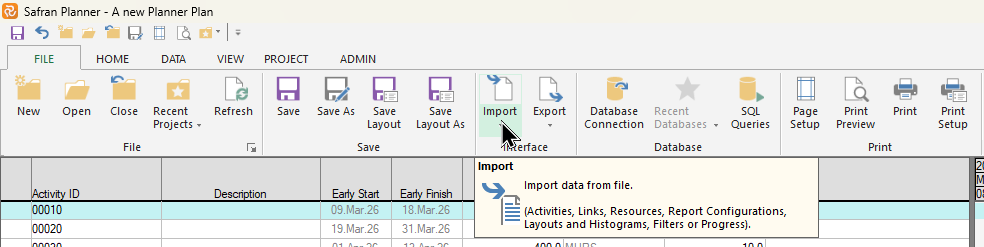
If you focus on and press the small 'down arrow' below the Import/Export icons an extended menu appears allowing you to access the specific facilities:
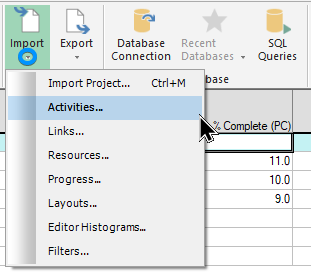
All import facilities allow you to add new information, while certain facilities also allow you to update existing information.
All formats accept tab-separated text files that may easily be created using MS Excel.
Some Import formats, such as Activities, require an initial header line informing Safran which fields are in the import file. In contrast, in others, such as the Progress & Expended import in a fixed format, i.e., data columns must be presented in a specific order.
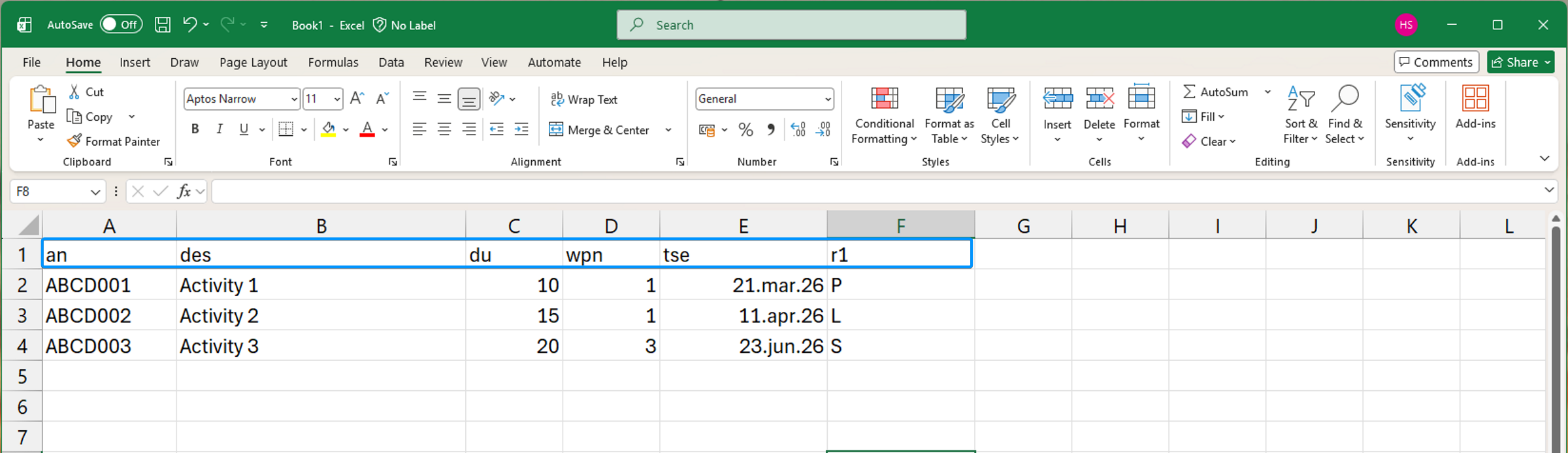
Below is an example of an import file created using Excel. Note that the first line contains header information, while the remaining lines contain the data to be imported.
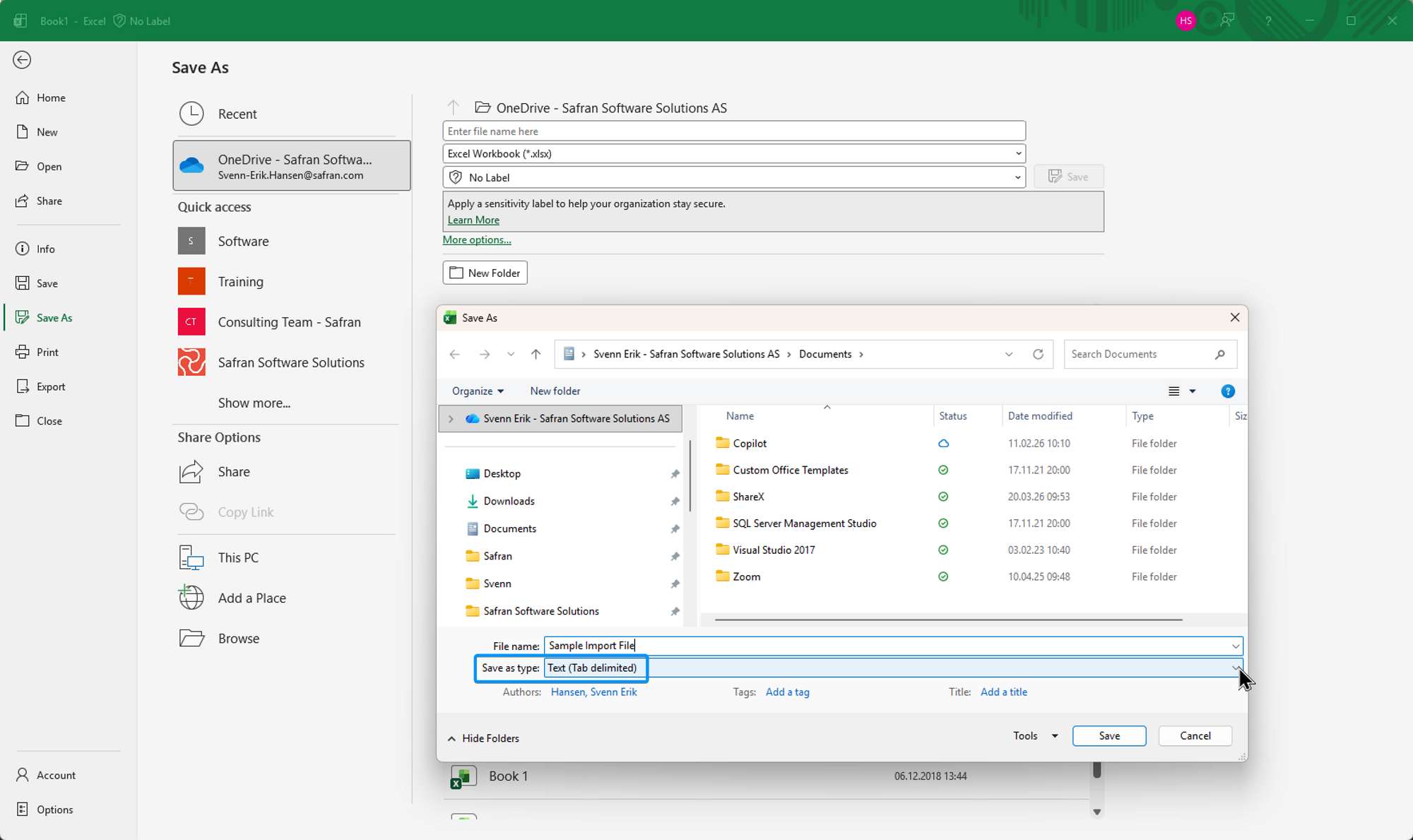
When you are finished creating the import file, make sure you save it using the 'Save as Type' Text (Tab delimited) as shown below:
A word of advice
Keep in mind that Safran Planner is fairly sensitive when reading import files, and error messages might occur when reading the file.
In addition to an obvious misspelling of a field header or incorrect data value for a field, Safran Planner will produce an error message related to 'Case Sensitivity' if your database is set up with Case Sensitive field names and your file does not observe this.
Additionally, to prevent erroneous cells from being included in the import file that would also cause Safran to fail, it's a good idea to outline and copy the exact data range to be imported to a new/empty Sheet and export that sheet to the file.
Finally, after saving the data to the file, please close the Excel file to allow Safran to access the resulting import file.
Notepad may also be used to check or make minor adjustments to your import file. Again, be sure to save the file before opening it with Safran.
Import Activities
File format & requirements
Activity/Milestone/Hammock data may easily be imported directly to Safran Planner from a file. The Import Activities facility also allows you to update information on existing activities.
As previously mentioned, the file must be a tab-delimited text file.
Further, the first line of the file (also called the Header line) must always contain a description of each field to be imported.
Most Activity input fields may be imported in any order. However, the first field must always be the Activity ID.
Header
Remember that the field descriptions in the header are not the field/friendly names you use in Safran. However, they are the internal database names.
Typical Safran system fields and their short names used when importing are:
| Field/Friendly name | Database Column Name | Comment |
|---|---|---|
| Activity ID | an | Activity id number |
| Description | des | Description |
| Duration | du | Activity duration |
| Calendar | wpn | Valid values ref. Calendar IDs defined in the project's calendar set |
| Start No Earlier Than | tse | Previously named target start earlier |
| Activity Type | act_type | Valid values 0/1/5/6 -> Activity/Hammock/Start Milestone/Finish Milestone |
| Always on schedule | on_target | Valid values 0/1 |
| Reference field number 1 | r1 | Valid values ref. Shortcodes defined in the project's userfield set |
| Flag field number 1 | l1 | Valid values 0/1 |
| Must Start On Day | fs_day | Valid values 1/2/3/4/5/6/7 |
| Must Start On Time | fs_time | |
| Activity Duration Fit | act_fit | Valid values 0/1 |
| As Late As Possible | alap | Valid values 0/1 |
| Activity Existence | act_exi | Valid values 0/1 |
Similarly, your Safran User-defined fields must also be referred to by their Database Column names when importing data.
Below is a conceptual overview of Safran's user-defined field types and their corresponding Database Column names:
| User Field Type | Database Column Name |
|---|---|
| Reference | R1 - R100 |
| Text | F1 - F100 |
| Date | D1 - D100 |
| Flag | L1 - L100 |
| Decimal | N1 - N100 |
| Duration | U1 - U100 |
| Outline Code | O1 - O30 |
A list of your User defined fields and their corresponding Database Column Names (referred to under the 'Field' column) may be found by selecting Data/Userfields in Safran as shown below:
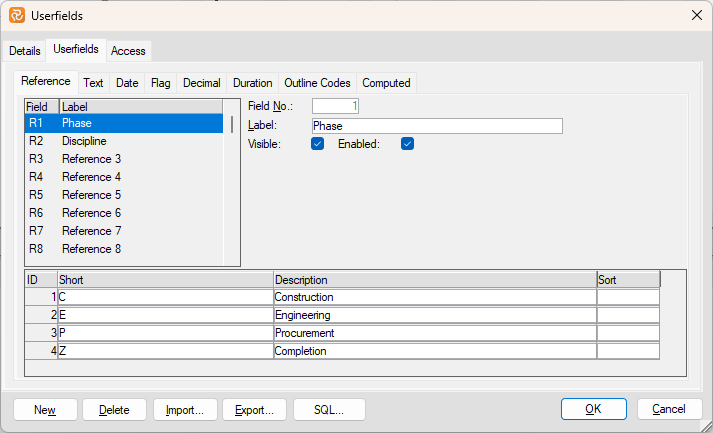
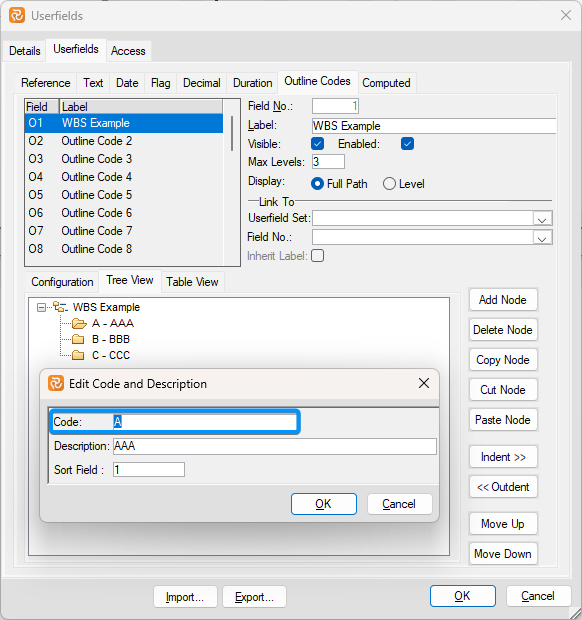
Note that Reference/Outline Code values are imported using their 'Short'/'Code' name, while the remaining field types are imported by their value, i.e., 22-aug-22, 10034.65, 'This is a description.'
Importing Multiple-choice fields
When importing simple Multiple choice type fields such as Always on Schedule, Activity duration fit, or User defined flag fields that only allow Yes/No values, remember that they must be imported as 0 for No or 1 for Yes.
Safran Planner also contains several complex Multiple-choice fields with more than Yes/No options. Examples are Calendar, Activity type, and Must start on day/time where each option for the field will have its index value, i.e., Activity type=Start milestone has an index of 5 while Must start on=Wednesday has an index of 3.
You can easily identify the correct index for a complex Multiple-choice field by selecting Properties for the relevant and choosing Code or Code + description for Format as shown below:
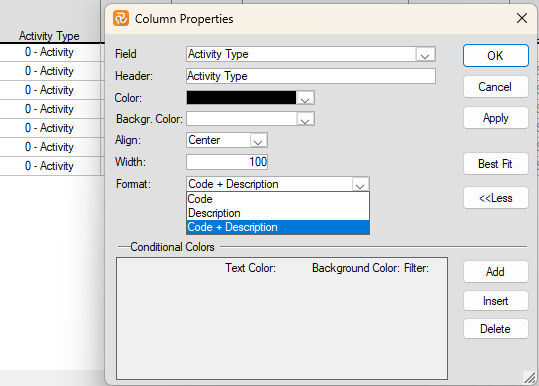
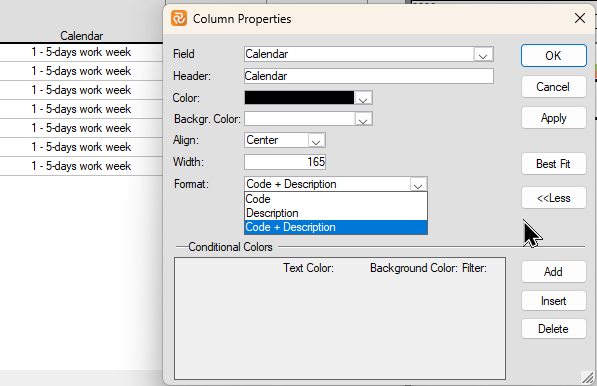
After choosing the extended format Code + Description for the field and clicking on the field value, Safran provides you with a complete list of valid values and their relevant codes/indexes to use when importing the field.
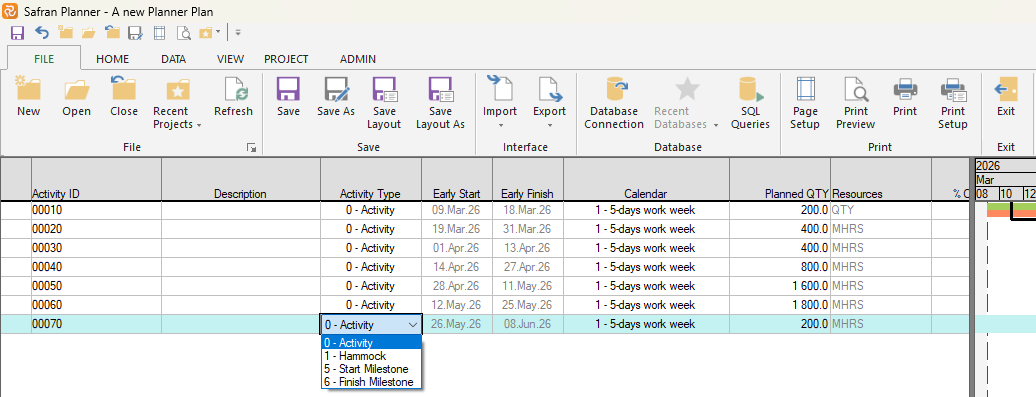
A typical Activity import file from Excel might look like this:
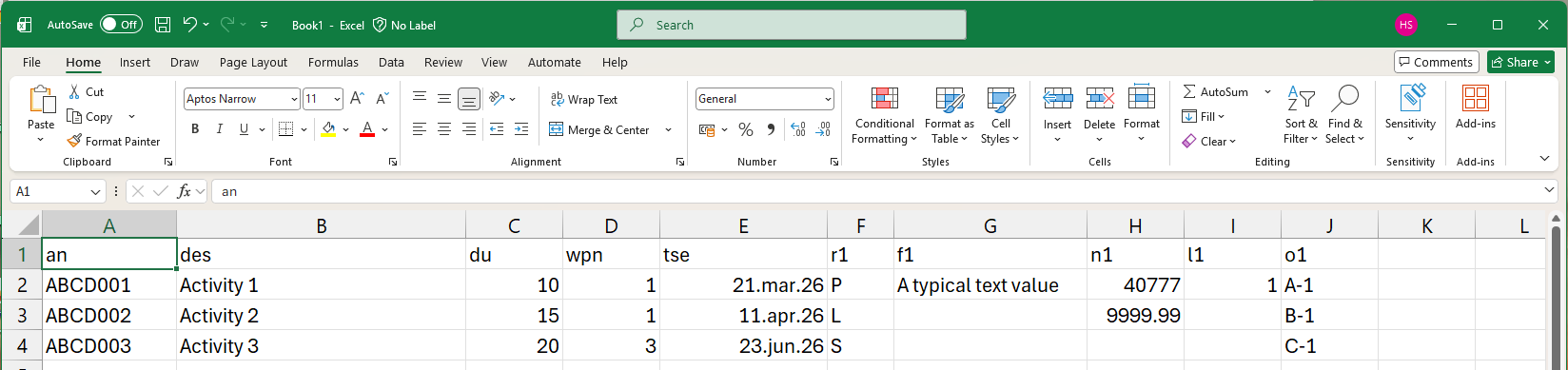
Importing national characters (Æ/Ø/Å)
When saving your import file, you must select the correct encoding to ensure the correct import of text values containing national characters such as Æ/Æ/Å (or any other national character sets). Safran primarily supports UTF 16 LE encoding, ANSI, and UTF 8 BOM.
If you use Excel to create your import file, you'll find that Excel doesn't allow you to choose UTF 16 LE encoding. One way of specifying this is to open the text file in Notepad and save it after having chosen the encoding as shown below:
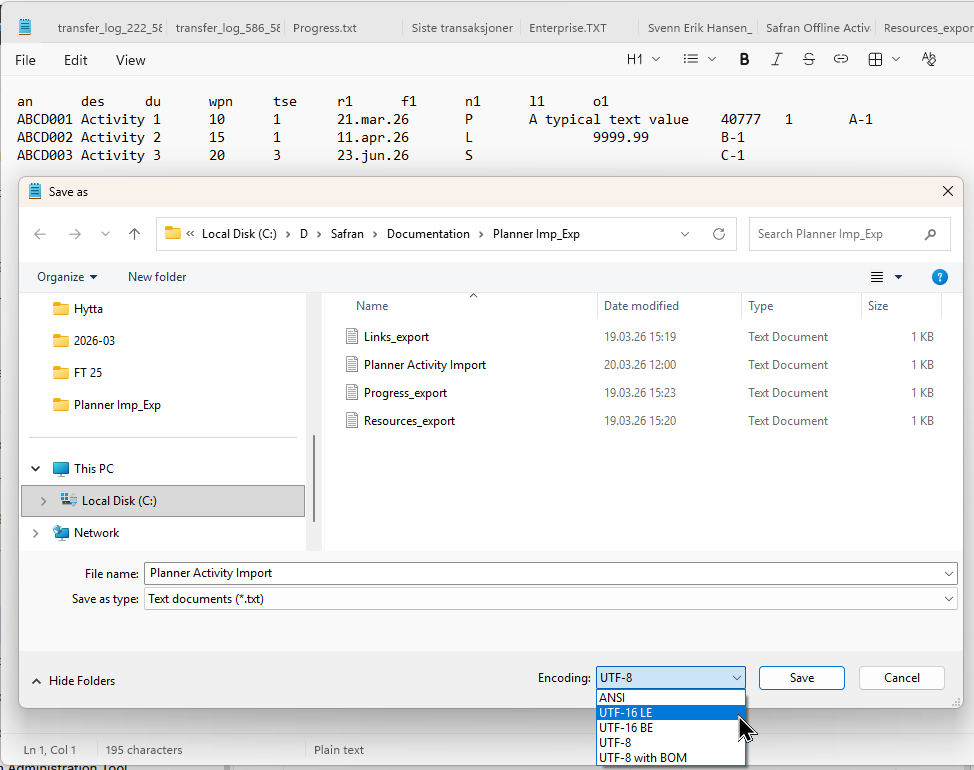
Import Activities
Before executing the import, ensure that you are in the project you want to import the activities.
From the Ribbon menu, choose File/Import/Activities.
Browse the file to import from and press 'Open' from the Select Import File window.
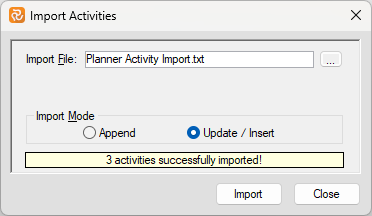
You should then see the panel below:
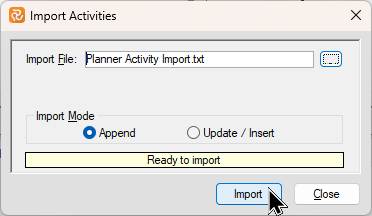
If your import file only contains new activities to be added, ensure the Import Mode is set to 'Append.'
If your import file contains updates to existing activities, make sure the 'Update/Insert' Import Mode is selected. This option will also allow new activities to be added in combination with updates to existing activities.
Then press the Import button. When the import has been completed, Safran Project will tell you how many activities have been added/updated.
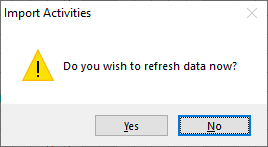
After pressing the Close button, Safran will ask whether or not to refresh your data. The newly imported activities will be included in the barchart editor by selecting Yes. Consequently, if you press the No button, you cannot view your newly imported activity data.
Troubleshooting/Potential Errors
During the import process, Safran executes a validation process to ensure the quality and consistency of the data imported. If errors occur, Safran will then present a message:
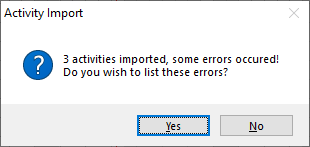
Notepad is opened with the relevant list of errors found by selecting Yes.
By pressing No, you are returned to the Import Activities panel without listing your errors. You may then edit/correct your import file and re-run the import if you know which errors are present.
A variety of typical error messages are shown below:

The date value '1-oct-20922' is an Invalid date format. Safran will also produce a similar message for 31-Jun-2022' as June only has 30 days.
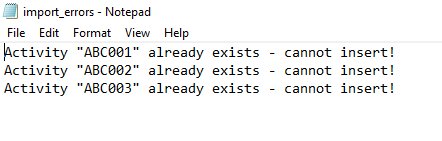
The activities listed in the error message already exist in your schedule. Change the Activity ID and re-import. Alternatively, if you are trying to update existing activities, please remember to use the 'Update/Insert' Import Mode.
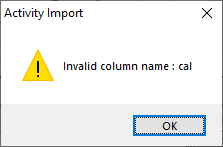
Invalid column name. In this case, the database column name for 'Calendar' is wpn. If you are sure your column names are correct, the error message may be due to your database being set up with 'Case Sensitivity.' Try using capital letters.
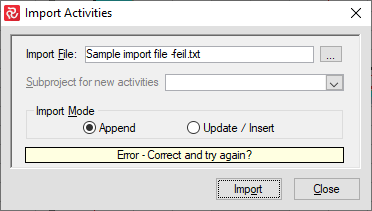
In most cases, you can edit your file and run the import again without closing the import facility.
Copy-paste from/to excel
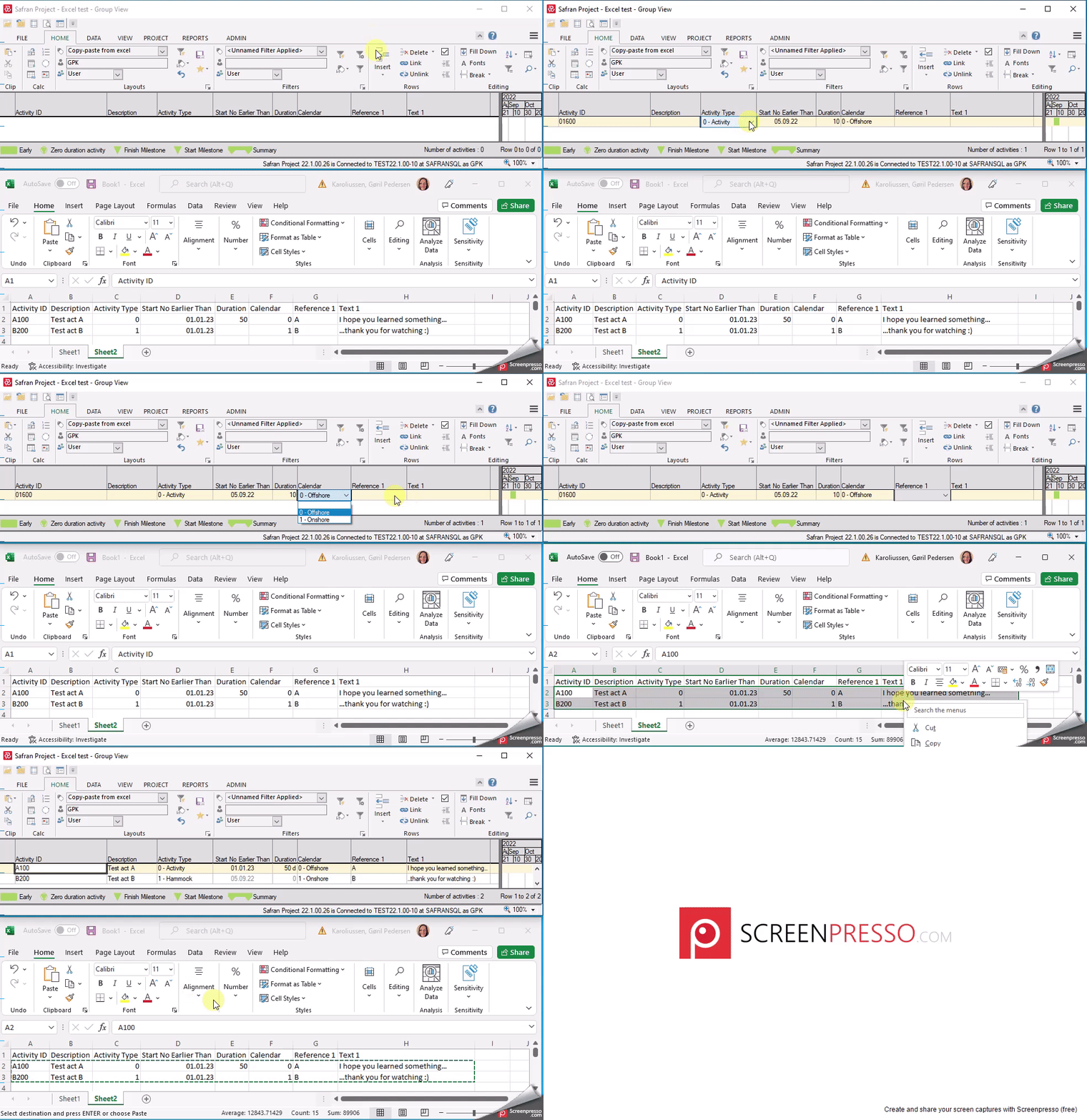
It is also possible to "import" and "Export" many activities by copy-paste from/to Excel.
For the "import" to work smoothly, you must ensure that the columns in the Barchart Editor match 100% with your columns in Excel and that the first column is the Activity ID.
Watch the video below for a quick demonstration of how to do it:
Below is an extended video demonstrating how to paste from Excel to Safran Planner Barchart Editor.
It contains a few tips and tricks for importing resources and what to do if you have an activity ID starting with '0'.
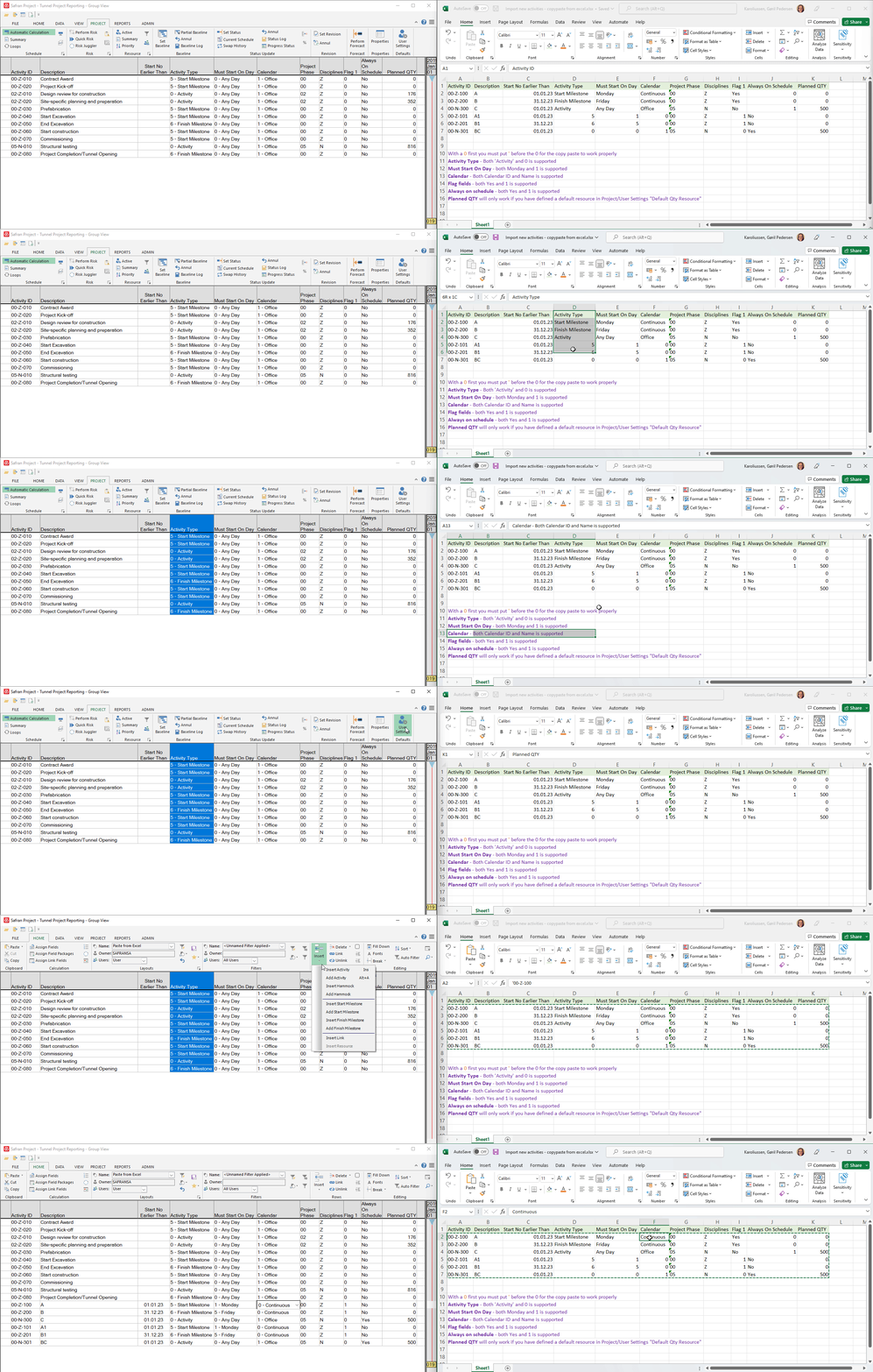
If you are pasting a large amount of data, please allow some time for the operation to complete.
Note: The above video sequences were taken while working with Safran Project, however you'll find that Safran Planner works in the exact same manner.
For "Exporting" activities, simply mark headers and rows that you wish to export. Click Ctrl+ C and within Excel, Ctrl+V. If you are copying a large amount of data, please allow some time for the operation to complete in Safran Planner, before pasting it into Excel.
Importing and Exporting Links
Safran Planner allows you to both export and import links.
If you are uncertain about the import format, a good tip is to simply test the 'Export links' functionality first and then use the export file as a template for import.
Export Links
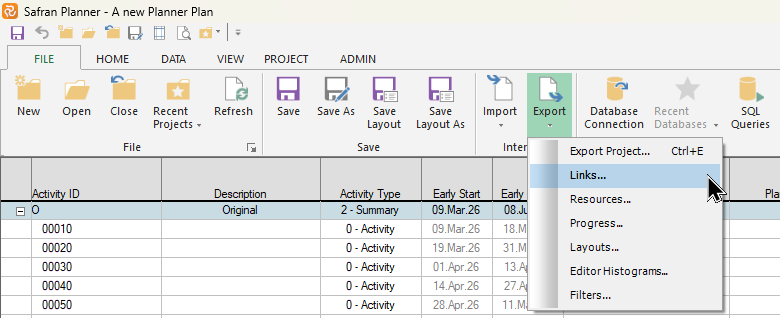
Go to File/Export/Links
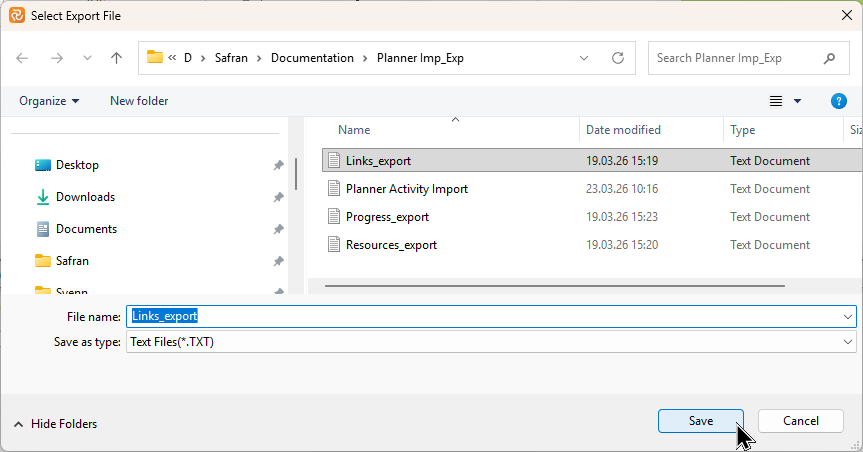
Enter a filename and location then press Save.
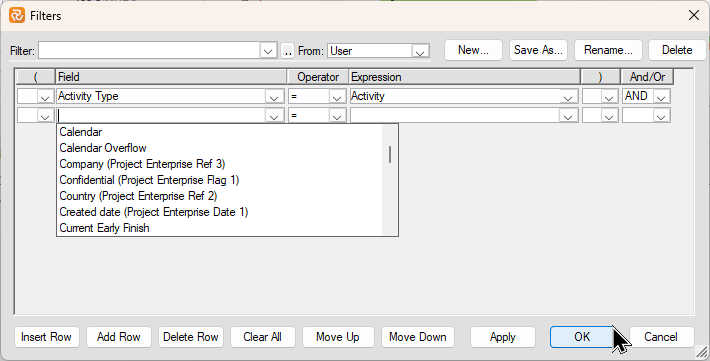
You can export all links or exclude links using the various filtering options.
The Preceding/Succeeding Filter options open a filter panel allowing you to filter on any 'Activity' related field (both system and user defined) from respectively preceding/succeeding activities.
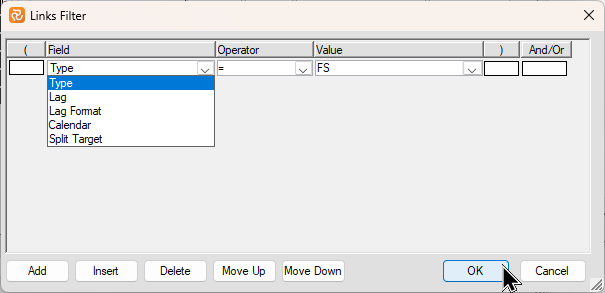
The Links Filter button opens a filter panel allowing you to filter on 'Link' related fields as shown below:
The Remove From Export button allows you to remove a link 'in focus' link on a 'one by one' basis as shown below:
.png)
You can also limit the amount of links to be exported by first, focusing/highlighting a group of activities in the Barchart editor after which when the Export Links panel opens you'll note that the Selected Activities checkbox will be checked.
When you have configured your link export, Click Export.
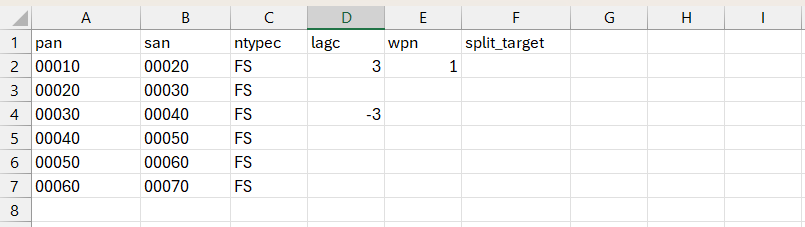
The Export file, which you may use as an import file, should look like this when opened in Excel:
File format & requirements
Link data may easily be imported directly to Safran Planner from a file. The Import Links facility also allows you to update information on existing links.
The file must be a tab-delimited text file.
Further, the first line of the file (also called the Header line) must always contain a description of each field to be imported.
Most Link input fields may be imported in any order. However, the first two fields must always be the Preceding Activity ID (pan) and Succeeding Activity ID (san).
Header
Remember that the field descriptions in the header are not the field/friendly names you use in Safran. However, they are the internal database names.
Typical Safran system fields and their short names used when importing are:
| Field/Friendly Name | Database Column Name | Comment |
|---|---|---|
| Predecessor | pan | Activity ID preceding activity (Mandatory) |
| Successor | san | Activity ID succeeding activity (Mandatory) |
| Type | ntypec | Link type FS/SF/SS/FF. Defaults to FS if not present |
| Lag | lagc | Link lag (optional) |
| Calendar | wpn | Calendar for a link (optional) |
| Split Target | split_target | Split Target for a link (optional) |
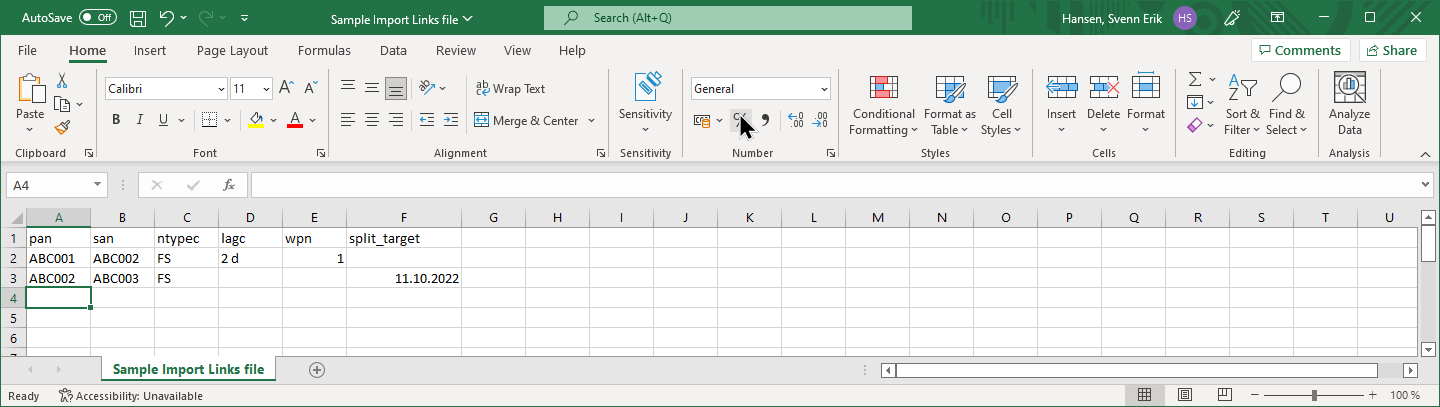
A typical Link import file from Excel might look like this:
Import Links
Before executing the import, make sure that you are in the project that you want to import the links to.
From the Ribbon menu, choose File/Import/Links.
Browse to find the file to import from and press 'Open' from the Select Import File window.
You should then see a panel similar to the one below:
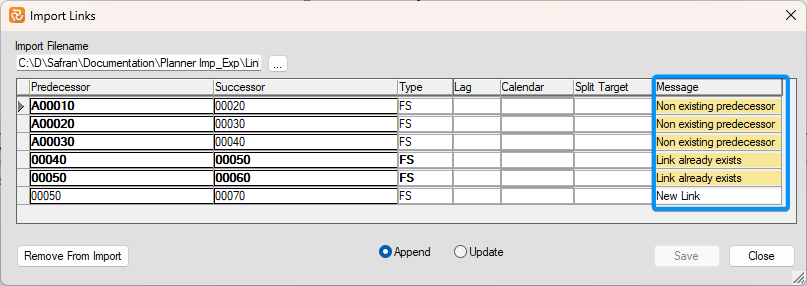
During the 'read' portion of the import Safran, will validate the contents of the file and present any relevant messages. Error messages will be shown in yellow.
If your import file only contains new links to be added, make sure the Import Mode is set to Append. If your import file contains changes to existing links check the Update button.
If your import file contains updates to existing links, you will notice that the 'Message' column to the right initially reminds you that your import file contains existing links.
In this case, select the 'Update' Import Mode.
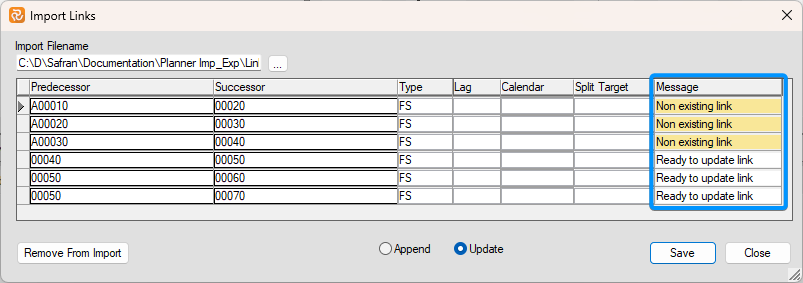
The Import Links panel also lets you delete links before the import if needed. To do so, set focus on a link (highlighted in blue/mark to the left) and press the 'Remove From Import' button as shown below:
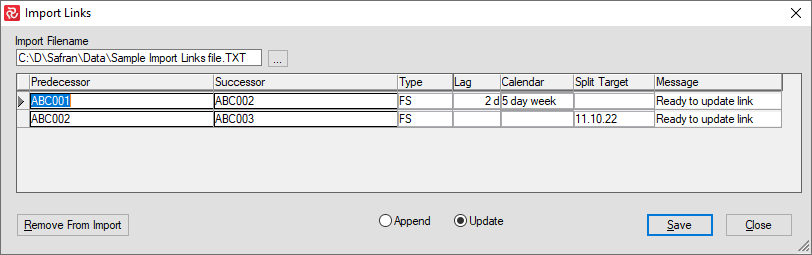
When you are satisfied with your import data, press the Save button. When the import has been completed, Safran Project will inform you of how many links have been added/updated.
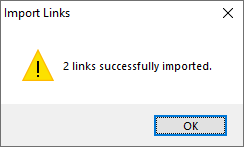
After pressing OK, you are returned to the Import links panel.
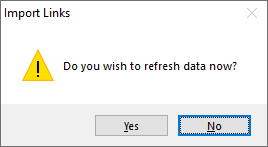
After pressing the Close button, Safran will ask whether or not to refresh your data. The newly imported links will be included in the barchart editor by selecting Yes. Consequently, if you press the No button, you will not be able to view your newly imported link data.
Important link import information
Unlike the Import Activities facility, combining adding new links and updating existing links in a single import file is impossible. This is because Safran Project allows you to link the same two activities more than once. When Safran Project reads the import file, it cannot determine whether an entry should be considered a new link or an update to an existing one apart from your choice of 'Append/Update.'
Importing and Exporting Resources
Safran Planner allows you to both import and export resources.
Exporting and Importing is done by using text files of the so-called 'Tab Delimited' format.
Export Resources
Safran Planner allows you to export resources in single projects.
The Export Resources function is not supported when working with a Master Project (Multi-project).
Select Export Resources from the ribbon file tab to export your resource information.
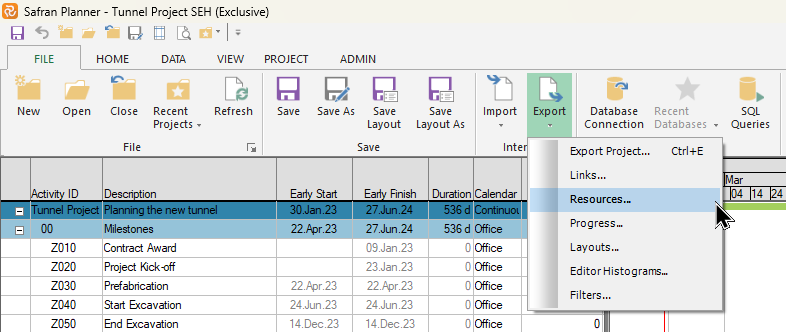
When the Export Resources panel opens, press the square icon to the right of the Export file line to specify/select your export file name and location.
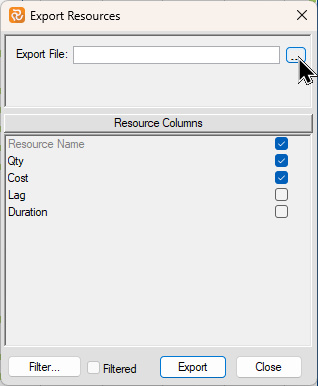
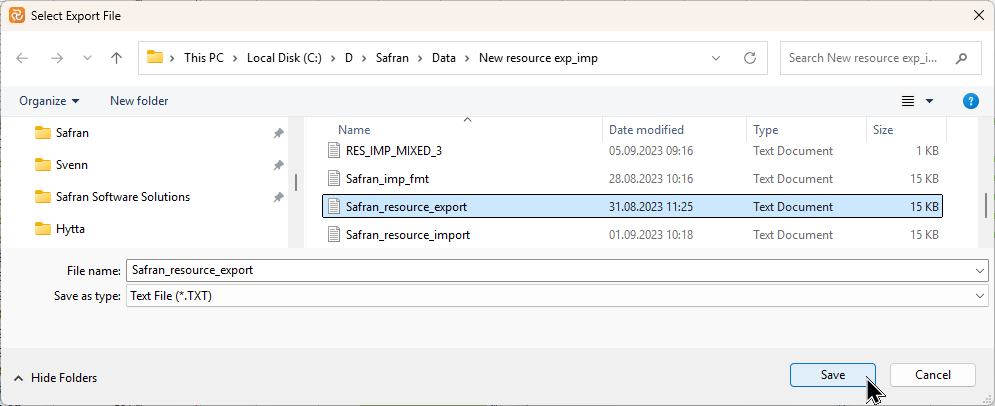
When you have selected your export file and pressed Save, you'll return to the export resources configuration panel, as shown below. You can also select the relevant Resource columns for your export here.
By pressing the Filter button, you can select/specify an activity-based filter to limit the export of resources to a subset of your project's activities.
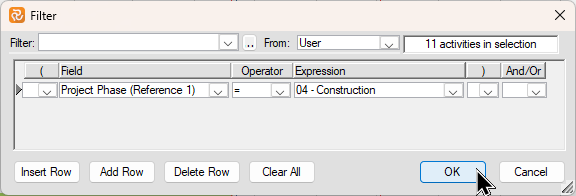
If you have selected a filter, you'll see that the 'Filtered' checkbox is checked to remind you that not all resources will be exported.
.png)
After configuring your export, press the Export button to create your file.
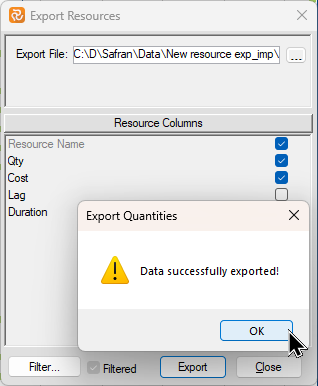
The screenshot below is an example of a resource export file when opened with MS Excel. Note the 'friendly' field/column names used as header information for your user-defined fields.
Import Resourcs
Safran Planner has two import formats. The first one described is the format that we would recommend. However, we have kept the legacy import format for those users who prefer the old way.
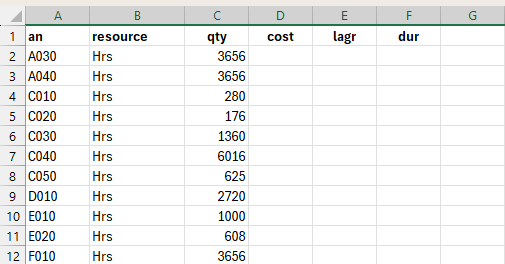
The recommended resource import format requires column header information. An example is shown below.
The resource table field names may also be found in the Safran Project System Guide (your Safran system administrator will have this available). However, if you are unsure of a field's name, you can always do a resource export using the 'Safran Import format' checked and have a look at the resulting file with header information.
The fields in your import file may be a subset of the resource table fields available and may be in any order; however, it's always a good idea to start with Activity ID (AN) and resource.
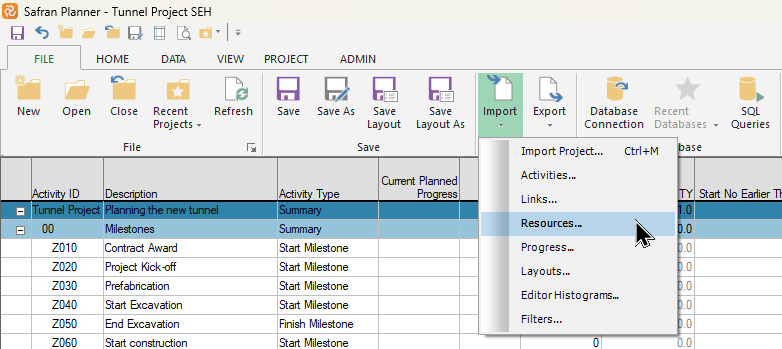
Select Import/Resources from the File ribbon to import your resource information.
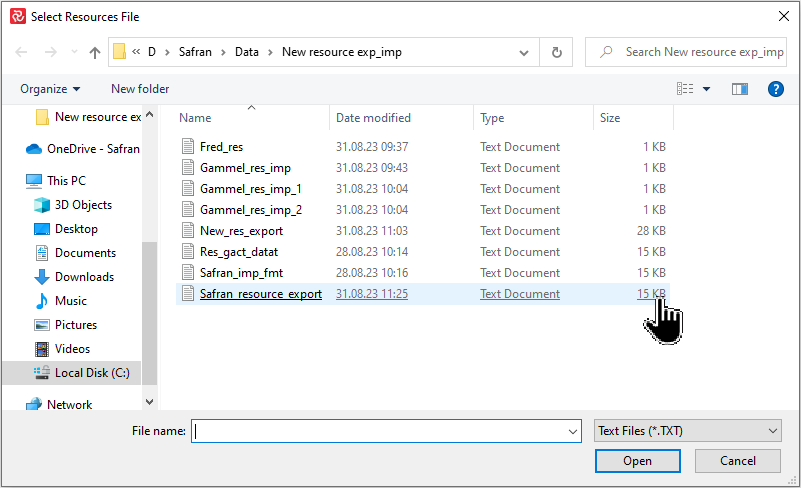
When the Select Resources File panel opens, navigate to select your import file and press Open.
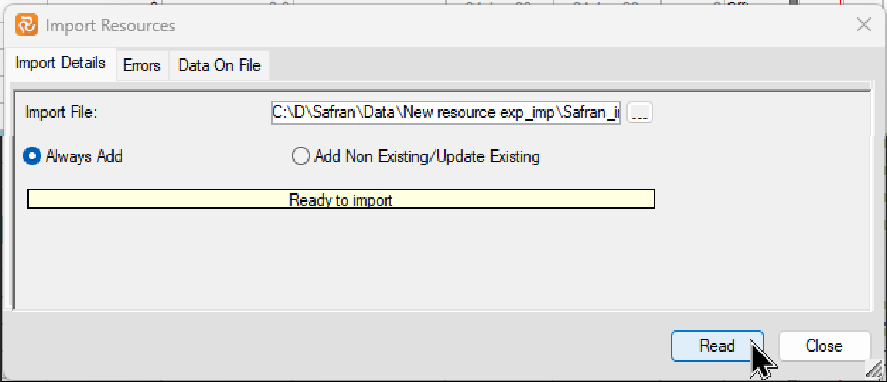
The resource type (Total/Per Unit) may also be set as a default for any resource line with a missing resource type.
You must also consider the content of your import file, as Safran Planner can either add new resources, update existing resources, or a combination of the two.
Add will always add new resource entries.
Add/Update will add a new resource line if the resource does not previously exist and update existing resources. If multiple similar resource entries exist, Safran will update the first/initial resource line found.
When adding/updating a QTY-type resource, remember that entering a Cost value is irrelevant as this field is a calculated value for this resource type. The Cost field may be added/updated for resources of type Cost.
In general, it's a good idea to do some test resource imports on a copy of your project until you are comfortable with the functionality to ensure that you get the results you are looking for.
When you are satisfied with your import configuration, press the Read button.
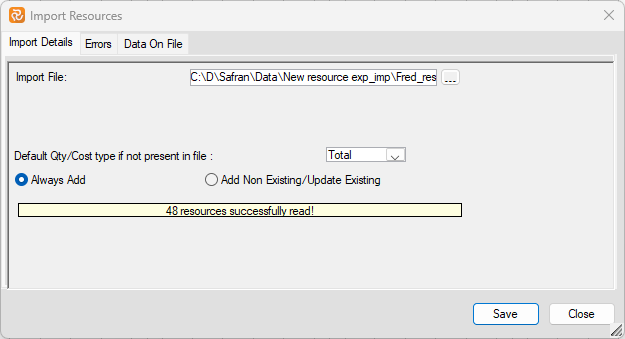
As a part of the Read process, a validation of the data file is carried out. A number of the validations are listed below:
- Activity ID/Resource/Profile must exist.
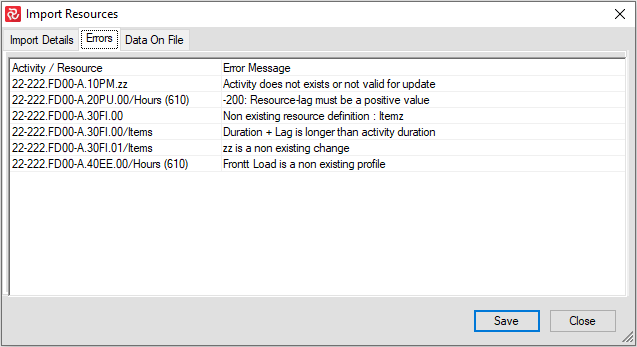
- Resource lag must be a positive and less than activity duration
- Resource Lag + Duration must not exceed activity duration
'
By selecting the Errors tab, you can see a detailed list of all errors found during the validation.
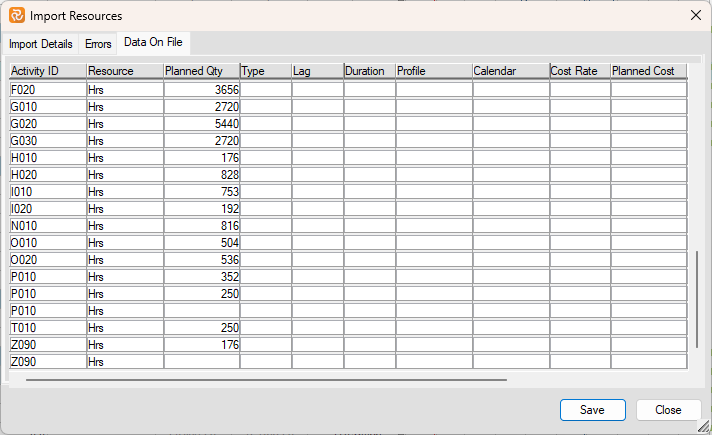
The Data on the file tab contains a list of all records in the import file and is particularly useful when searching for errors or just getting an overview of the import.
Note that the Import Resources window is expandable and that you may modify the width of the fields for increased readability.
When you are satisfied with your import file, press the Save button to save your resources.
Note that if errors should exist, Safran will save the valid entries and omit the entries containing errors.
Entries with missing or incorrect Activity ID, Resource, Profile, are considered errors. In contrast, warnings related to resource Lag/Duration, are considered valid as the Barchart editor facilities will overrule these.
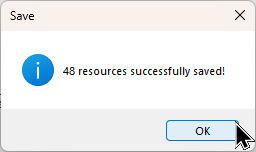
After the Save operation, Safran informs you of how many resources have been updated/saved.
Legacy resource import
The legacy import format is still supported, and Safran Project will automatically detect your current import format.
To import resource information, choose File > Import > Resources
Creating a Resource import file
You can import resources (both QTY and Cost type resources are supported) from a tab-separated text file.
To import resources, you need to create an Activity/Resource matrix with the following format:

The first row is a header row telling Safran which columns/resources are to be imported.
The second and following rows are data rows containing Activity IDs and their relevant resources/quantities/costs.
MS Excel is a practical tool to use when creating import files. The picture below is an example of a simple resource import file.
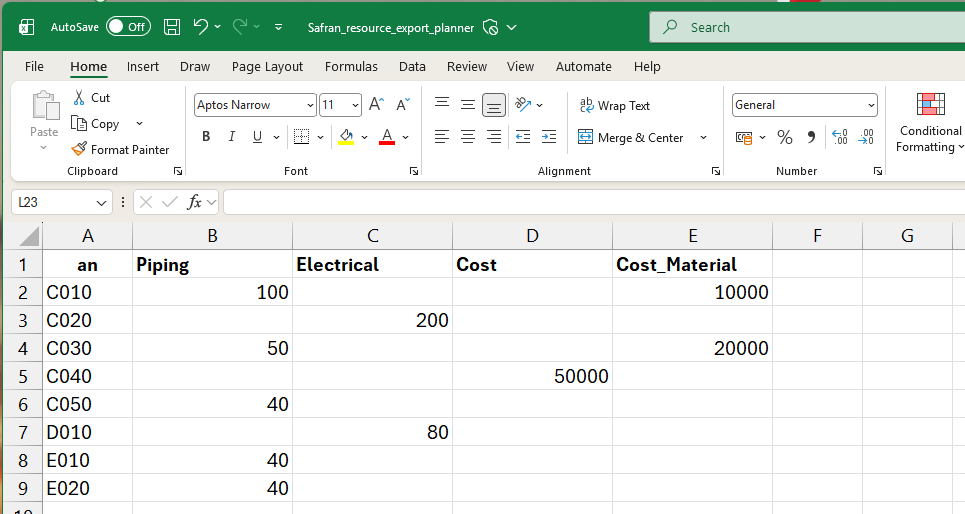
Your header row must start with the column 'an' (database field name for Activity ID), followed by resource short names, one for each resource category you intend to import (as defined in Data > Resources).
The quantity/cost may be left empty for one or several columns. The resource - shortname must be an existing Resource definition, and 'an' must be a valid Activity ID in your project for each data row.
When you are finished creating your file, remember to select the Text (Tab-delimited) (*.txt) format:
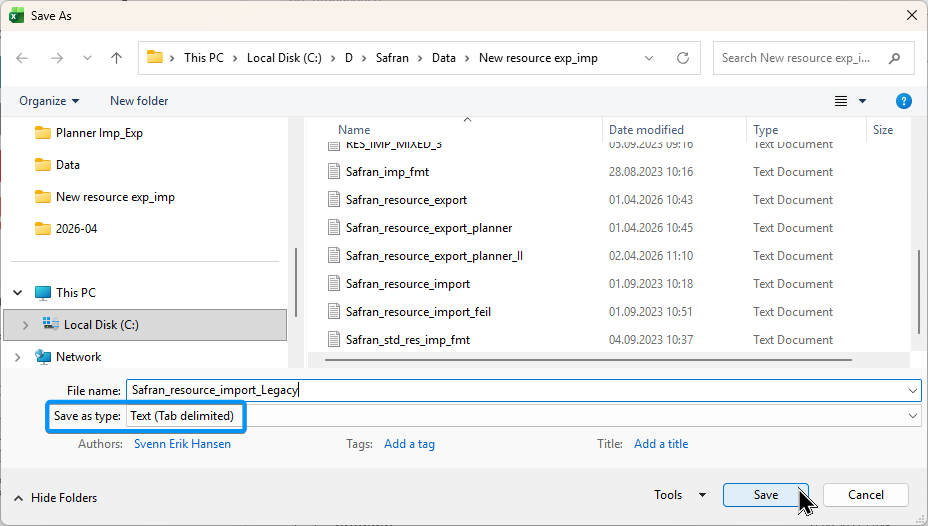
Importing resources
Specify your import file name or browse your computer to locate your import file. Then press Import to start the import.
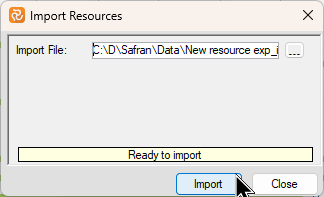
When the import is complete, Safran informs you of how many resource records have been imported.
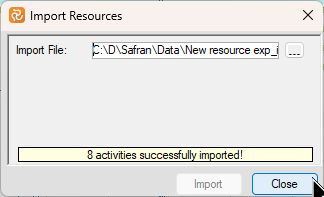
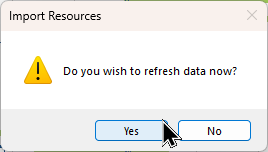
After closing the Import Resources window press Yes to refresh your data from the database to show your imported resources.
Importing and Exporting Progress and Expended
Safran Planner supports the import of progress (% Complete PC) and expended (QTY/Cost) information. To do this Safran Planner requires a file with the relevant data. Safran Planner supports import from tab-separated text files (with or without headers). If you use the costing functionality, Safran Planner will calculate the Actual Cost based on Cost type and cost rate during import.
Running the import
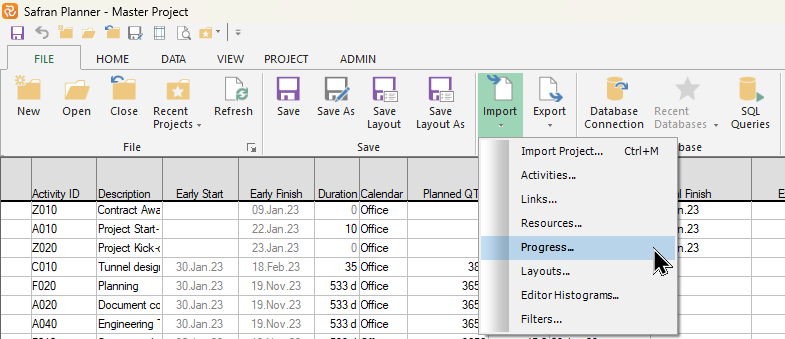
To import progress, select File > Import > Progress.
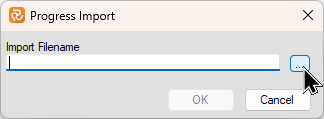
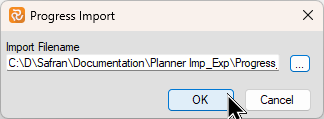
When the Progress Import panel opens, press the file locator button to the right.
This opens the Select Import File window allowing you to navigate/select your import file.
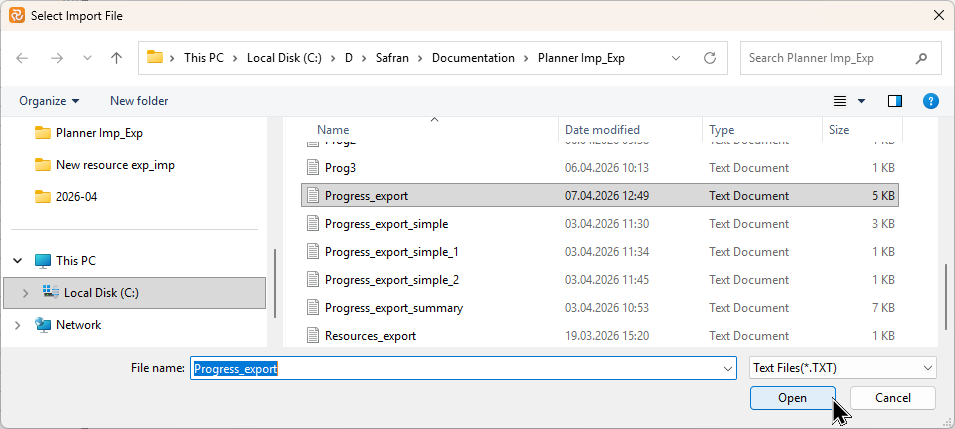
Finally press OK to initiate the the import, after which you'll be returned to the Barchart Editor.
Import from a tab-separated text file (with headers)
Safran Planner supports the import of progress (Actual %) and expended QTY/Cost from a tab-separated text file with headers.
Supported headers for tab-separated text files are listed below. Please note that the Activity ID column is mandatory, and the column order may be random when using tab-separated text files with headers.
- Activity ID: "activity id", "an", "activity"
- Resource: "resource", "res", "resource name"
- Progress: "actual %", "current progress", "cap"
- Expended QTY: "actuals", "expended", "actual qty", "expended qty"
- Expended Cost: "cost", "expended cost", "actual cost"
- Actual Start: "actual start", "start", "as", "acs"
- Actual Finish: "actual finish", "finish", "af", "acf"
Import from a tab-separated text file (without headers)
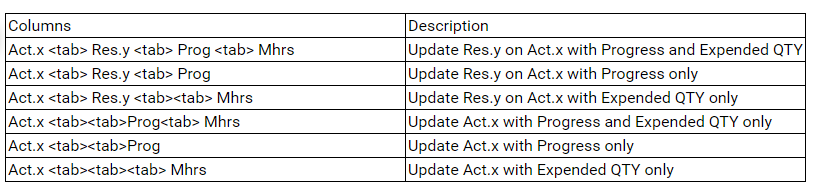
Safran Planner supports the import of progress (% Complete PC) and expended QTY from a tab-separated text file without header information. This file format does not however support Expended Cost, Actual Start, Actual Finish.
Using the format below is important, as the column order is locked when using tab-separated text files without headers. Please ensure it is in the following format:
Activity ID tab Resource ID tab % Complete PC tab Actual Man-hours
Exporting Progress and Expended data
Progress and Expended as well as Actual Start/Finish information may be exported to file. In addition to the usual Tab separated file format, this export also supports the XML format.
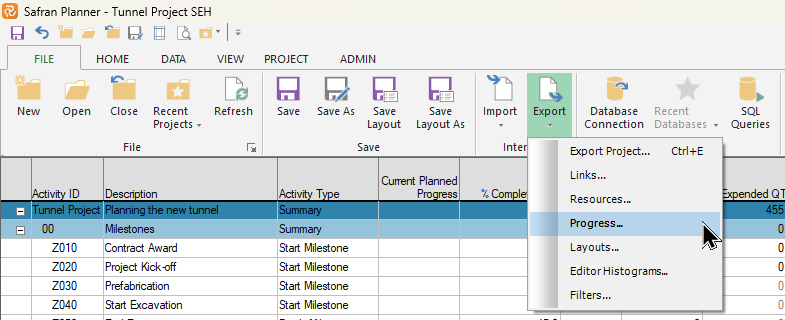
The Export Progress function is found on the Interface section of the File ribbon:
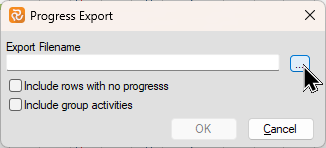
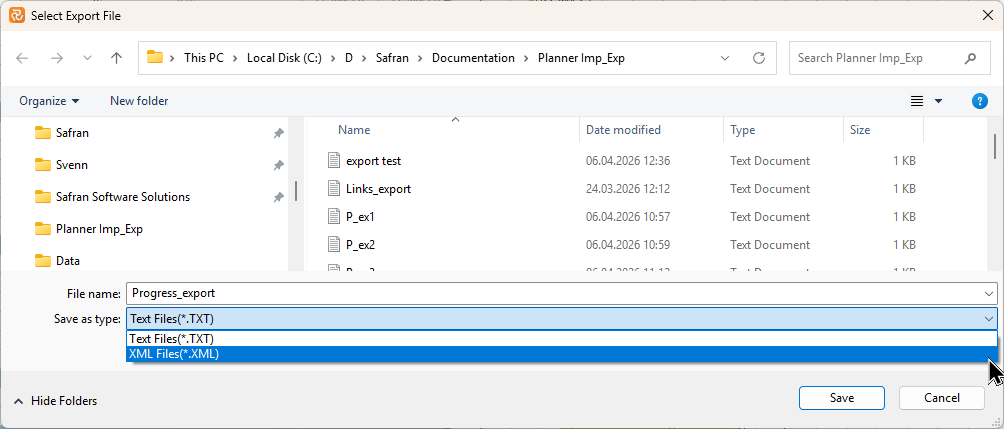
Press the square button to the right of the the filename entry box to specify an export file.
The Tab separated file type is the default, however you may also save to the XML format as shown below:
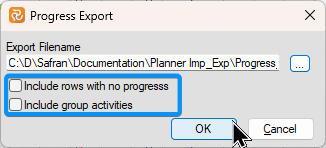
By default the export will contain rows for all activities, however you can choose to export only those activities with progress information. You can also chose to include line for each group 'activity' if required.
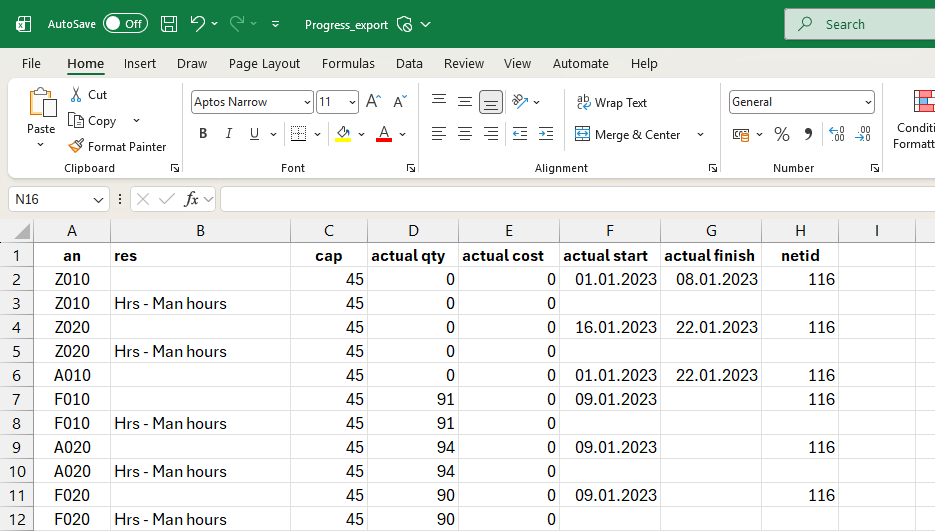
Below is an example of a Progress export file when opened with Excel showing the relevant header information.
Note that the file will have one line per Resource as well as an Activity line.
The progress export function also supports multi projects however please note the following:
If you open a Master project containing multiple single projects without 'focusing' on a specific activity, all activities will be included in the export file..
If you focus on an activity, only the activities from the project the activity belongs to will be exported.