Customizing the Barchart Print Layout
The Barchart Editor not only provides a means of viewing and updating activity information, but it also serves as a simple and user-friendly Gantt reporting tool due to its extensive formatting and printing capabilities.
Page Setup
To configure the barchart print layout, choose Page Setup on the FILE ribbon. Page Setup enables you to specify general layout characteristics such as Scaling, Orientation, Header, Footer and Legend information. You can also choose to include Right/Left logos or even add a background picture for presentations. The printed report uses the defined Barchart Editor layout, including symbols, summaries, annotation, sorting and field selection.
The Page Setup configuration is also stored as part of each Layout allowing you to have differing setups for each layout.

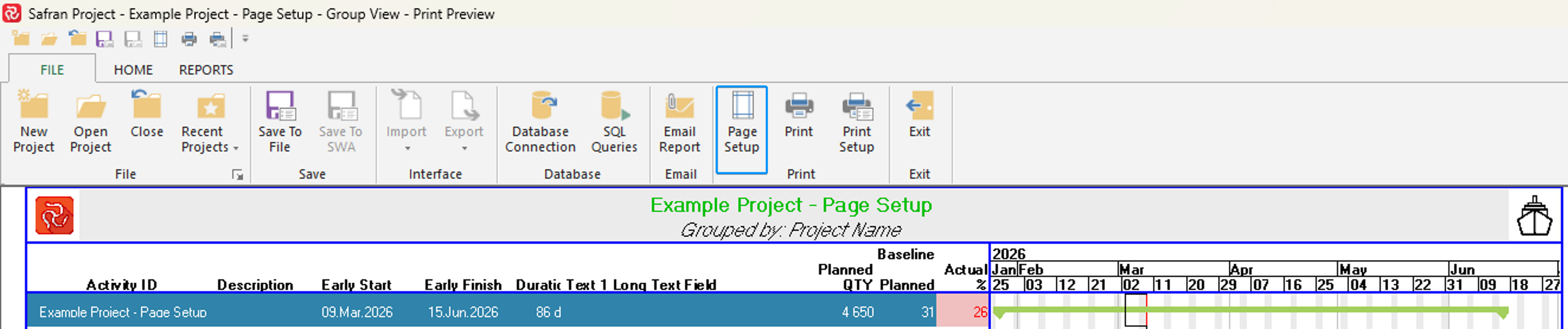
Page setup can also be accessed from Print section of the File ribbon when working in Print Preview mode:
Page
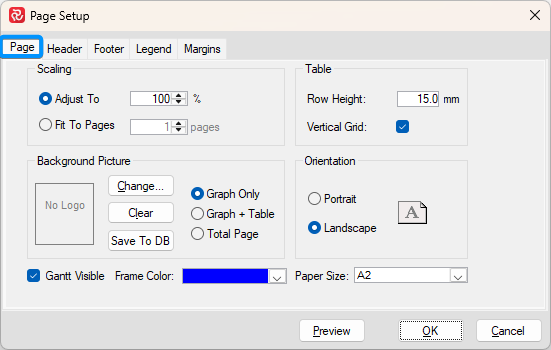
Note that to Table/Row Height and Vertical Grid choices made above pertain only to Print Preview and Printed reports and have no effect on the Barchart Editor. The Barchart Editor has its own options that govern these characteristics.
Header
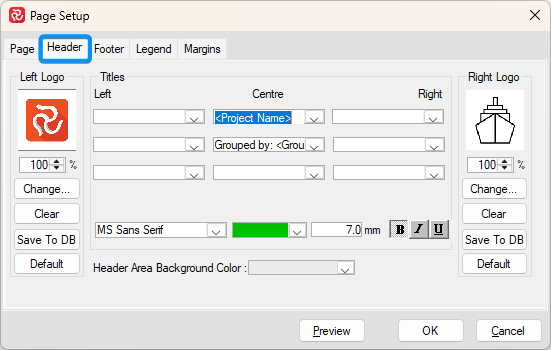
Note that you can enter a 'Free Text' both prior to/after the '<>' brackets when a system/user field is selected.
To use the Font/Color/Char. size/Font style modifiers, set focus on a field then change the modifier.
Logo files must be of type JPG/JPEG, BMP or PNG. They can be imported and stored in your database to ensure standardization and convenient access by using the Save To DB function.
The 'Default' logos are the ones defined as a part of Project Properties.
Footer
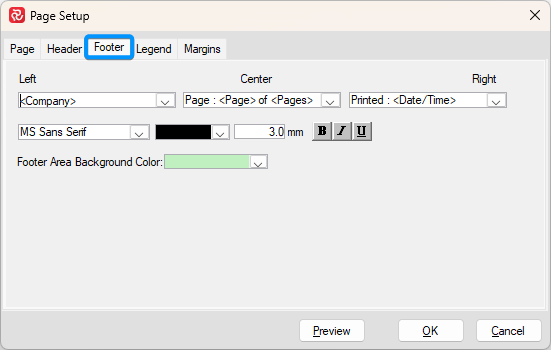
The Footer tab allows you to choose from a number of information fields to be included at the bottom of Gantt page.
Legend
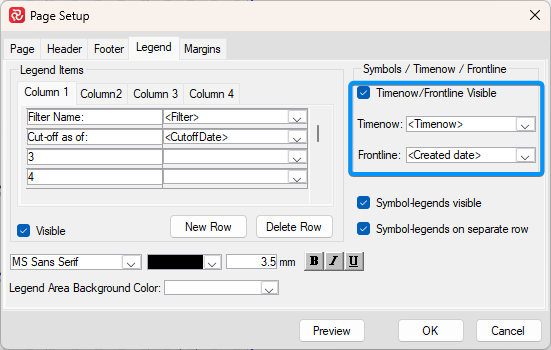
The Legend tab allows you to define a Legend consisting of up to 18 rows and 4 columns comprising both free text, system fields, and enterprise code values.
Further, the Legend tab allows you to include/present both Timenow and Frontline configuration (ie. color and date, respectively Timenow/Cutoff Date) and select an additional date field from the list below:
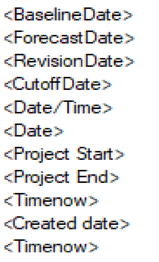
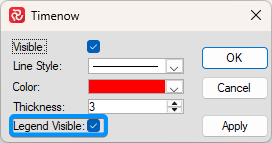
Note that Timenow/Frontline Legend Visible must also be ticked in the Barchart editor in order to have the information shown in Print/Print Preview.
Margins
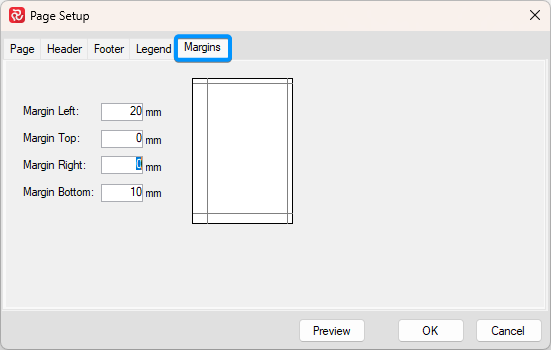
Margins can restrict the printing area and allow for using a hole punch for reports combined in a binder.
The example below highlights a number of the configuration options available in Page Setup:
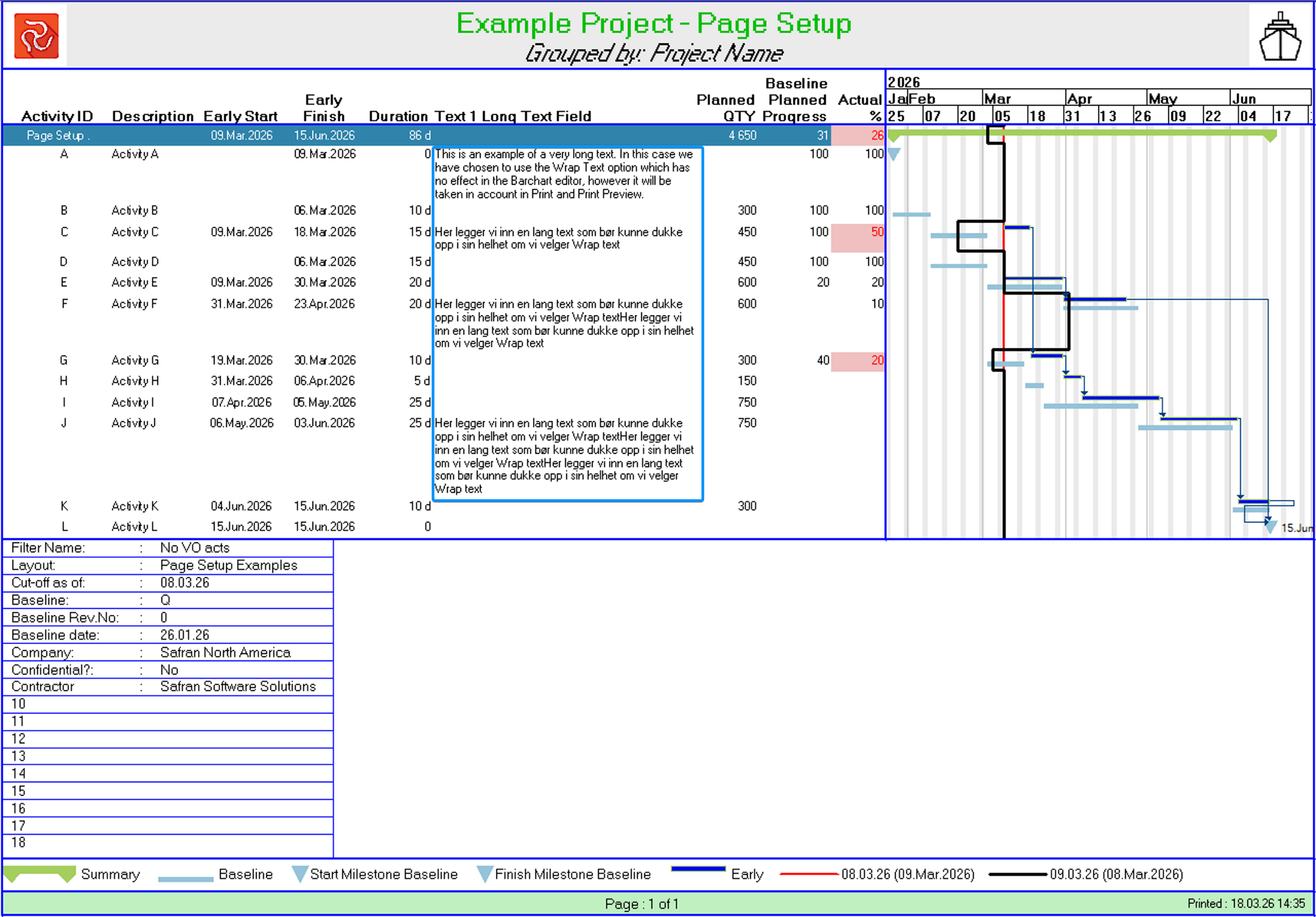
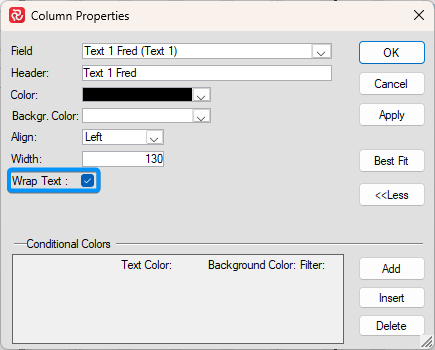
Note that the text field 'Text 1 Long Text Field' is presented with multiple lines. This is controlled by checking Wrap Text on the fields Column Properties in the barchart editor.
This will not have any effect in the barchart editor view but only in Print/Print Preview.
This option is applicable to all user defined Text fields in addition to the Description system field.
Print Preview
Press the preview button on the FILE toolbar to view the page before printing.

Print Preview is a quick and convenient way to view the current layout, page breaks, margins, header, and footer. Previewing the report ensures the report prints the way you want and enables you to make any necessary adjustments, so you will only need to print once. Print preview displays each report page as it will look when printed. The preview window initially displays the first page of the printout. The current page number and the total number of pages appear at the lower right end of the report page. Click the Next Page, Prior Page, First Page, or Last Page buttons to move from page to page in print preview. You can zoom in to view page details by clicking the Zoom icon.
The Safran Project Print Preview option lets you save your schedule to different graphical formats. The images look just like the report on the screen. Saving a plan to a graphic file allows you to paste the saved file into files created by other Windows applications, such as spreadsheets and word processor documents.
Copying the Preview to Clipboard
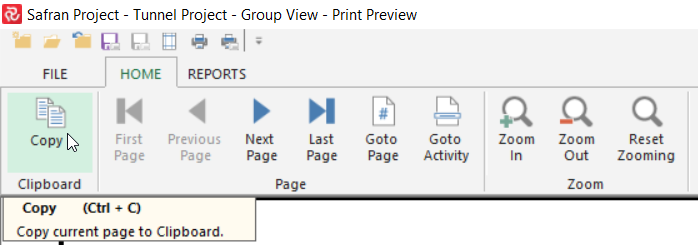
From Preview, Select Home and choose the Copy Page to Clipboard option. You can also use the shortcut CTRL+C. In other Windows applications, paste the clipboard picture into the application using the Paste option from the EDIT menu.
Email the Report
If you choose the Email Report option, Safran adds the printout as an attachment to your default mail in a PDF format.

Print Setup
The print setup dialog box allows you to select your default printer, page orientation, and paper size. The printer properties may vary for different printers. To configure the printer properties, please refer to your printer’s user manual.
