Advanced Calendar Features
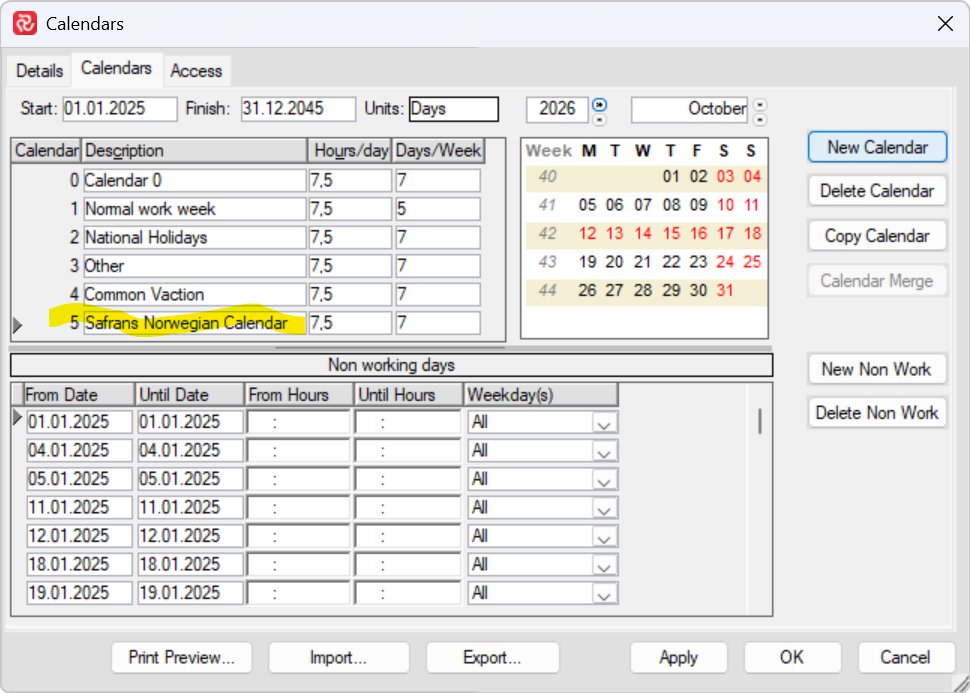
Starting with the release of Safran Project v25.1 some advanced calendar features have been added.
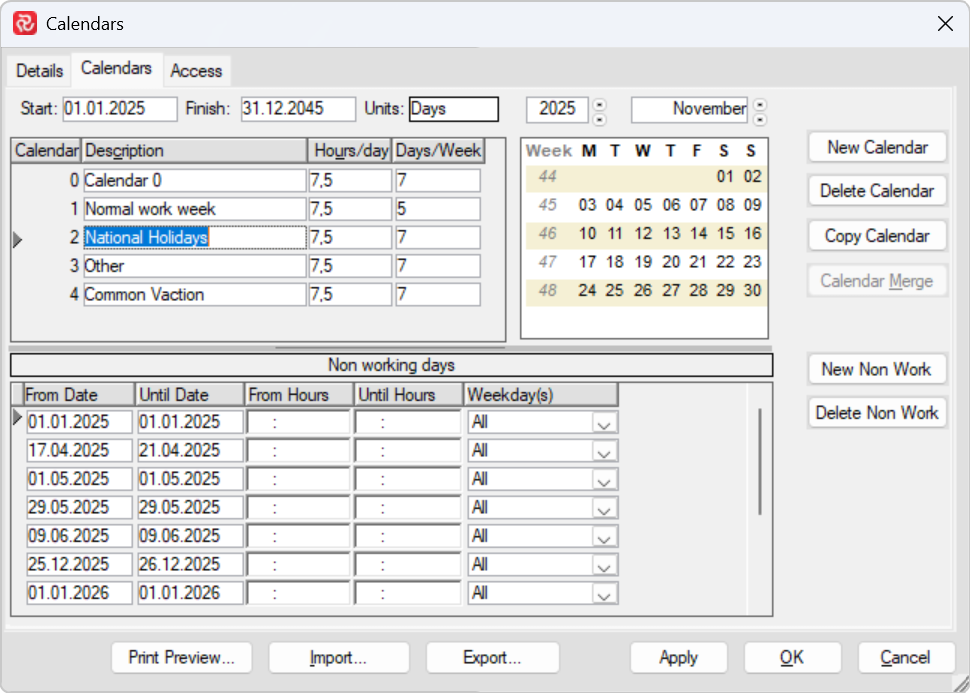
For those using version 20 or later of our software the maximum date for our calendars Dec 31st year 3000. For software versions lower than version 20 the maximum calendar date is Dec 31 year 2149.
Calendar Print
Selecting the Print Preview button displays a 12-month yearly calendar for the selected calendar and the chosen year in the Calendars window.
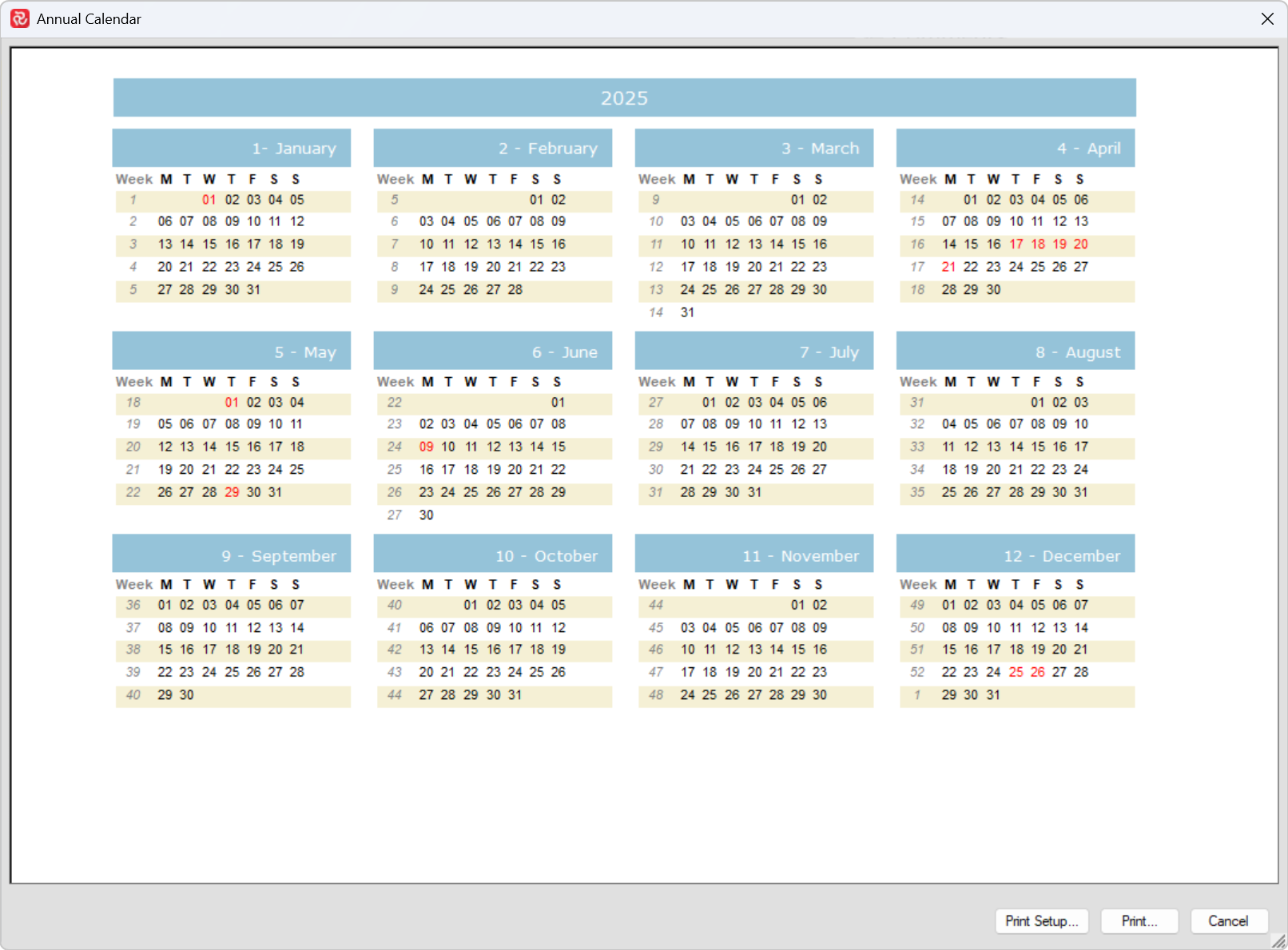
The example shown above is the default layout and colors used. If you want to change the look of the yearly calendar, you will need to use the features supported for the Calendar sets on the admin tab.
Pressing the Print button calls the print dialogue. Note that the calendar prints a 12-month year calendar for every year within the specified calendar span.
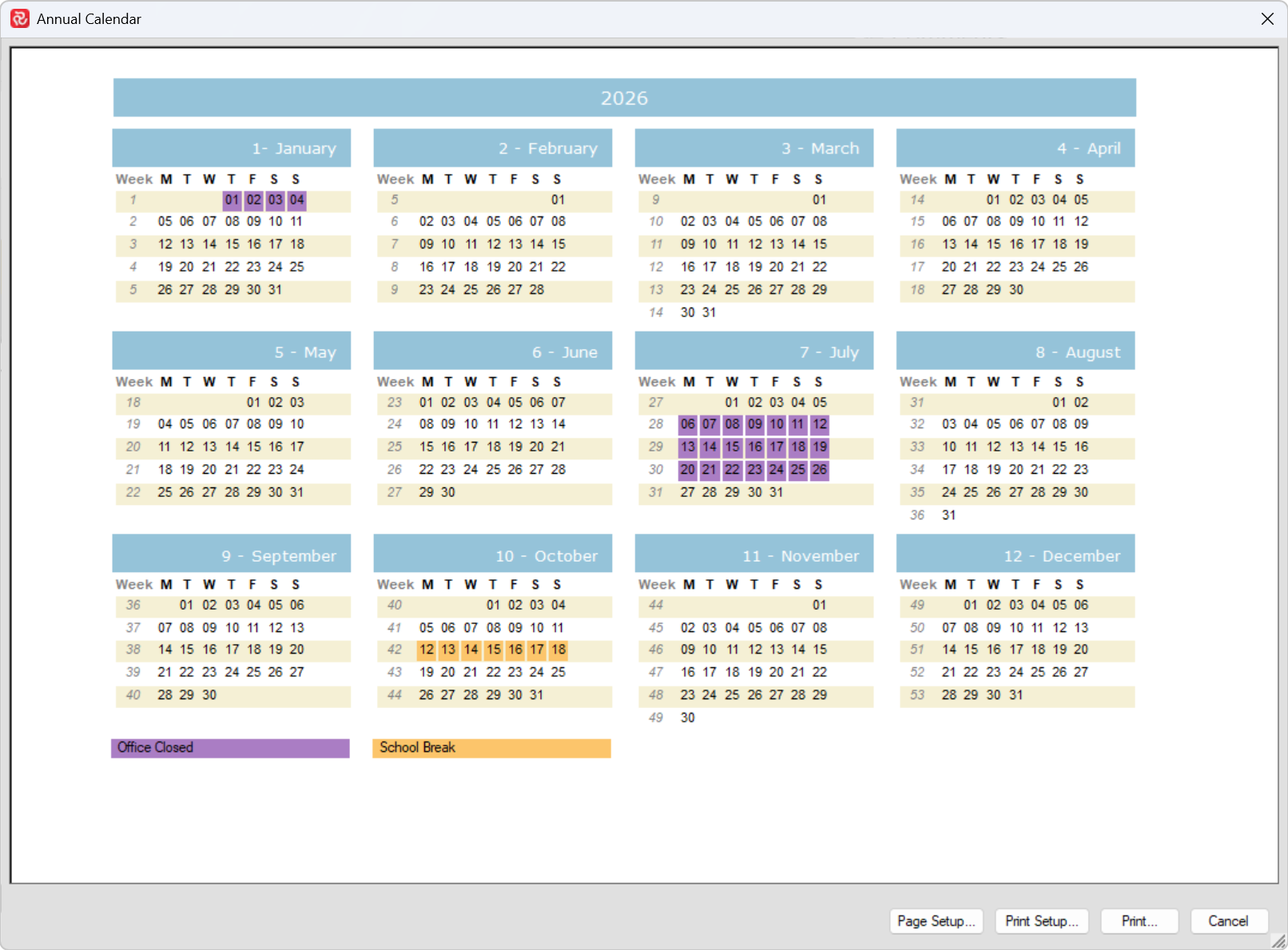
The example below shows a calendar that has a modified setup. To alter the calendar setup and details for categories and coloring, please refer to the next section.
Calendar sets
If you access the admin tab, you can work with all calendar sets to which you have access in the database.
The left part of the window displays the different calendar sets. The right part of the window shows the details of the calendars contained in a calendar set. Note that it is the calendar set that is assigned to a project, and that it is the calendar(s) within a calendar set that can be assigned to activities, links, resources, and resource availabilities.
You can use the Calendar Sets window to add new calendar sets, modify calendars for existing calendar sets, add new calendars, and copy calendars. You can sort the calendar sets in the window by clicking in the headers for ID, Name, and Units.
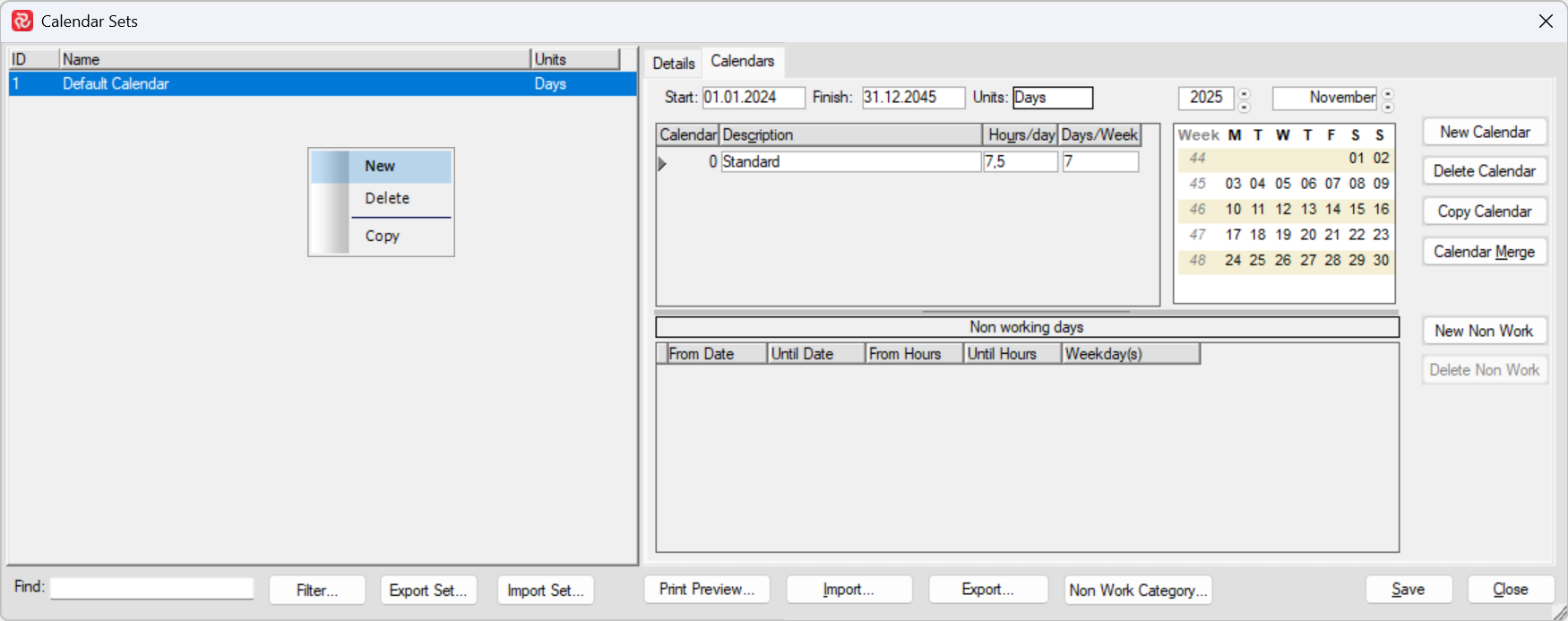
The shortcut/right-click menu allows you to create a new calendar set, delete(remove) a calendar set, and copy an existing calendar set.
The details tab shows you where the selected calendar set is used
At the lower part, there are options to find a specific calendar set by name, add a filter to restrict the list of calendar sets shown, and export/import options for an entire calendar set and all its calendars.
Non Work Categories
You can define several non-work categories and assign them to calendars or individual rest entries. This adds visualization to the calendar print, allowing each category to have its own background and text color for time off. For example, you can have separate categories for vacations, weekends, and national holidays. If you haven't defined non-work categories, all days off will be shown with red text in the calendar print.
Press the 'Non Work Categories' button.
In the Calendar 'Non Work Category' window
- Press the Add button to add a new category.
- Specify a name in the Name field.
- Select text color
- Select background color
- And add an optional description for the category.
- Press OK

You can also delete categories from this window to remove unused ones or perform housekeeping.
Note that the 'Non Work' categories are defined globally for the Safran database. The intention is that firms or organizations create a set of standard categories used to customize the calendar print. The non-work categories are not copied across during the export and import of projects or calendar sets.
The names and attributes of non-working categories are included as a legend on the one-year printout when assigned to either a calendar or a non-working days row.
Assigning non-work categories to calendar entries.
When a non-work category is defined, an icon appears to the right of the calendar entry and the individual non-working period entries or rows. The icon also comes with a tool tip so that it is easy to see which category has been assigned. The icon changes if a category has been selected.

If there are no category records, these icons will not be shown.
As you can attach a category to a "calendar" and to "non-working days", the category defined on the "non-working days" takes priority. This means that a user can specify a category on the entire calendar and have exceptions on one or more "non-working days" within the same calendar.
Calendar Merge
You can use the merge calendar function to create a new calendar from existing calendars. The merged calendar will then contain non-work periods from all calendars that have been merged into the new calendar. This can be useful if you have source calendars for national holidays, regional holidays, time off, local agreed time off, local holidays, and more.
To merge calendars, press the Calendar merge button.
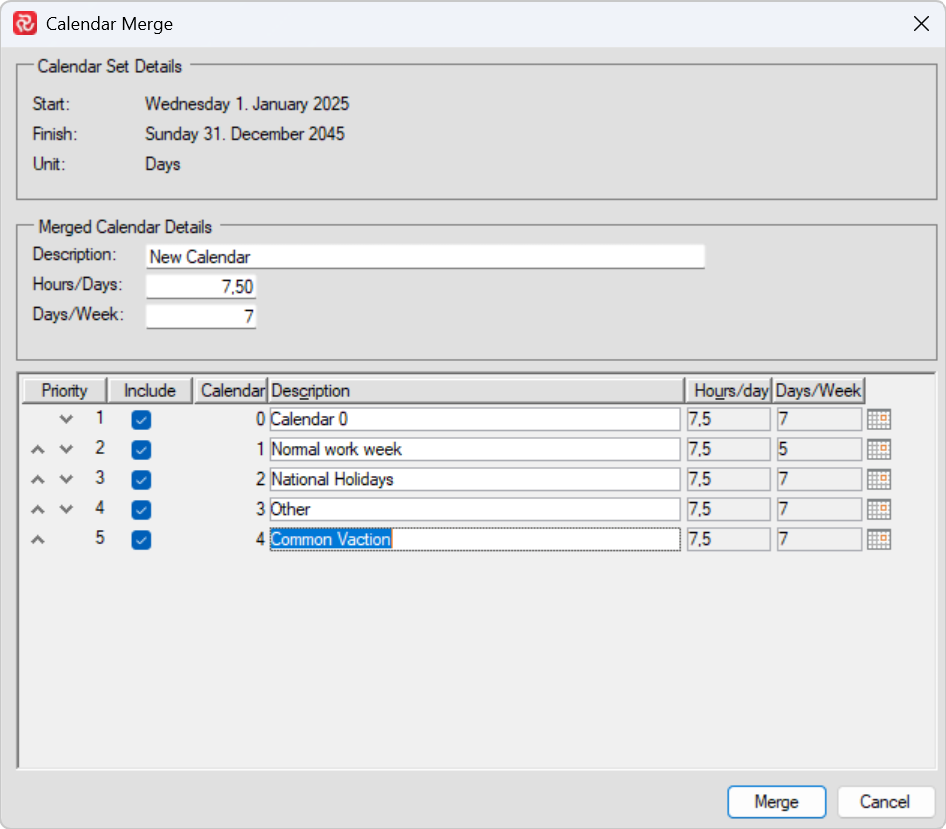
In the Calendar Merge window, you can include any of the calendars from the calendars set as sources for the new combined calendar. The default setting is to include all calendars. If you do not want to include one or more, you will need to uncheck the "Include" checkbox.
Start by giving the new calendar a name, then configure the Hours/day and Days/Week for the new calendar.
You can change the priority of the calendars by moving the calendar up or down the list by pressing the up or down symbols for priority. In the merged calendar, the categories, if defined, will be set per non-working row.
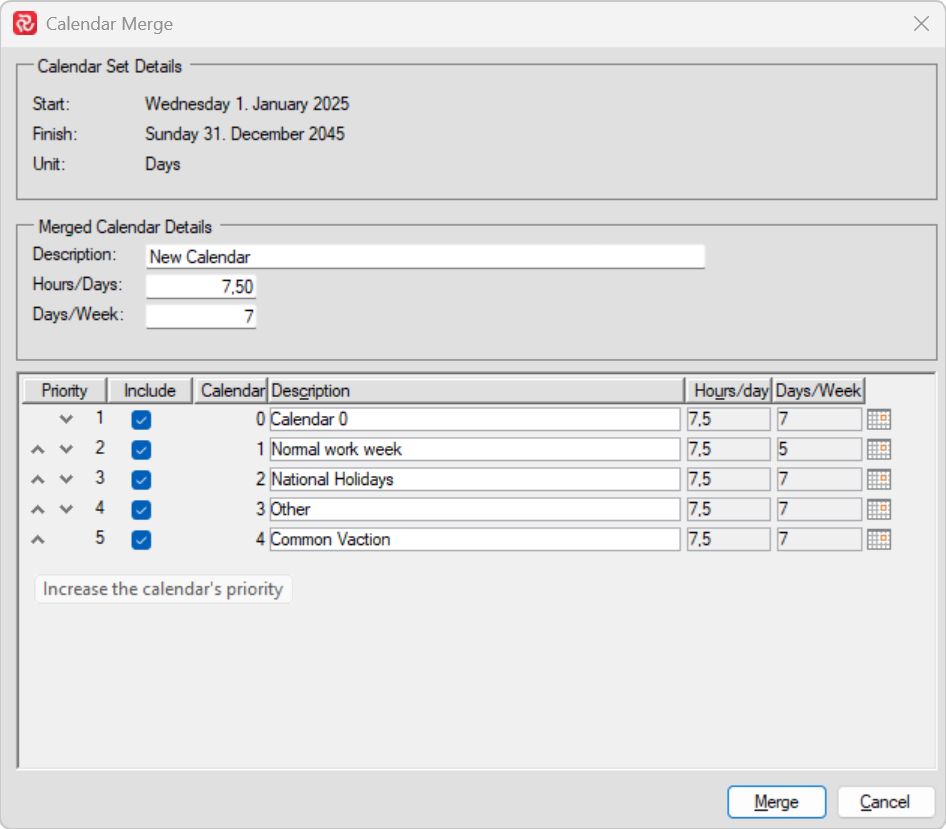
When pressing Merge, non-working days are merged into the new calendar based on priority, and conflicts are resolved according to the calendar order. This is the case when two calendars have overlapping time off; the calendar with the highest priority sets the calendar category.
Safran supports defining Non-Work days without specifying a from date and an until date. You will often see this when I set days off to Saturday and Sunday. To ensure the correct merger of non-working periods, the merge function uses the calendar span to create the days off.
As a side note, it is a best practice to include 'from' and 'until' dates when exchanging schedule data with other scheduling applications, as they typically don't understand a rest day without a defined span.
In the merged calendar, the rows inherit the calendar's non-working Categories.
The merged calendar is created as a new calendar within the current calendar set.
If you want to add the new merged calendar to another calendar set, select the calendar, press the left button, and move the cursor to the desired calendar set. A copy of the selected calendar will then be added.