Project Control
Project Schedule Options
Safran Project allows you to modify the default schedule options. In most cases, the default configuration should be sufficient. If this is not the case, it is easy to reconfigure the schedule. Typical examples might be the need to select the logic used to calculate the schedule or controlling calculations involving out-of-sequence activities. Initially, you may have set the time Analysis options during project definition, although you most likely accepted the Safran Project default settings.
For more info, see Schedule Options.
To Modify the Analysis Options
Locate and Click on the small arrow to the lower right in the PROJECT/Schedule ribbon.
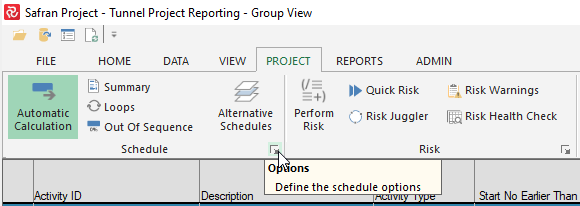
This opens the Schedule Options panel and allows you to view/modify any properties that control the time analysis process.
This can be done at any time before calculating the project schedule.
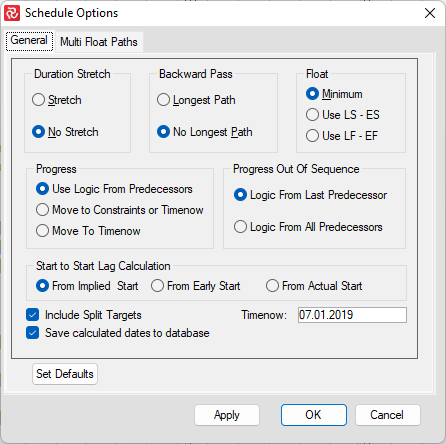
Below is an overview of the Schedule Options:
| Field | Description |
|---|---|
| Duration Stretch | Specify whether the analysis process may stretch an activity duration. The default is No Stretch. |
| Backward Pass | Influences the late dates of the project. The default is No Longest Path. |
| Float | Specify how to calculate total float on activities. The default is Minimum. |
| Start to Start Lag Calc. | Specify the starting point/date for Start to Start Lag, either Implied Start, Early Start, or Actual Start. The default is Implied Start. |
| Progress | Specify whether the incomplete part of an activity may be split from the complete part. The default is Use Logic From Predecessors. |
| Progress out of sequence | Specifies whether the incomplete part of an activity can be completed after the last predecessor or after all predecessors. |
| Resource Leveling | Select the type and value for optimizing the use of available resources. |
| Timenow | Enter the 'Timenow' date for the time analysis. |
| Include Split Targets | This option allows you to run a CPM project time analysis using either the split target information or disregard the split target constraint. (See Appendix A - Constraints for details about Split target). |
| Save Calculated dates to database. | Mark this check box to save calculated results to the database. The default is On. |
For a more comprehensive discussion of the Schedule Option, please refer to Schedule Options.
Multi Float Paths
Safran Project allows you to calculate multiple float paths.
Locate and Click on the small arrow to the lower right in the PROJECT/Schedule ribbon.
This opens the Schedule Options panel. Click on the tab 'Multi Float Paths:
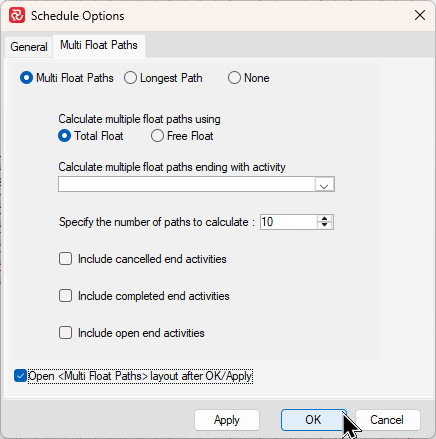
Choose your settings and tick 'Calculate multiple float paths.' If it is the first time you run this, we recommend ticking 'Open 'Multi Float Paths' layout after OK/Apply.'
Press 'Ok' or 'Apply' and notice that you have x new paths, and a new 'Multi Float Path' layout has also appeared. This layout may be modified and saved according to your preferences.

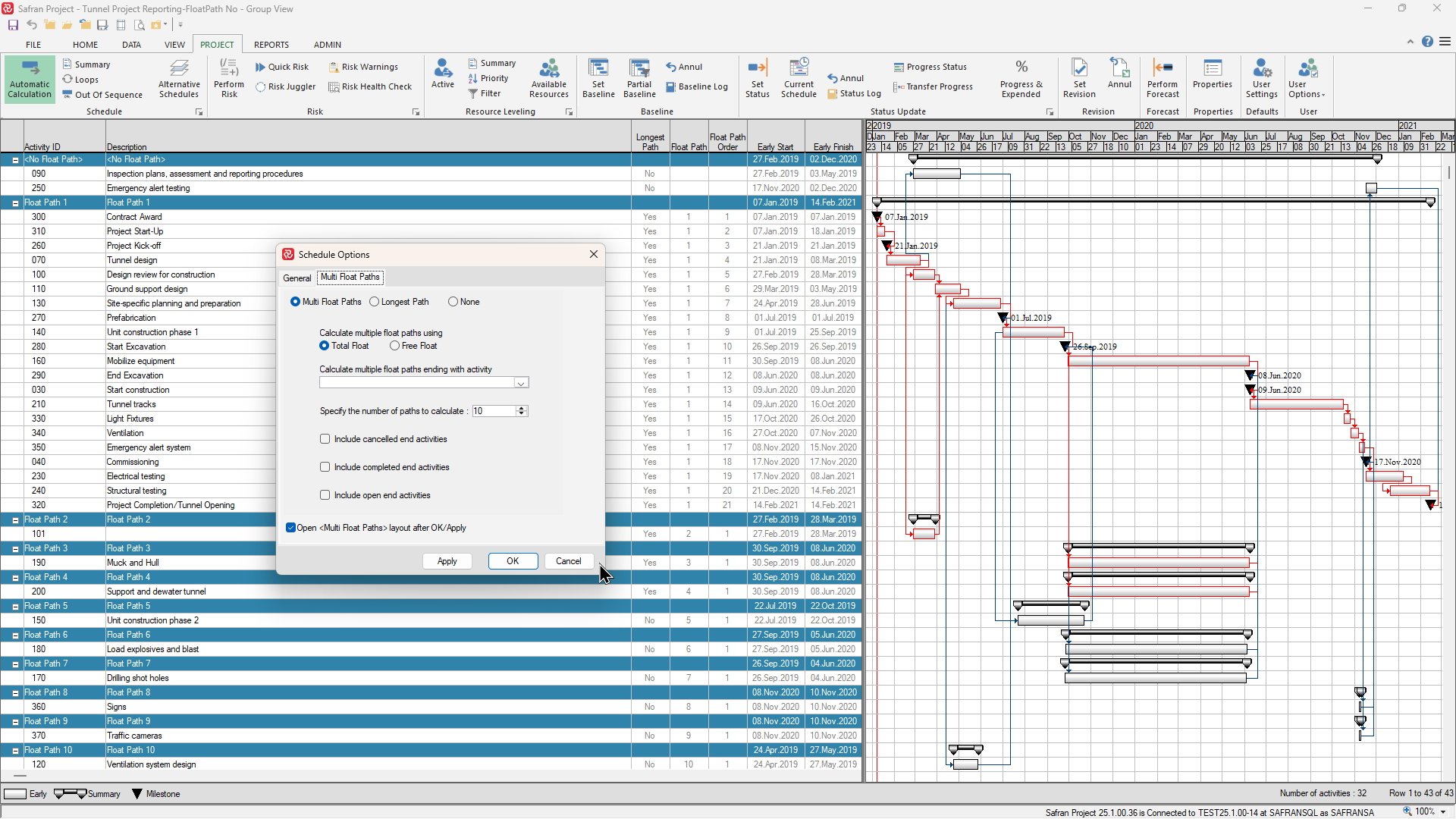
The feature to run multiple float paths was introduced in version 22.1.00. We expect minor adjustments to the calculations as users start using the feature on complex projects. If you notice something you disagree with, feel free to contact our support team, and we will consider making adjustments.
A more in-depth description of the feature Multi Float Path is explained in the section Setting up Projects/Multi Float Path
Project Summary
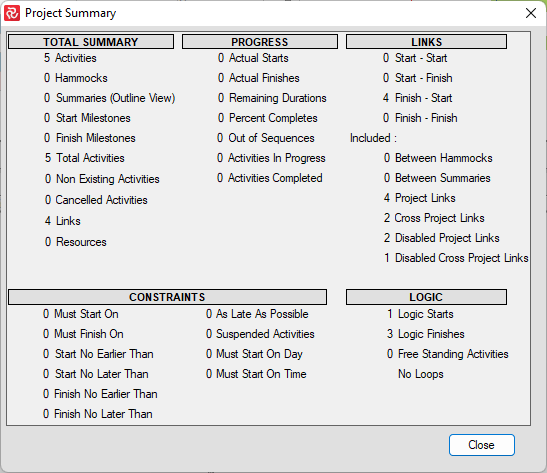
A Project Summary report provides various statistics regarding activities, constraints, resources, logic, targets, and progress.
The report also presents information regarding out-of-sequence updates and loops, in addition to various schedule summaries if resource scheduling has been invoked.
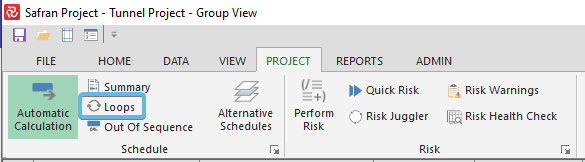
Loop Check
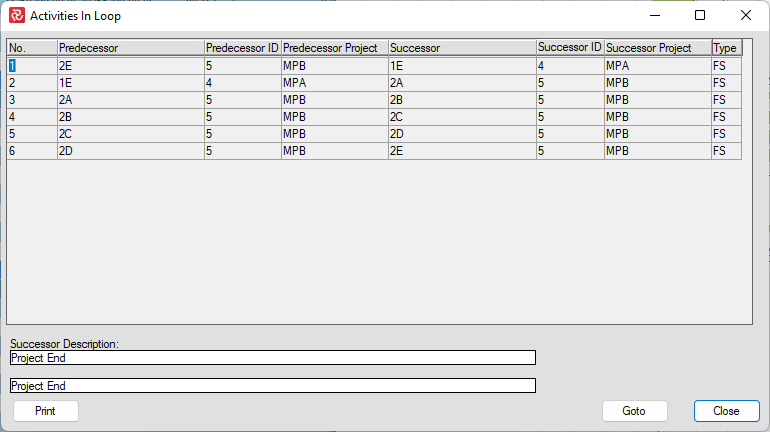
A project may not be scheduled if the start of an activity is constrained by the start or finish of another activity occurring later in a chain. This is called a loop. The activity and constraints forming the loop will be displayed in the project summary report if a loop is detected.
This option checks your project for logic loops only. It is only applicable if the manual Schedule Option is selected. Loop check is performed in real-time if the Automatic Schedule option is on. You will be notified if there are no loops in your schedule.
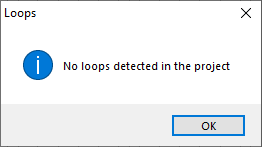
If there are no loops, you will get this message:
If there are loops, they will be shown like this so you may correct them:
Out of Sequence
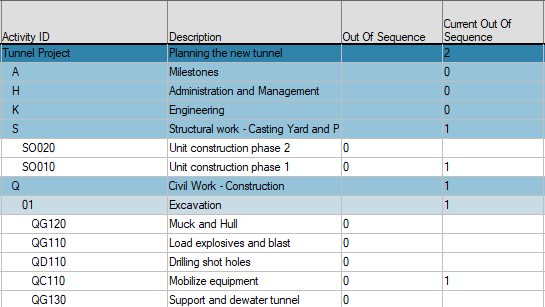
The time analysis process considers information related to activity time progress and the current Timenow date entered previously. In addition to activities being updated "in-sequence", i.e., according to project logic, Safran Project supports "out-of-sequence" updating, which is not unusual in real-life projects. If work is performed on an activity before any of its preceding activities are completed, you may still update this activity. The exact time analysis calculations for "out-of-sequence" activities depend on whether you have chosen ‘Logic From Last Predecessor’ or ‘Logic From All Predecessor’ in the Progress Out Of Sequence panel. The total number of out-of-sequence updated activities is also displayed in the Project Summary report.
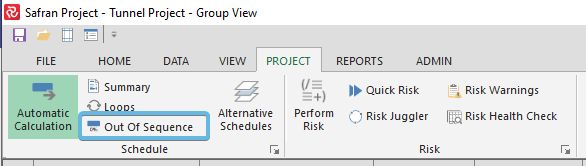
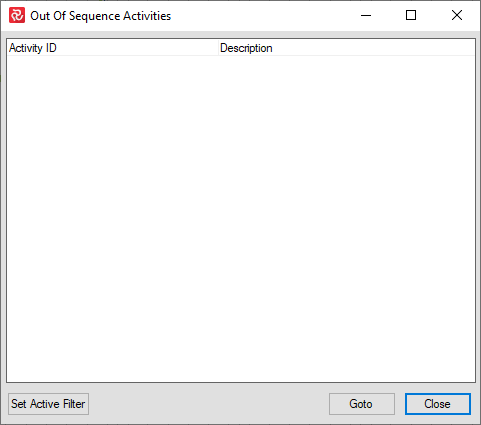
You may also add these two columns in the Barchart Editor:
Automatic Calculation
With this option, Safran Project allows you to calculate the Early Start and Early Finish dates of activities when:
- You are importing a new project and must reschedule dates based on Timenow in Safran.
- You set constraints for your activities.
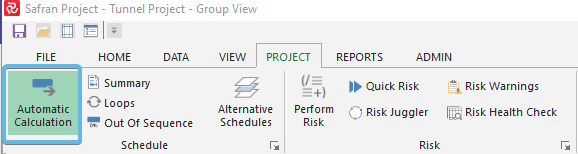
You can turn it ON or OFF by clicking on Automatic Calculation in the PROJECT ribbon.
Alternative Schedules
Alternative Schedules is a powerful and unique Safran Project functionality that can help simplify the process of documenting so-called ‘Schedule Impact’ which is often required as a part of requesting a Change or Variation order as clients not only want to know the increase of Scope/Cost and manpower requirements, but also what impact the change might have on the overall project schedule and milestones.
Since changes often require different execution strategies compared to the original schedule, the process often includes both modifying/deleting/adding activities and relevant logic.
All the time you’re usually not allowed to modify the project baseline schedule, existing practice has been:
- Take a copy of the existing schedule
- Make relevant modifications to the copy to reflect the change(es)
- Run Gantt charts and S-curve/Histogram reports to document the impact and submit VO
- Wait for the change to be approved
- Extract the approved schedule details pertaining to the change from the copy schedule
- Implement the details in the existing approved schedule
The above steps can often be both complicated and time-consuming.
Using the Alternative Schedule facilities can greatly simplify the process by allowing you to do all the above work in your existing schedule, without affecting your original schedule before the change is approved.
The facility provides you with 10 ‘additional schedule sets’ where all activities may potentially have varying Calendars, Durations, and so-called ‘Existence’ options for each schedule. The latter allows you to add new, modify/delete existing activities without affecting your existing approved schedule.
The additional schedule properties/dates are available as fields/columns in the Gantt editor and may also be used as the basis for barchart symbols and filtering. Further, the same data is also available in the bar chart histogram as the basis for both histograms and S-curves. In total the above makes it easy to make highly visible comparison reports documenting the schedule impact of a requested change.
Although the Alternative Schedule capabilities were originally developed to address Schedule Impact requirements, the tools are also useful when working with/developing alternative project execution strategies or scenarios prior to deciding on a specific model.
Finally, the tool set may also be used when studying the effect of acceleration strategies for an execution model and comparing it to the existing schedule.
The second tool associated with Alternative Schedules is the ‘Schedule Juggler’. Once you have decided on one of your alternative schedules and want to implement the changes to your ‘Standard’/existing schedule, the Schedule Juggler allows you to transfer Calendar, Duration, and Existence Option values from an alternative schedule to the ‘Standard’ schedule, or vice versa if you would like to keep a copy of the ‘original’ values. You can also use the juggler to transfer values between various alternative schedules.
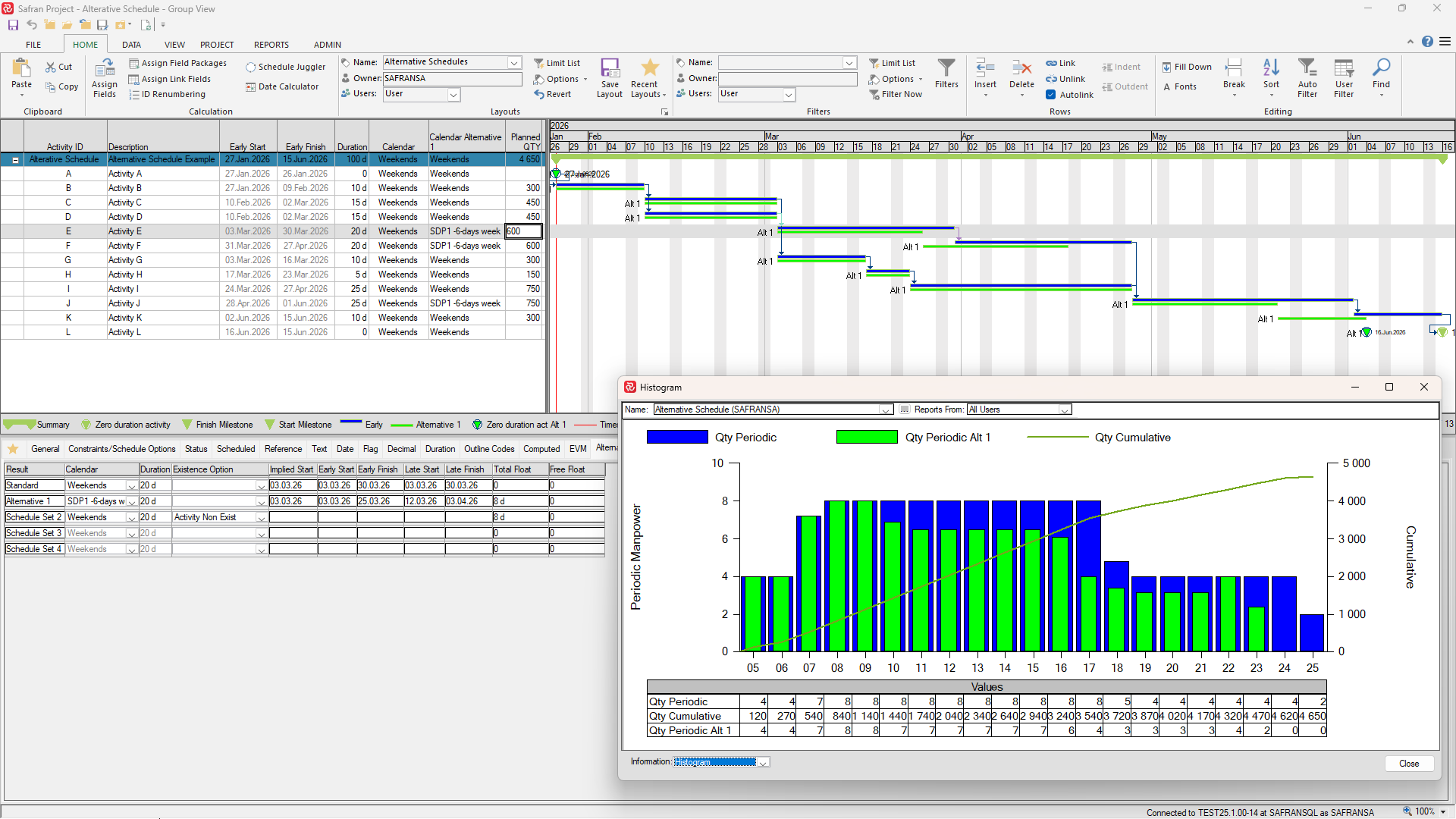
The picture below illustrates the basic comparison capabilities for both schedule and manpower impact that may be achieved using the Alternative Schedule functionality:
Note: Alternative Schedule is not available/relevant feature of Safran Project when using Safran Risk.
Using Alternative Schedules
Prior to using Alternative Schedules for the first time, you'll need to 'switch on' the function and define the various schedules you require.
Start by locating and selecting Alternative Schedules which can be found on the Schedule section of the Project ribbon.
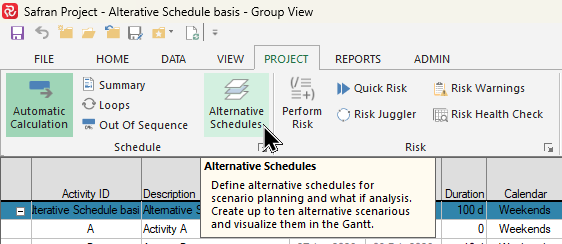
The Alternative Schedule configuration window appears allowing you to define your additional schedules.
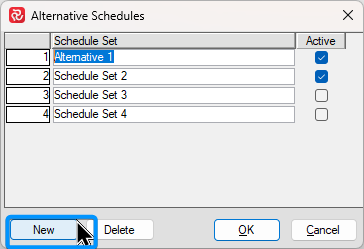
Press New for each additional schedule set you require and give it a descriptive name.
Checking the 'Active' box to the right will make the schedule set parameters Calendar/Duration/Existence Option available for both manual entry/update, Assign Fields and Schedule Juggler use.
If 'Active' is not checked you will not be able to enter/modify these parameters manually, by using Assign Fields or the Schedule Juggler, however they will still be available for use by the Schedule Juggler and Assign fields for copying to/calculation of other fields.
Once you are satisfied with an alternative schedule, it might therefore be useful to set it as 'in-active' so that changes cannot be made inadvertently.
Even though a schedule set is 'in-active' it is still taken into consideration during the network analysis and all pertaining values are available for viewing and reporting.
When you are finished press Ok. You will then be prompted that a 'Re-fresh' of your schedule will be needed to see the additions.
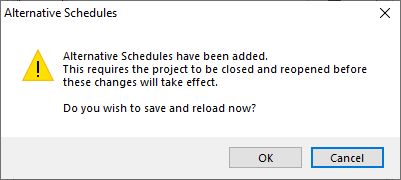
To delete a Schedule Set, set focus on it's ID or name and press Delete. This will remove both the set and its contents. If you choose to do this, you will be prompted to verify your action prior to the deletion.
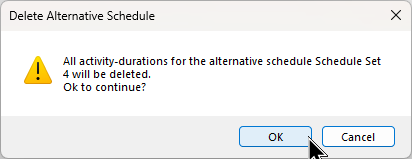
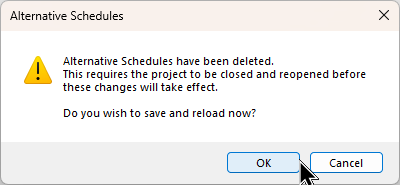
When you are finished deleting, press OK on the Alternative Schedules window, you'll be informed that the deletion will require a 'Re-fresh' of your data.
When you define Alternative Schedules for the first time for a project you'll notice that the Activity Information sub-tab/window now has an 'Alternative Schedules' tab. This tab contains the various schedule sets you have defined as well as a 'Standard' set which is the original activity set. The Alternative Schedule tab displays all the available fields for the schedule.
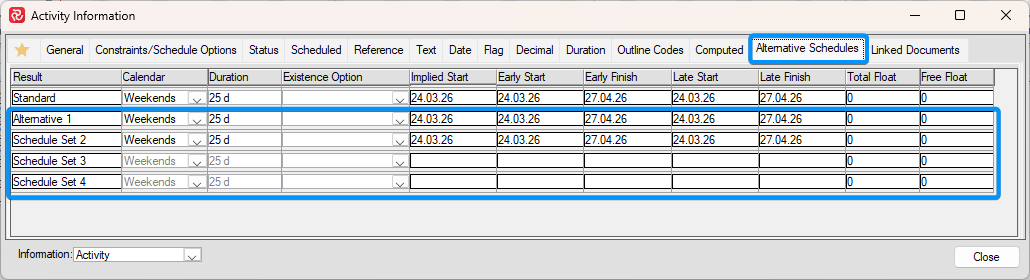
As mentioned earlier, you'll be able to modify the 'Active' set parameters, however the 'Inactive' will be grey/non-editable.
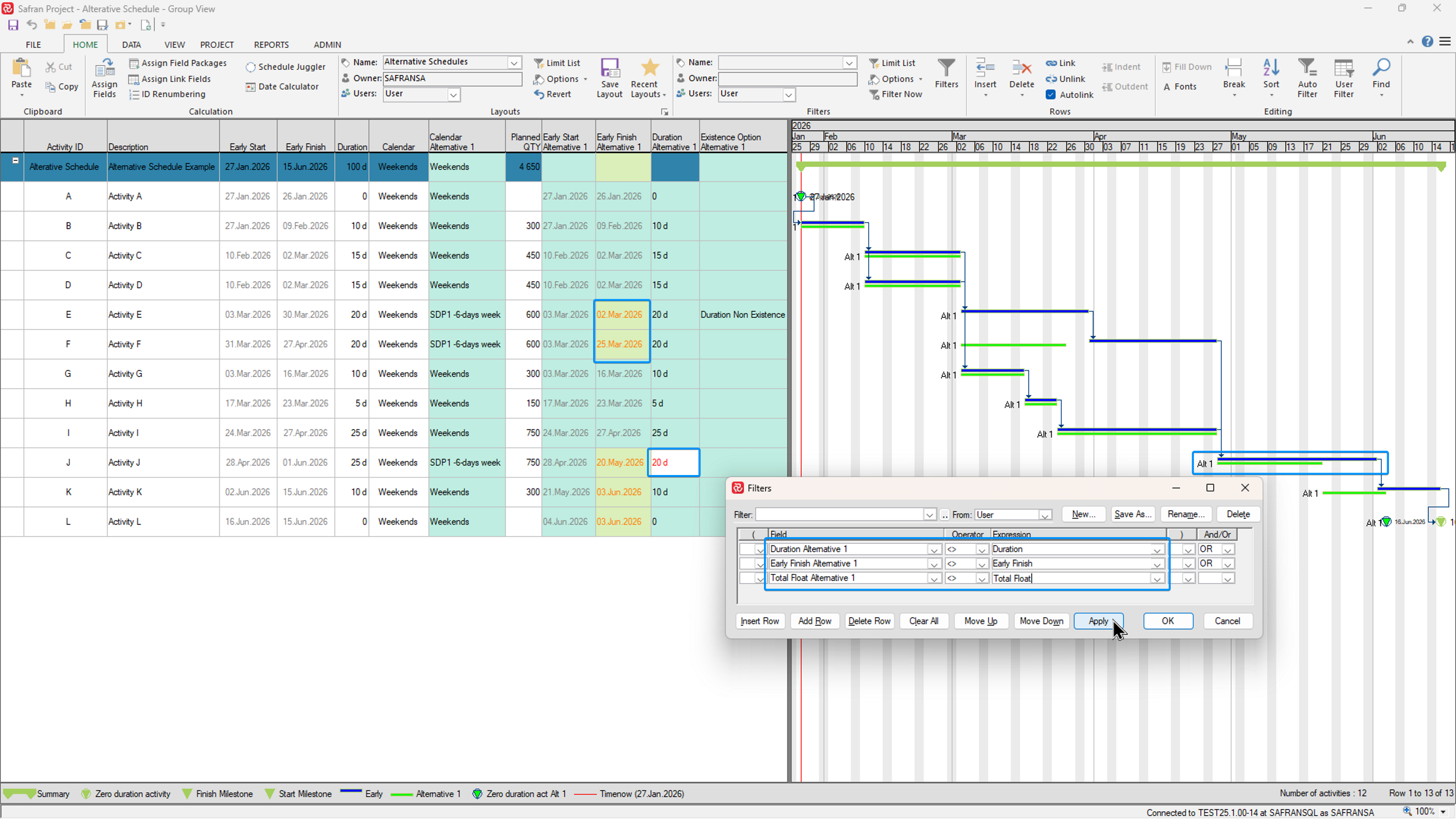
All parameters and pertaining schedule information (ES/EF, LS/LF, TF/FF and Implied Start) are available as columns in the barchart editor. Each field will be named by its type and schedule set label, ie. as shown below, 'Duration - Alternative 1', 'Early Start - Alternative 1' and so on.
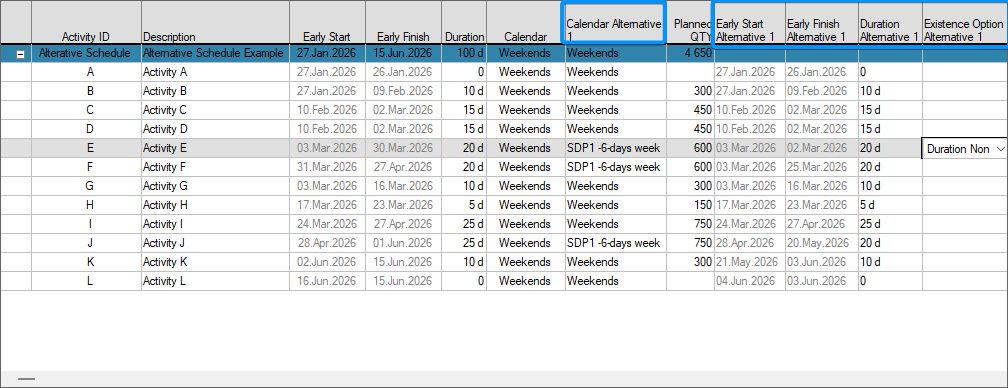
Both the parameters and schedule fields are also available for use in Filters. This enables you to select activities with variations and hi-light the changes by using both barchart symbols and conditional formatting capabilities as illustrated below:
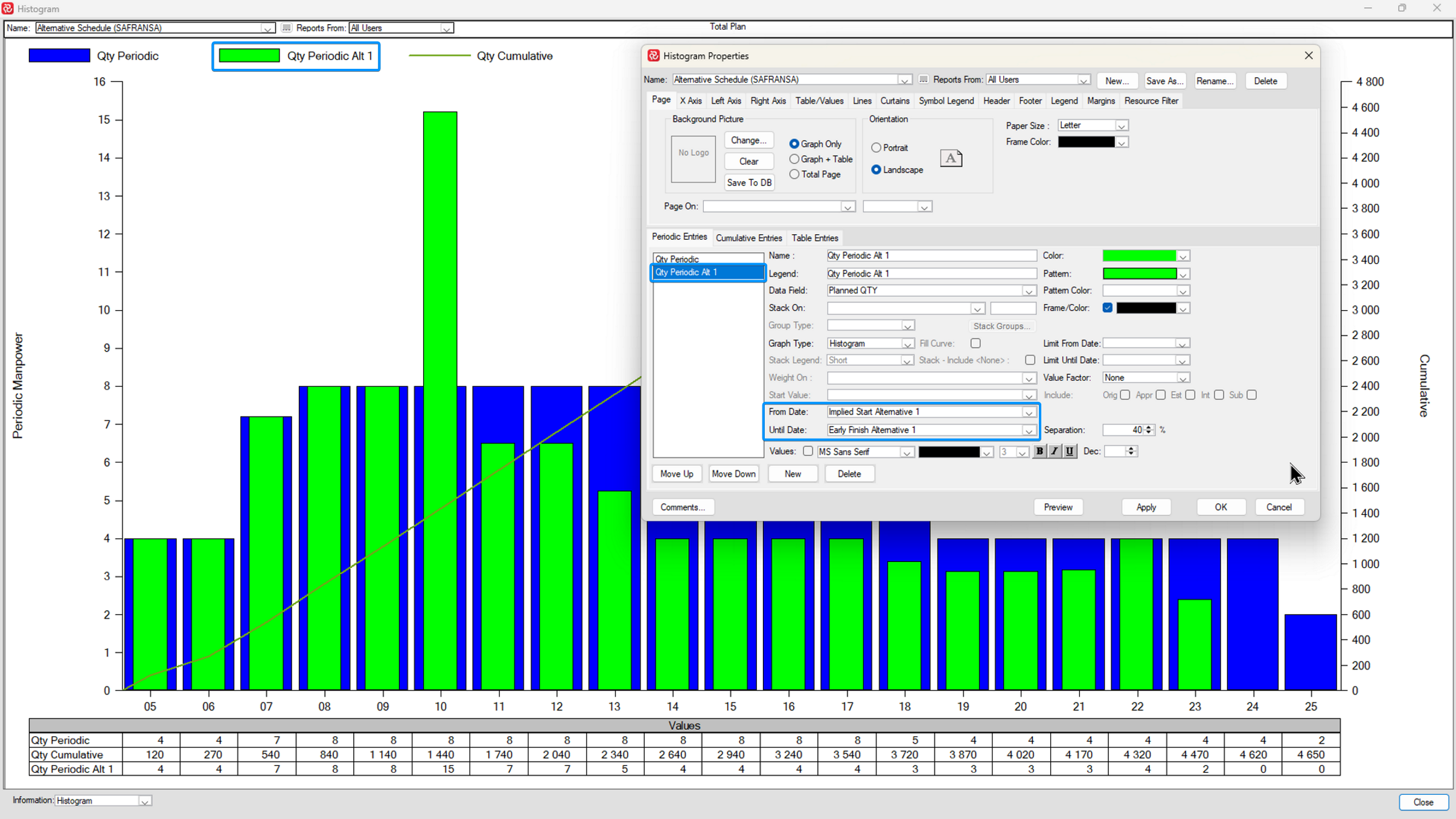
Similarly, the alternative schedule dates (ES/EF, LS/LF, and Implied Start) are available for use in the Barchart Histogram allowing you to present both QTY and Cost based Histograms/S-curves enabling you to visualize and compare the resource requirements of various schedules to the current schedule.
Schedule Juggler
At some point in time when working with Alternative schedules you will most likely have the need to copy one or more of the Alternative Schedule Parameters Duration/Calendar/Existence Option from one schedule to another.
This can always be done by doing a 'Cut-n-Paste' between columns or alternatively using the Assign Fields tool, however you'll find the Schedule Juggler much more flexible and efficient in use. Additionally it has a 'Preview' function allowing you to view your changes before they are implemented to ensure you're 'doing the right thing'.
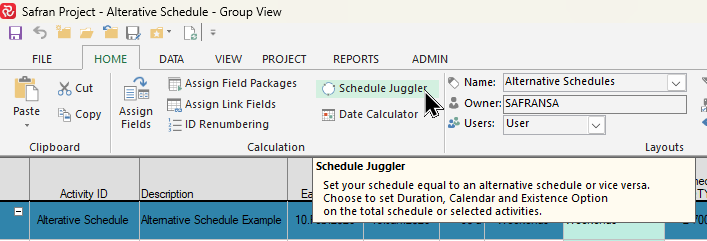
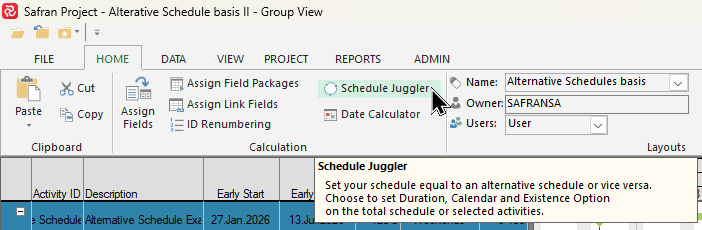
You'll find the Schedule Juggler on the 'Calculation' section of the 'Home' ribbon.
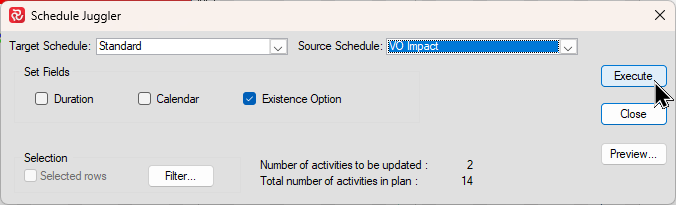
As shown below, the Schedule Juggler allows you to select a 'Target' to copy to and a 'Source' to copy from. You can copy to/from the 'Standard' schedule or any of the alternatives.
You also choose which parameters to copy by checking the relevant parameter.
The Schedule Juggler also has filtering capabilities allowing you choose the activities you want to update either by using a Safran filter, or by hi-lighting a number of activities in the barchart after which the the 'Selected Rows' checkbox will be activated. In both cases the 'Number of activities to be updated' will reflect your selection.
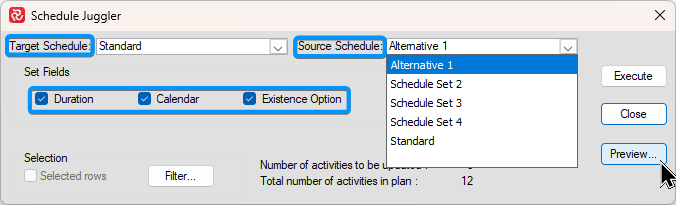
Finally, and we highly recommend using it, by pressing the Preview button you'll be able to see a complete list of changes that will be made to help you ensure that the changes you request are as you intend.
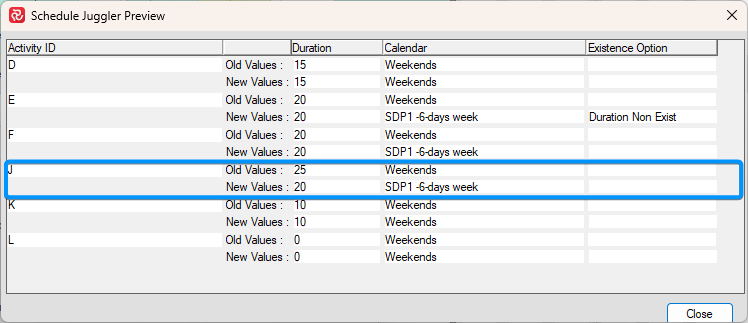
Press the Execute and then the Close button to return to the barchart editor.
Practical Examples of using Alternative Schedules
Example A
The first example highlights the use of Alternative Schedules in a VO context, ie. additional activities and work are added, and any Schedule Impact is shown along with any additional/modified resource requirements.
Start by defining one or more Alternative Schedules by locating/selecting Alternative Schedules on the Schedule section of the Project ribbon.
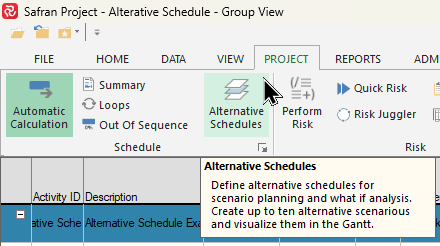
The definition window appears.
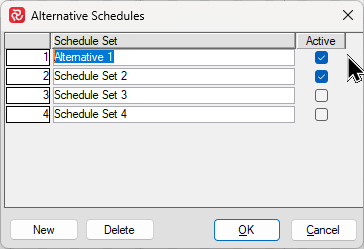
Make sure you make your schedule set ‘Active’ which will allow you to enter/modify its characteristics. Schedule sets that are defined but not ‘Active’ will be shown/visible, however you will not be able to enter/change its values.
The illustration below shows a simple schedule prior to adding new activities. The Activity Information panel now contains an additional tab Alternative Schedules showing the parameters and start/finish dates for the Standard schedule/Live Plan and the additional schedules. Note that initially, each additional schedule inherits the Standard parameters for each activity.
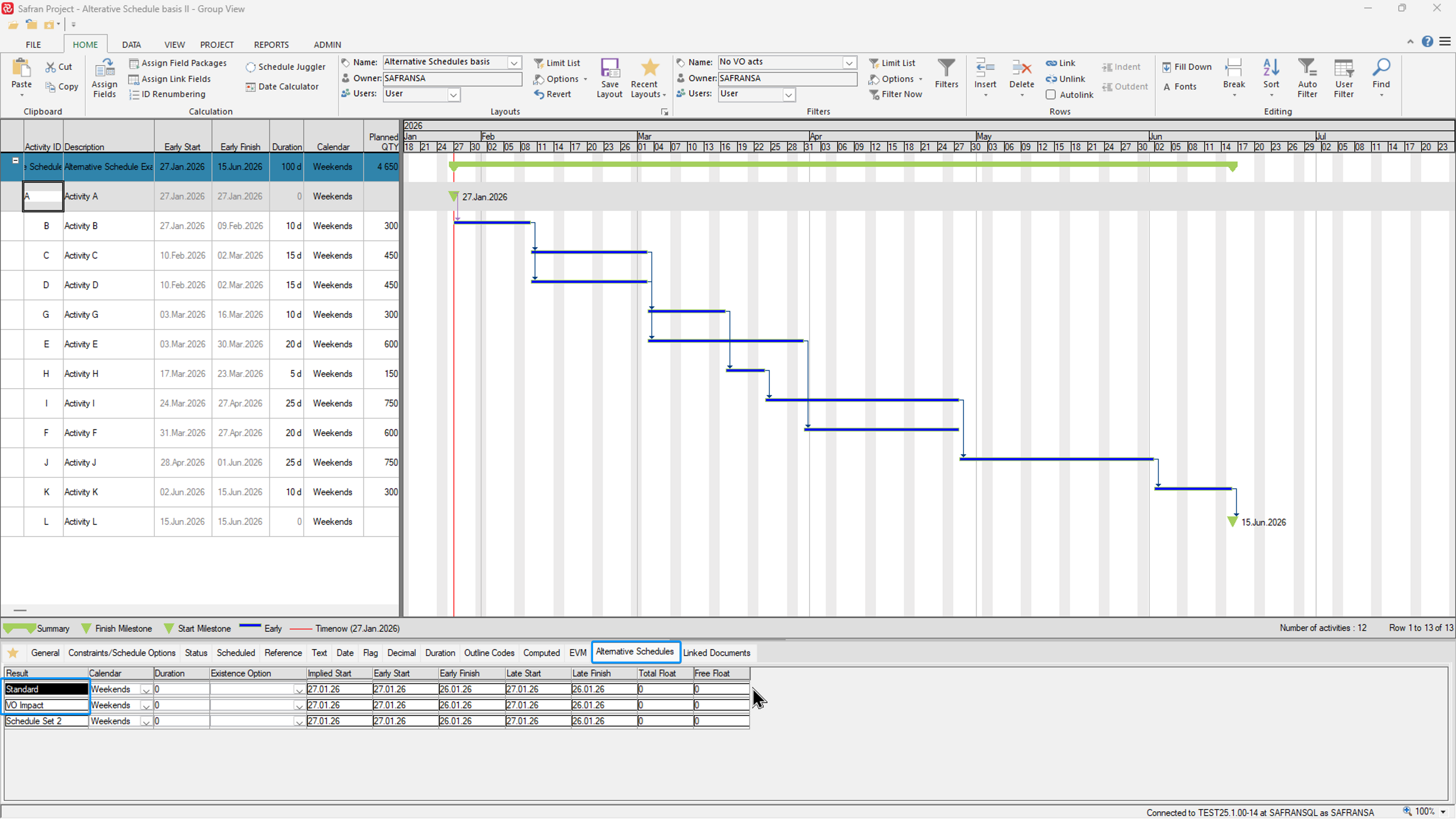
Two new activities (in red focus) belonging to a potential VO are added and linked to the current schedule, each containing additional scope. Further, the two new activities have been configured with the Existence option ‘Does Not Exist’ in the Standard schedule so that they will not have any effect on the current schedule, which still is planned to finish 15 June 2026.
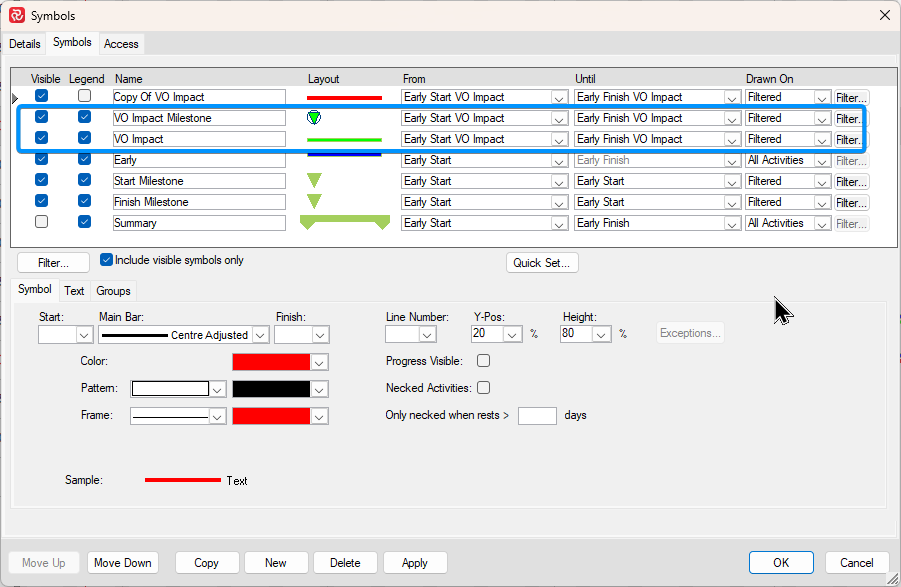
Additional barchart symbols which use the start/finish dates for the alternative schedule have been added (in green) to visualize the schedule impact the VO will have.
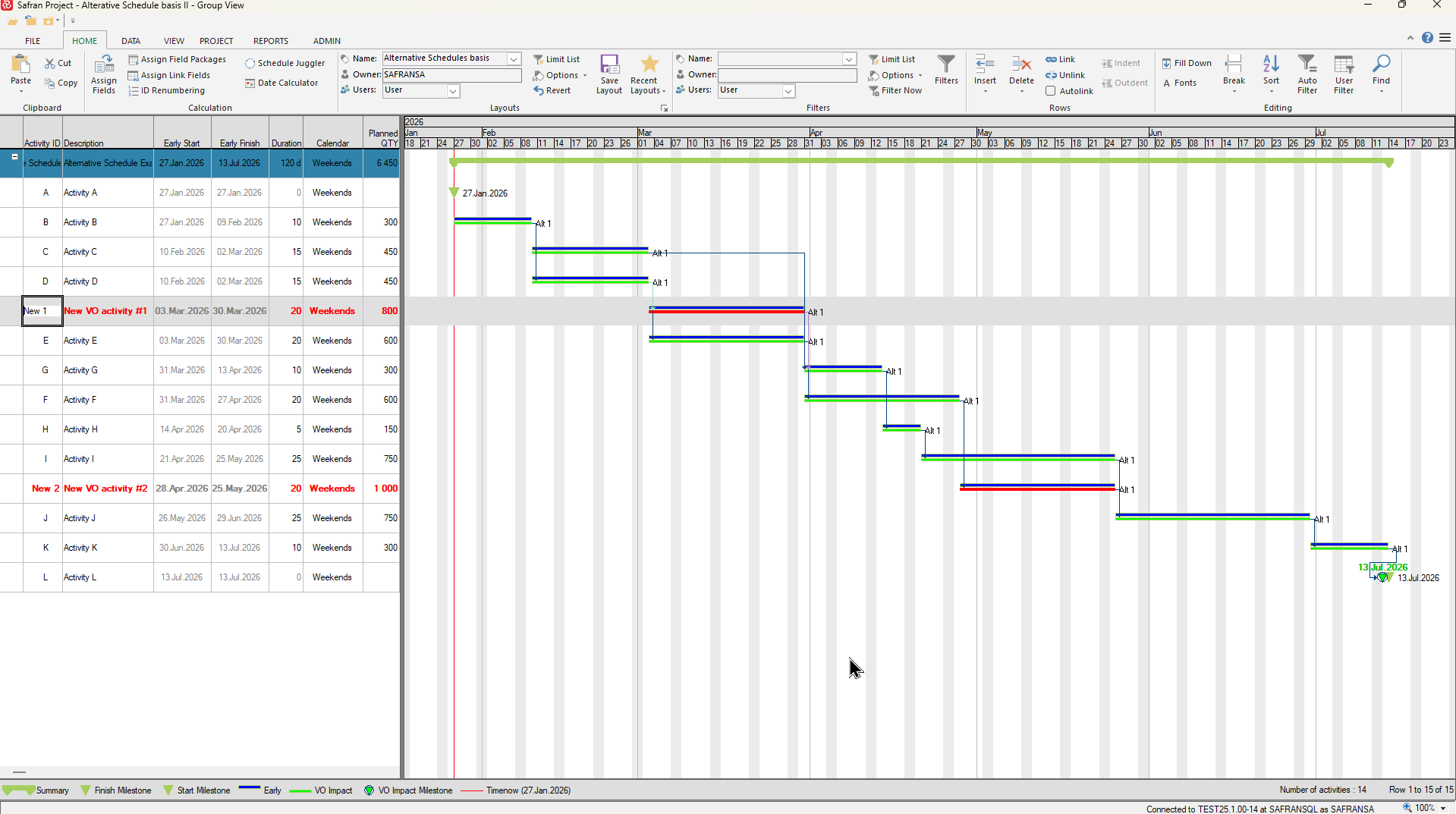
As can be seen, the finish milestone has now slipped to 13 July 2026.
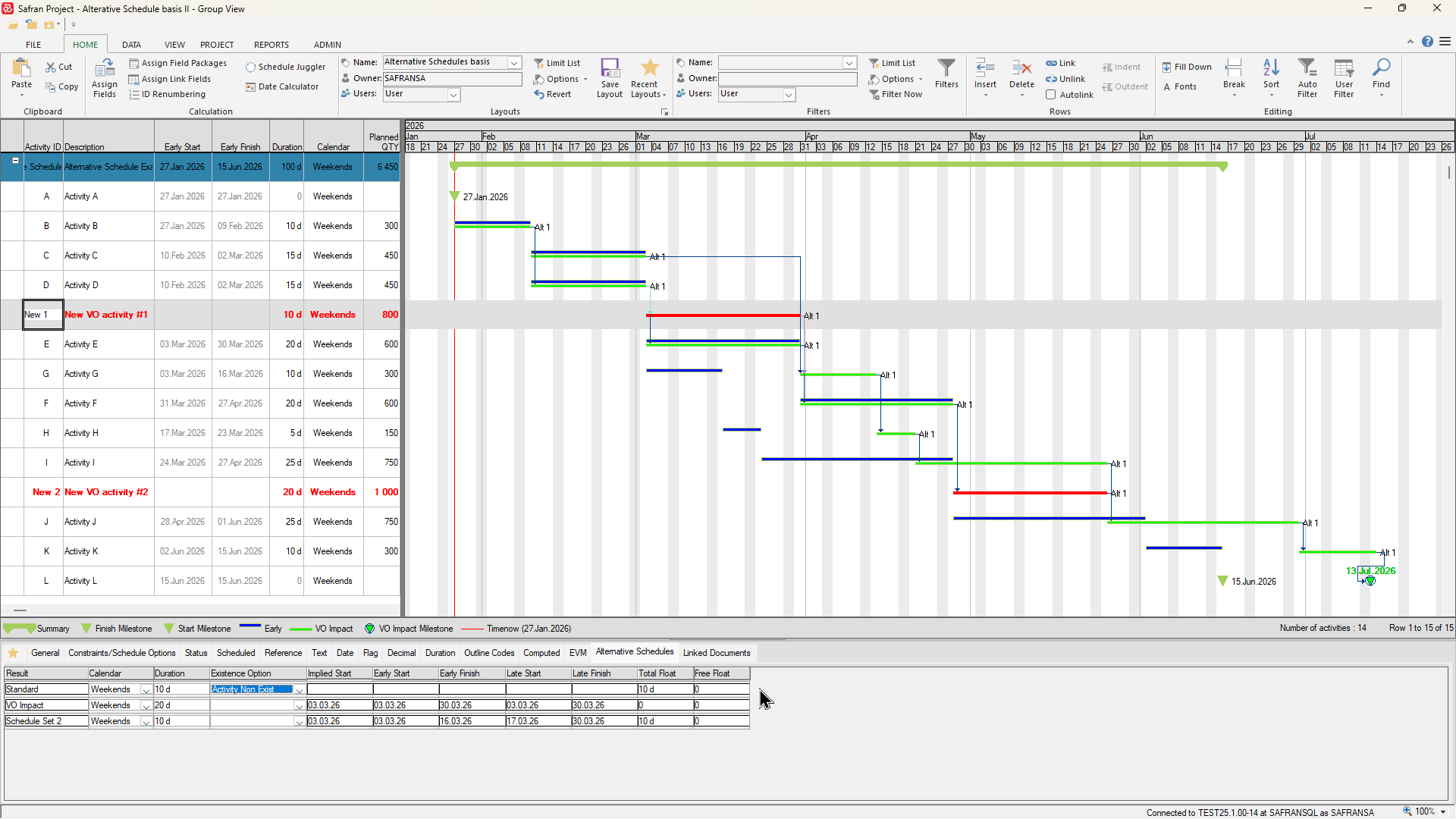
Note that the green VO Impact bars are based on ‘VO Impact’ start/finish dates while the corresponding blue bars are based on the Live Plan (ES/EF).
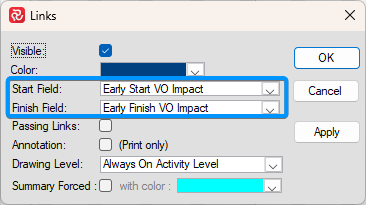
The Links properties of the barchart editor have also been changed to use the VO Impact dates easing the tracing of the logic of the VO Impact schedule.
The corresponding manpower/manhour histogram visualizes the resource requirement impact in the same manner as the blue bars/curves represent the current schedule while the green equivalents represent the new total including the VO.
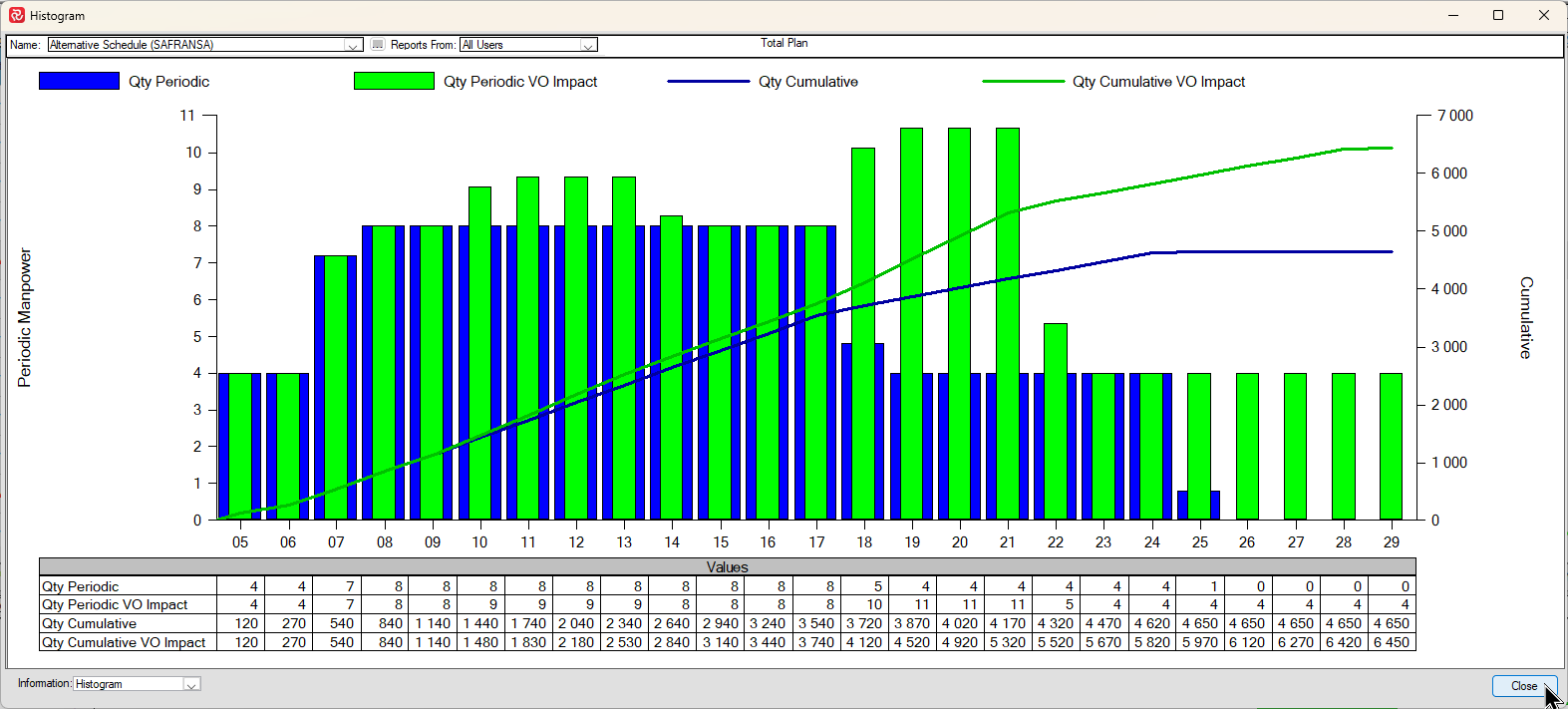
Note again that both the green histogram bar and s-curve are also based on the ‘VO Impact’ start/finish dates while the corresponding blue elements are based on the Live Plan (ES/EF)
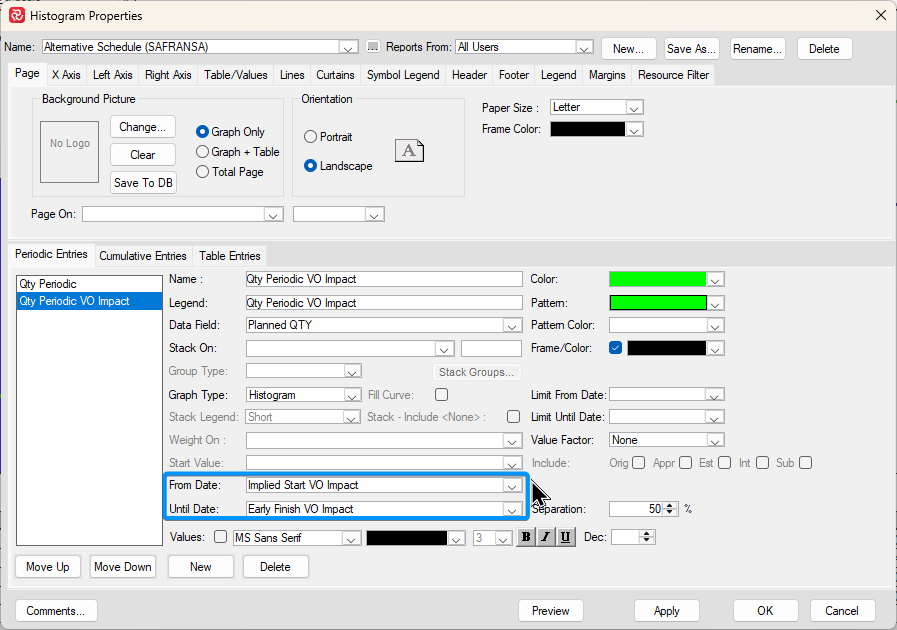
When the VO is approved the final step is to implement the new VO activities in the current schedule which easily done by using the Schedule Juggler which is found on the Calculation section of the Home tab.
In this case a filter has been used to select/update the two new activities with the Existence option value from the VO Impact schedule which is ‘blank’, which will in turn render the activities valid in the current schedule.
After pressing Execute you’ll see that the schedule is updated the two schedules are aligned pushing the finish date to 13 July 2026.
Example B
The next example shows the use of Alternative Schedules in a project where progress is lagging behind and there is a need to develop a Recovery Schedule to get the project back on track.
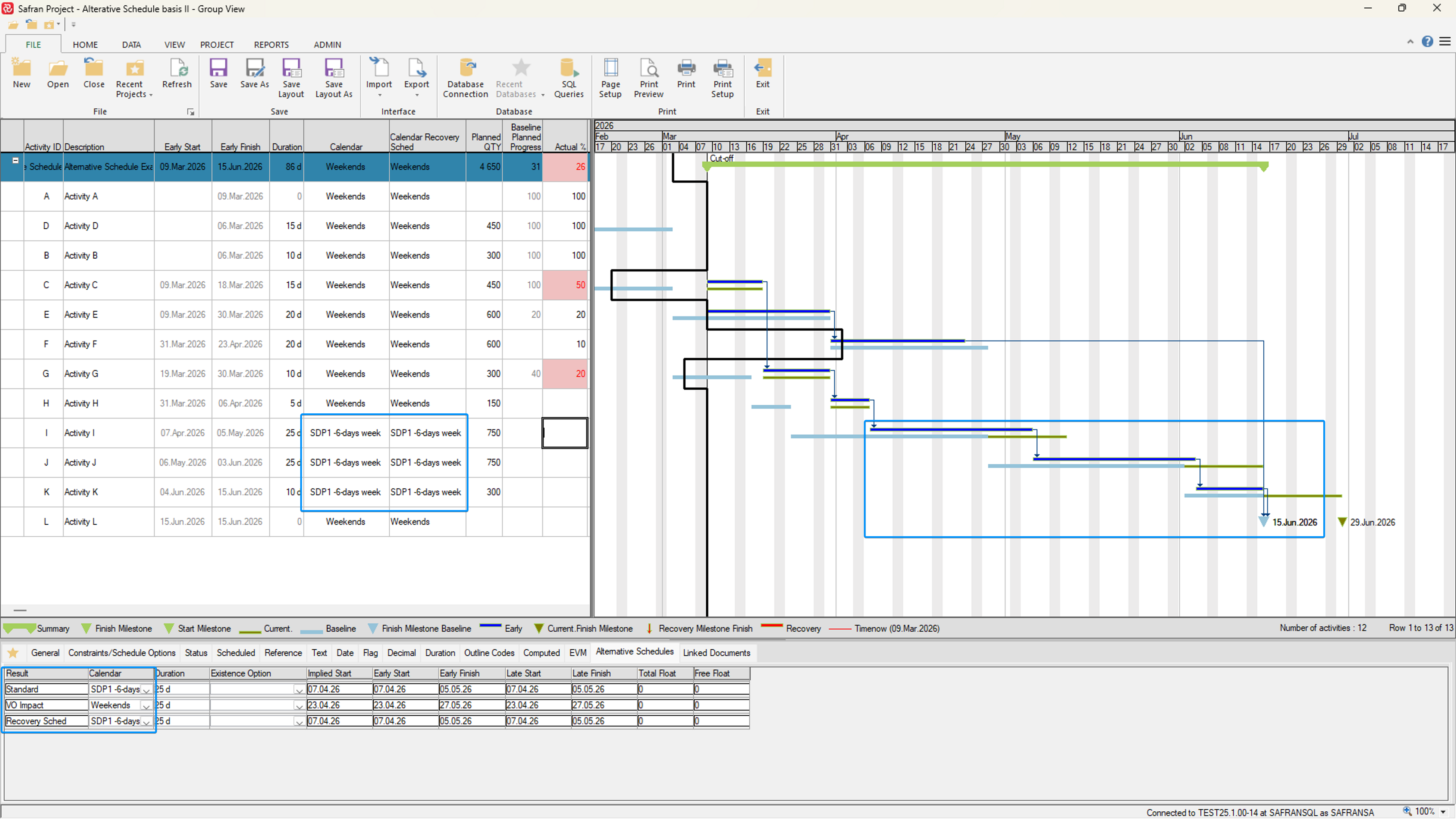
If we look at the example below, note that Activities C and G are behind schedule which in turn delays the finish date 14 days from June 15th to June 29th. This is highlighted by showing the Current Schedule symbols in green (Current Early Start/Early Finish).
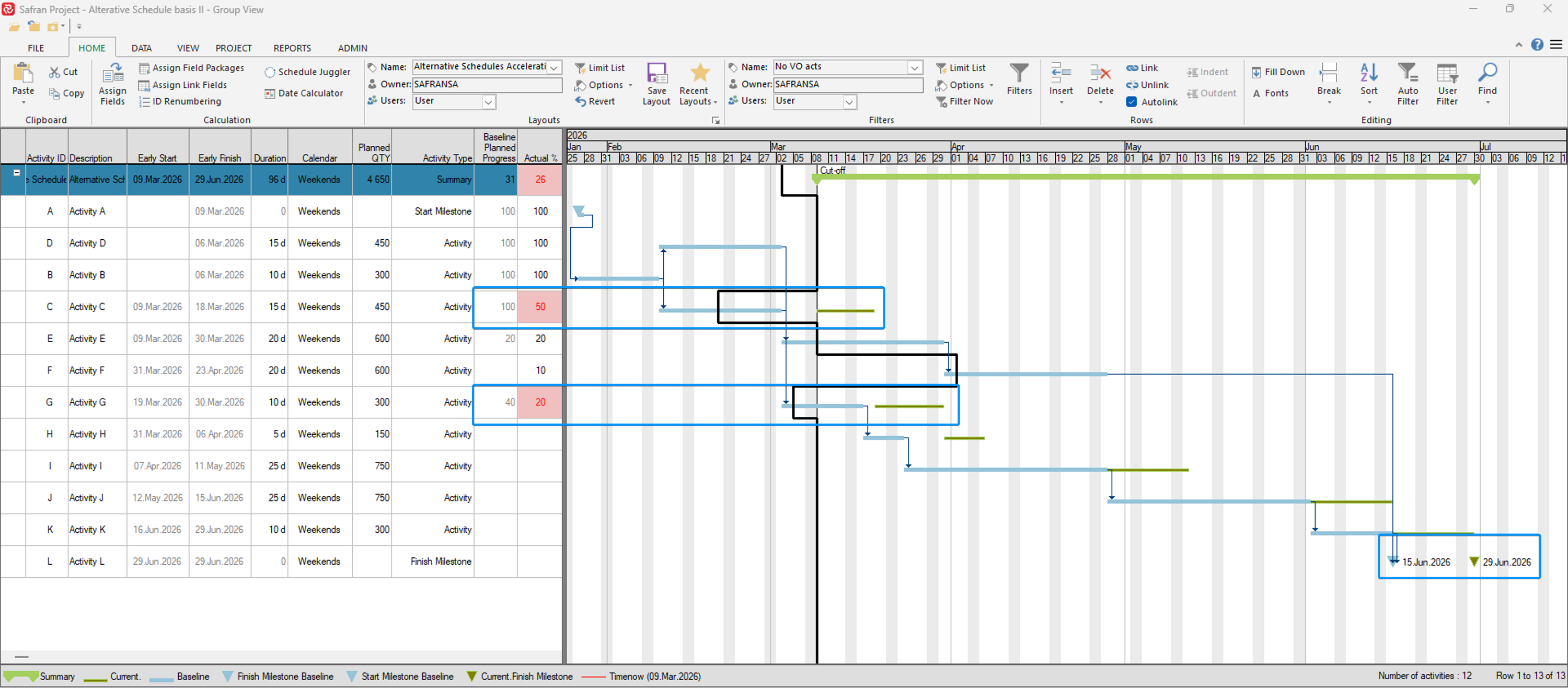
In order to evaluate various schedule alternatives to bring the project back on track one could define one or more alternative schedules each containing differing calendar, duration and existence options in order to see the effect on the completion date while still keeping the current schedule intact.
In this example an alternative schedule named Recovery Sched is defined.
.png)
To get an exact impression of the remaining work and the delay, Timenow has been moved forward to the day after the latest Cutoff and the Live plan is updated with status information from the cut-off (Live and Current schedules are now equal).
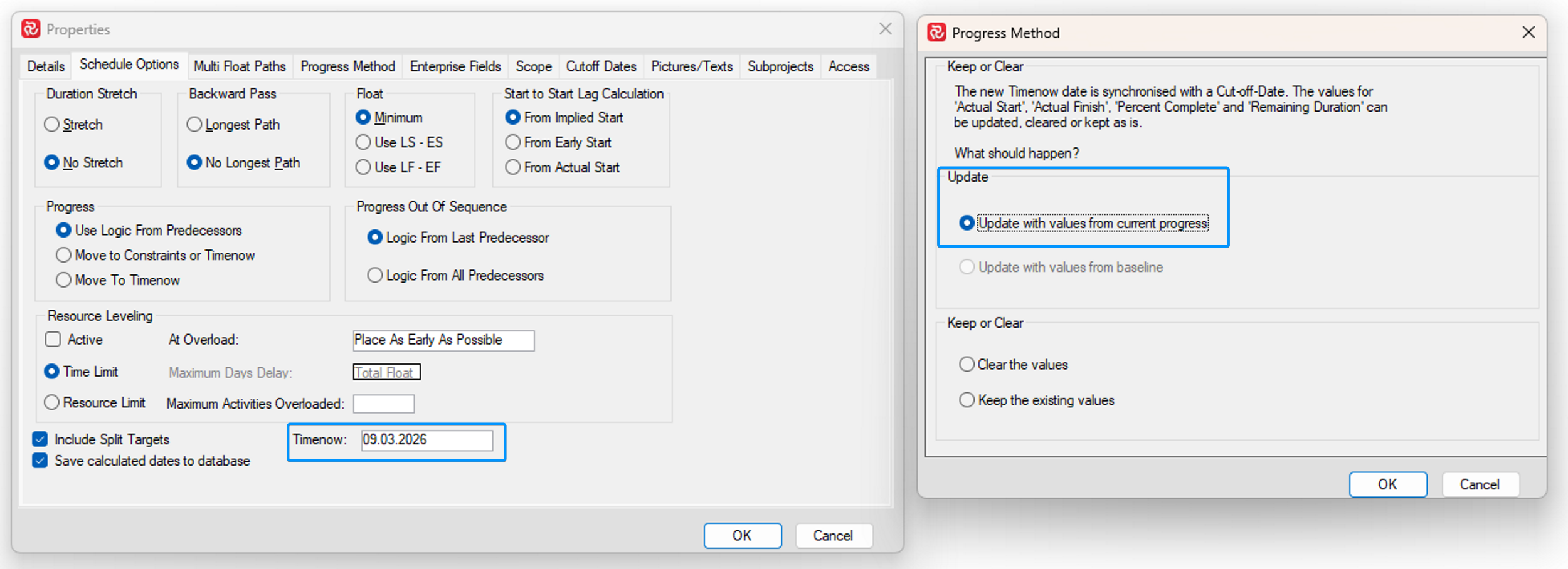
One strategy to get the project back on track, might be to switch a number of the remaining activities I/J/K to a ‘6-day work week’ calendar. If we change the calendar for the Recovery Sched alternative schedule to the ‘6-day week’ calendar we see that the Baseline Finish date can now be achieved.
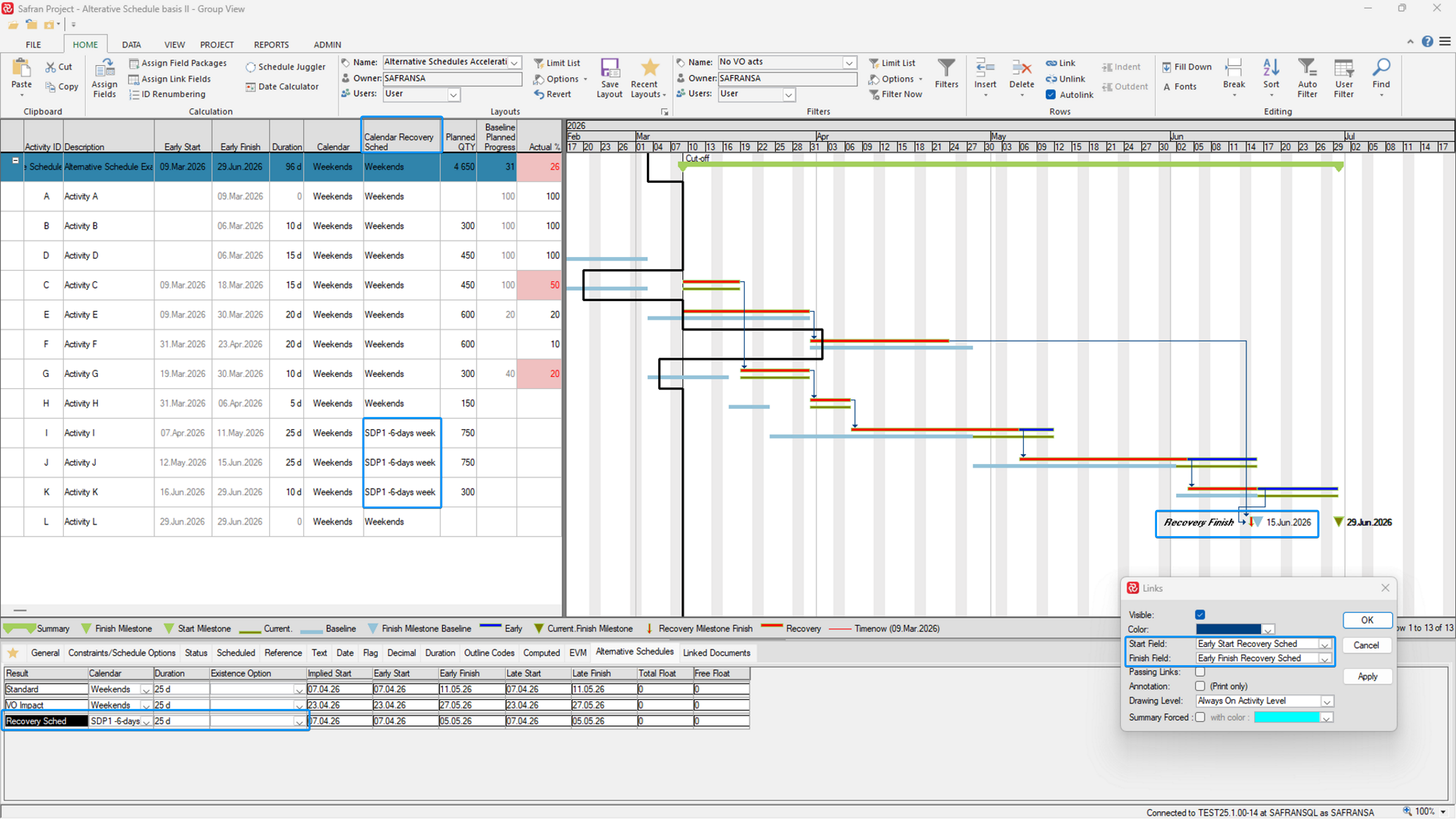
To highlight the Recovery Sched changes/effect (drawn in orange), the relevant fields and symbols have been added to the barchart. Note also that the barchart links are now drawn using the Recovery ES/EF dates which further increases the visibility of the changes.
Once the recovery plan is accepted, the changes may easily be transferred to the Live schedule using the schedule juggler as shown below:
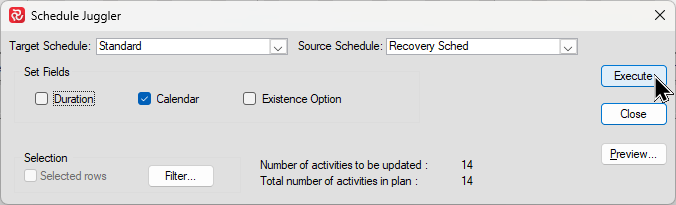
The Live schedule now shows that the original finish date is achievable:
Note that the calendar amendments (or any other Duration/Existence changes) made to the Standard (Live ES/EF) schedule are also valid for the Current schedule /CES/CEF) and will be taken into consideration when running the next Status Update, allowing you to track progress against the amended schedule.
Frontlines
The Frontline in a Gantt chart is a helpful visual aid that makes it easy to assess progress at a glance. You’ll find It is relevant for all levels of a project from top to intermediate and even down to discrete activities.
The frontline is drawn vertically relative to the current/latest cut-off date. If the activity is on track, the frontline will coincide with the cut-off date. If the activity is behind schedule the frontline is drawn to the left of the cut-off date. Similarly, if it’s ahead of schedule the frontline will be drawn to the right of the cut-off date.
Instead of having to compare two figures, ie. Planned Progress % - Actual % the frontline allows you to identify deviations in progress from a multitude of activities (both positive and negative) at a glance.
Since the frontline is drawn relative to when the current progress was/is planned to be achieved it also easily depicts the degree of any deviation. The further the frontline is to the left the more the activity is behind schedule and vice versa.
The Frontline definition can be expressed as ‘the point in time at which the current progress should have been achieved’. This is often also called the ‘Earned Schedule’ on an S-curve.
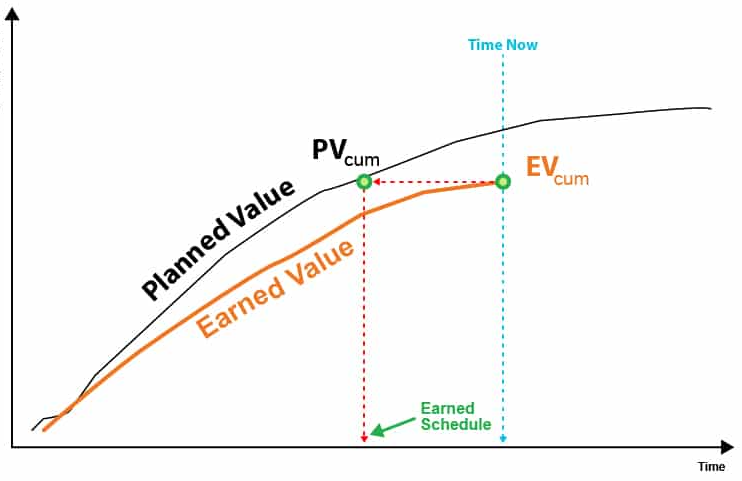
Typical Safran Frontline example:
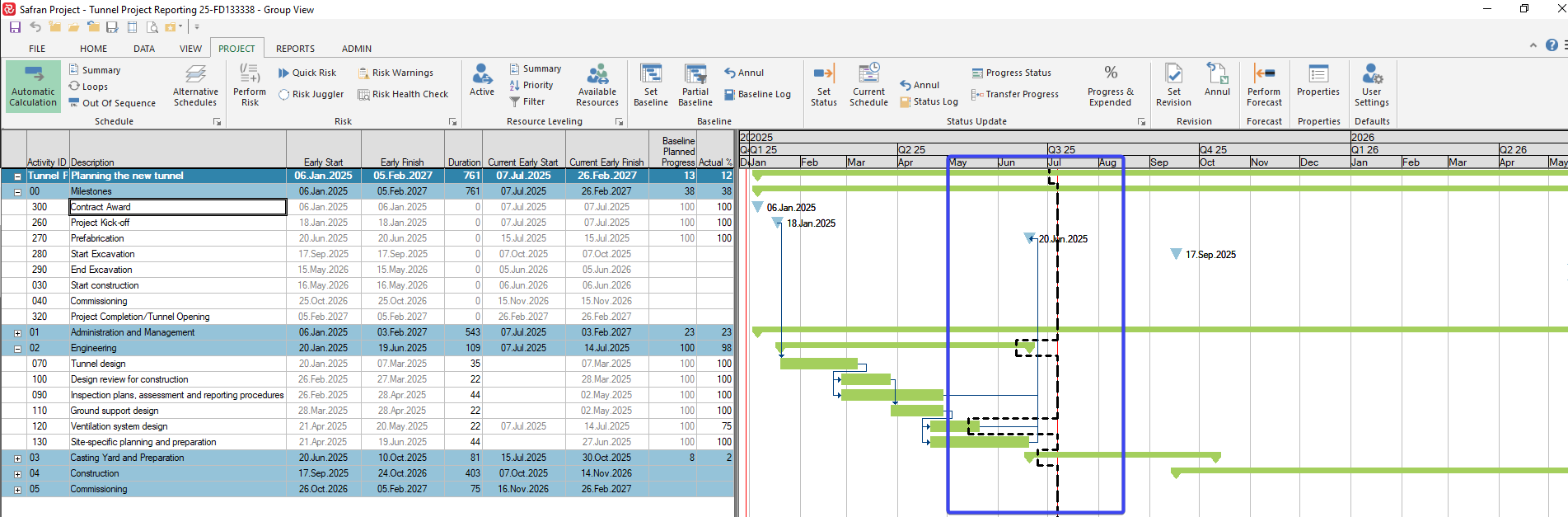
Viewing and configuring the Frontline
The Frontline is a part of the Barchart Editor functionality and may be both switched on/off and configured.
The Frontline facilities may be found on the Show section of the View ribbon where the Frontline check box turns it on/off.
Under Formats you’ll also find access to the Frontline configuration panel.
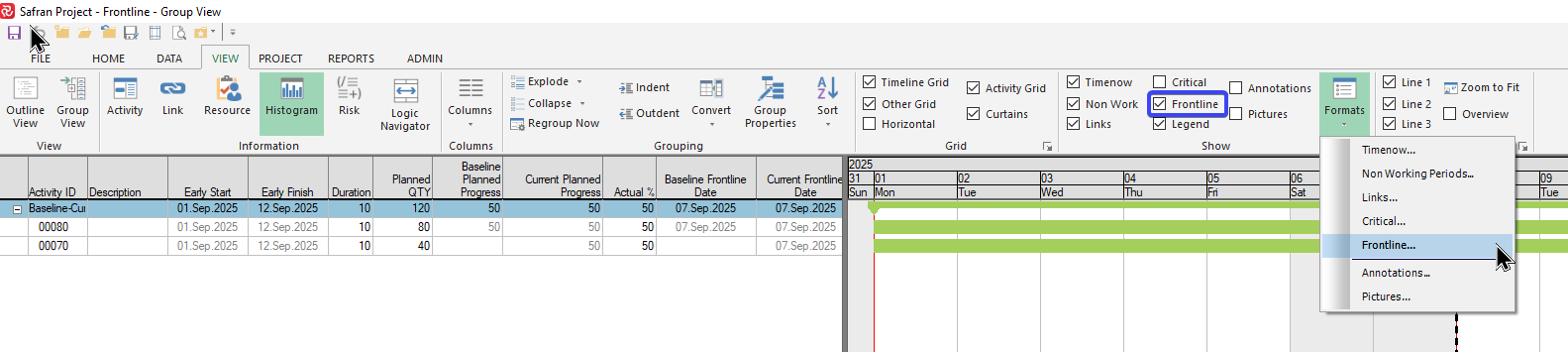
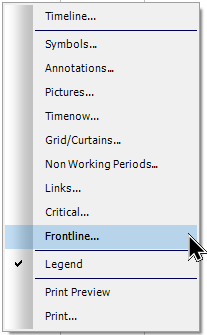
The panel is most easily accessed by doing a ‘right click’ in the bar area of the Gantt and selecting ‘Frontline’.
The configuration panel allows you to turn the frontline on/off, select a line style, color and thickness as well as being shown on the legend:
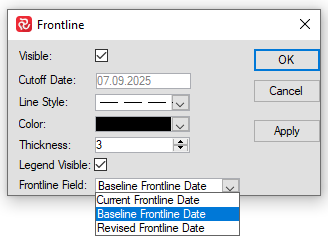
Keep in mind that your chosen ‘thickness’ is only applicable for ‘printed’ bar charts, i.e. Print Preview/Print/Save to file and not for the Barchart Editor view itself.
Most important is perhaps the choice of Frontline Field Current/Baseline/Revised which is discussed in detail further below.
How the frontline is calculated
In short, the frontline tells you at what point in time should you have achieved the progress you have entered. The frontline is calculated on an activity-by-activity basis and is based on the resource (or resources) for the activity.
In its simplest form and in most cases, an activity will have one resource. Again, in it’s simplest form and in most cases the resource is distributed linearly (the same amount of hours per day or duration unit).
Consider the following simple example:
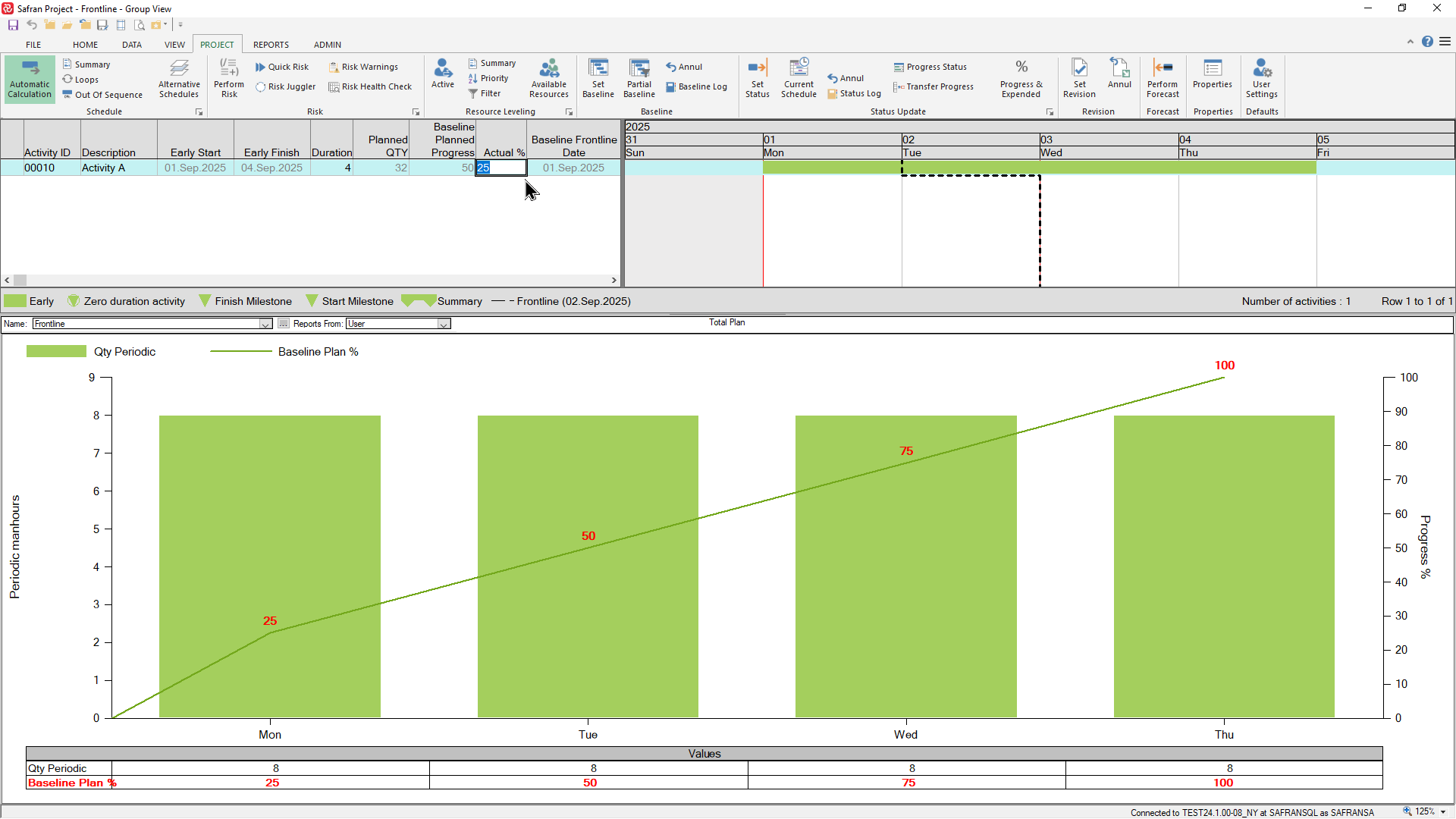
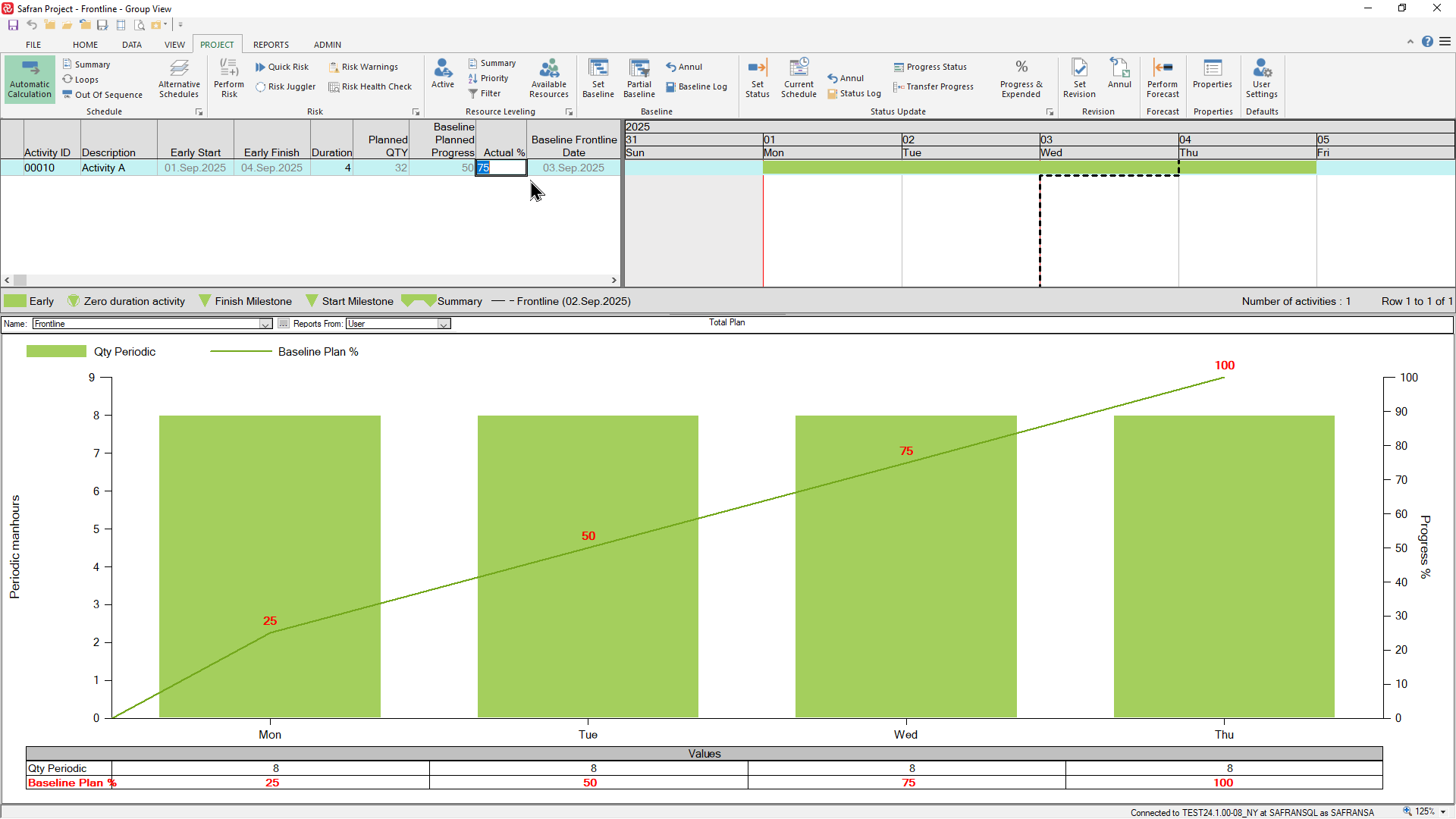
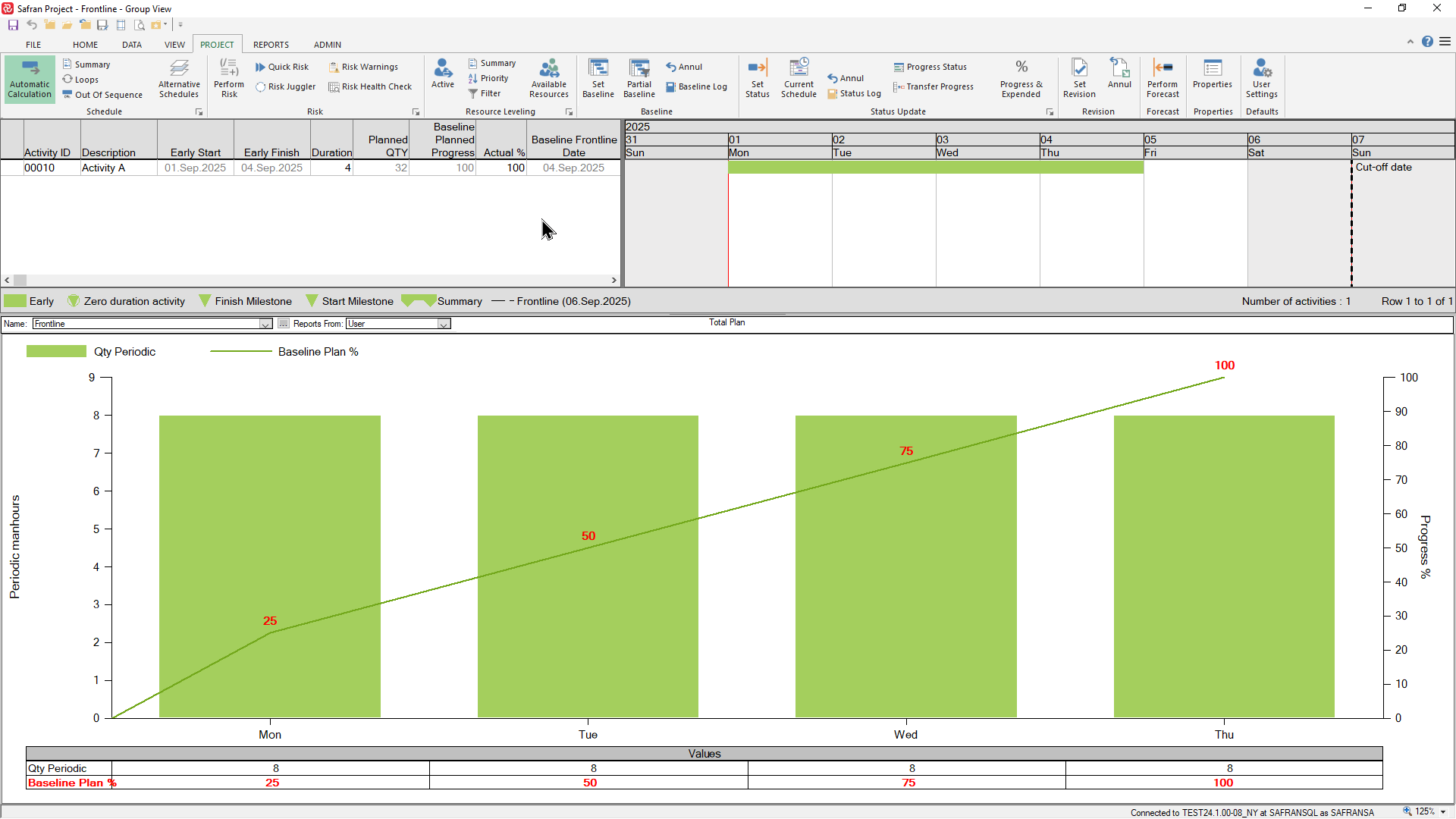
An activity has a duration of 4 days and a single linear resource of in total 32 hours (8 hours per day). In this case, and for the sake of simplicity, the project has daily Cut-offs, and the activity starts on a Monday.
The histogram below the Gantt shows the cumulative planned progress % for each day.
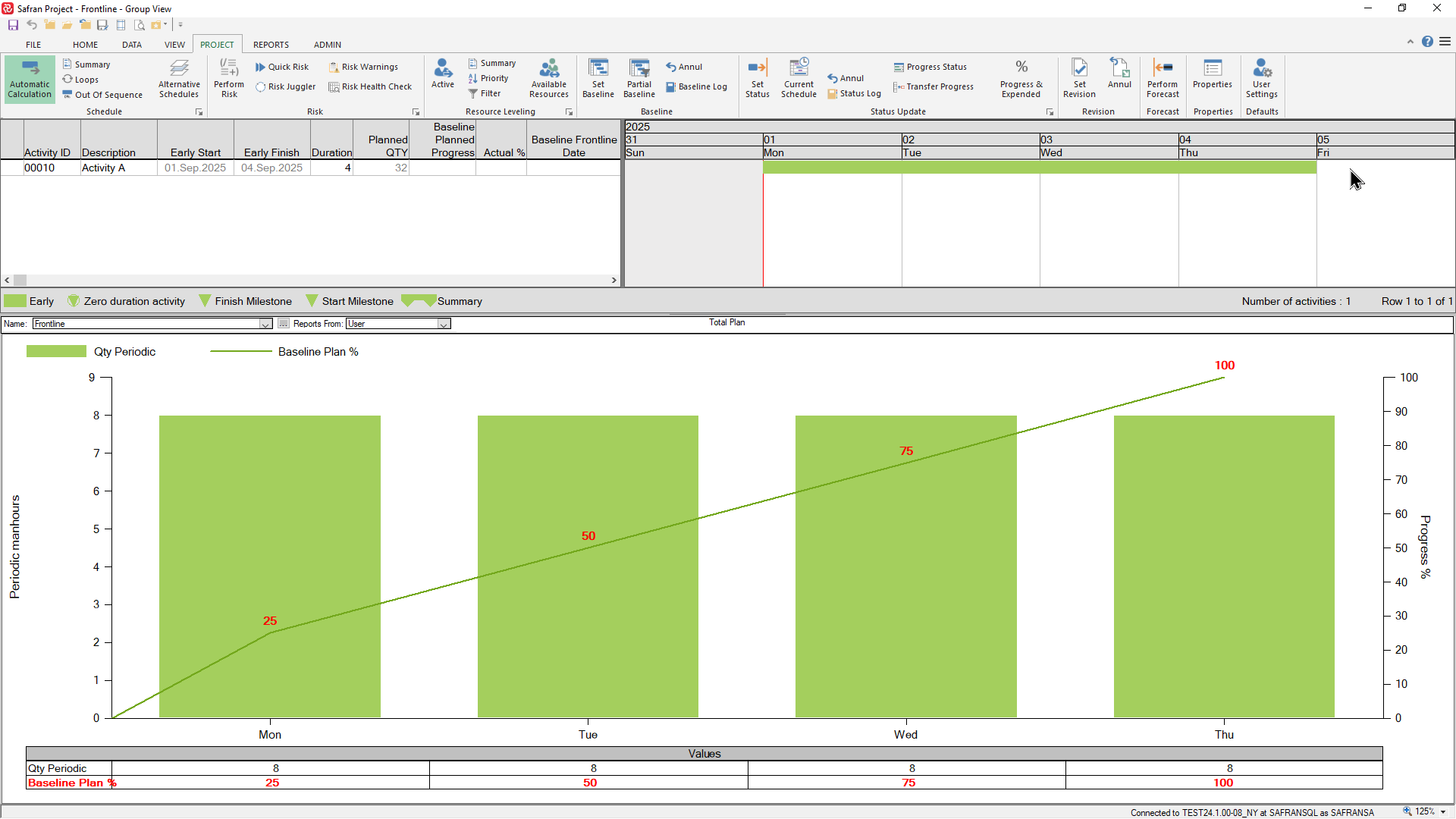
If the cut-off date is Tuesday and the activity is 50% complete ie. on-schedule, the frontline date will be drawn adjacent to the cut-off date and the calculated frontline date will be equal to the cut-off date.
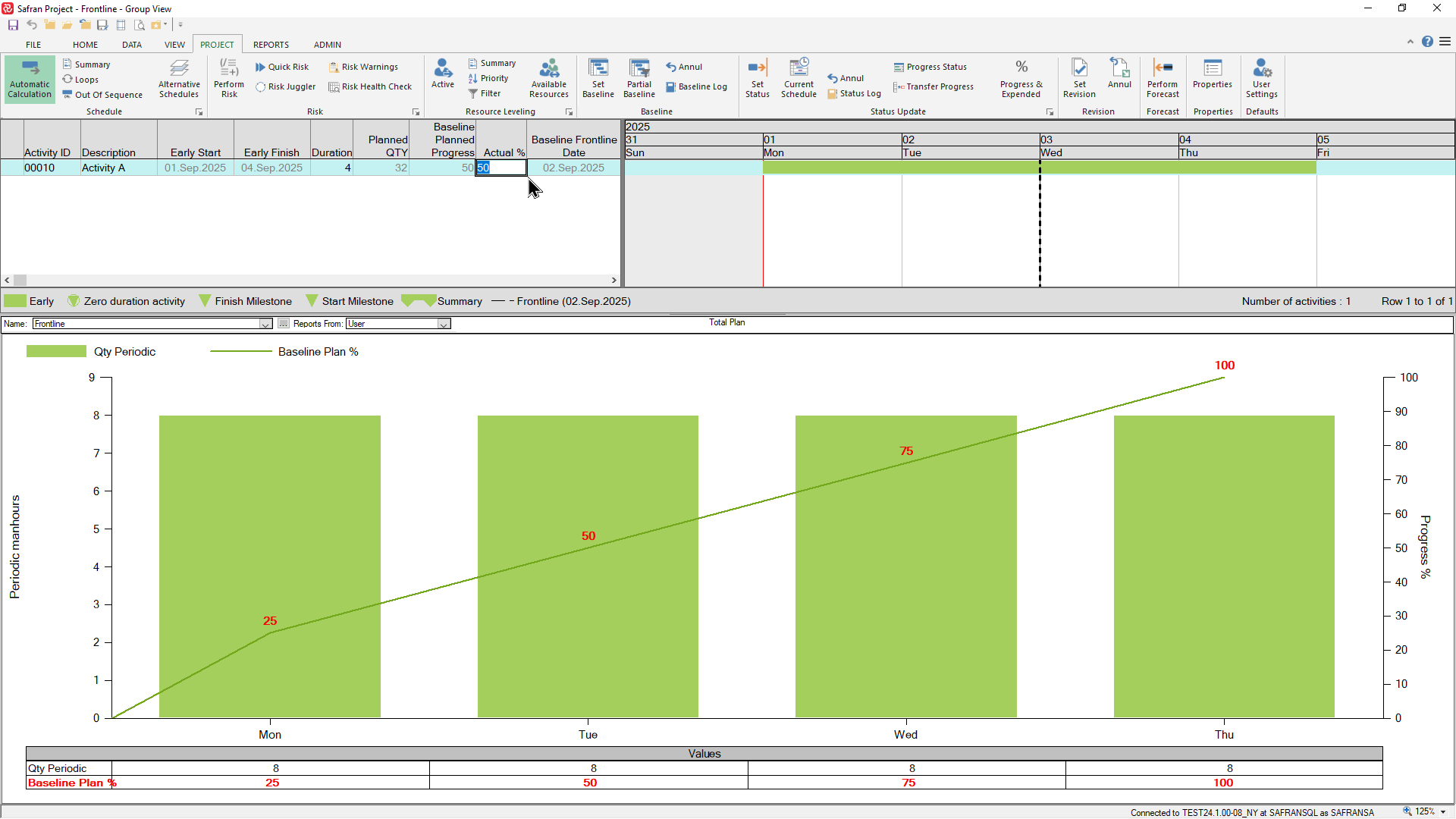
If the activity is 25% complete at the same cut-off and therefore behind schedule, the frontline will be drawn to the left of the cut-off date, and the frontline date will be set to the end of Monday.
Similarly, if the activity is 75% complete and ahead of schedule, the frontline will be drawn to the right of the cut-off date and the frontline date will be set to the end of Wednesday.
Finally, if the activity is 100% and the cut-off date is later than the finish date for the activity, the frontline will be drawn adjacent to the cut-off date.
Although the above example highlights the basic theory based on the simplest possible case, ie. one activity with one linear resource, the frontline date is calculated in the same manner for an activity with a ‘profiled’ resource.
This could be either due to the use of a profile set/profile with a non-linear distribution or multiple ‘scheduled’ resource elements (multiple resource elements with varying lag/duration).
The above is also valid for frontlines/frontline dates drawn at any group/summary level.
In natural fact, Safran aggregates the total QTY/scope for the group of activities/resources on a period by period basis to find the cumulative planned progress % for each period. This is then compared to the cumulative Actual progress % to find the correct Frontline date.
Even though the basic concept is fairly straightforward, there are a still few things to keep in mind/be aware of.
Frontline and Milestones
In earlier versions of Safran the recommendation was to ensure that all milestones had a resource with a minute QTY so that the frontline for a group of milestones would be calculated/presented correctly at the group level. This is no longer required as Safran now handles this internally.
Baseline/Current/Revised Frontline Field
The frontline is by default presented based on the Baseline plan and scope, however since it’s also calculated for the Current plan/scope and Revised plan/scope you can choose which plan/scope to base the frontline on in the barchart editor.
Choosing to show the Current frontline is quite useful as your project progresses as new activities are inevitably added after you have saved or revised your baseline.
New activities will obviously, at that point in time, not have a baseline schedule/scope. Due to this Safran is not able to calculate either the baseline planned progress or baseline frontline date.
If you choose to draw the baseline frontline on the barchart for such activities, you’ll notice that it is drawn incorrectly as it does not reflect any progress.
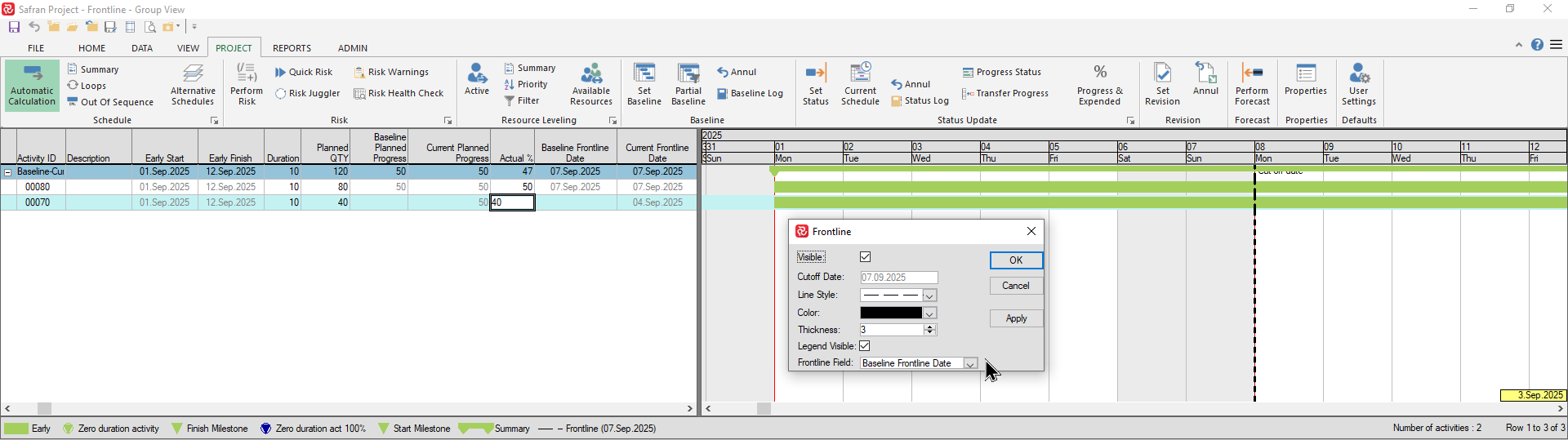
Choosing to show the Current frontline is often therefore a better option:
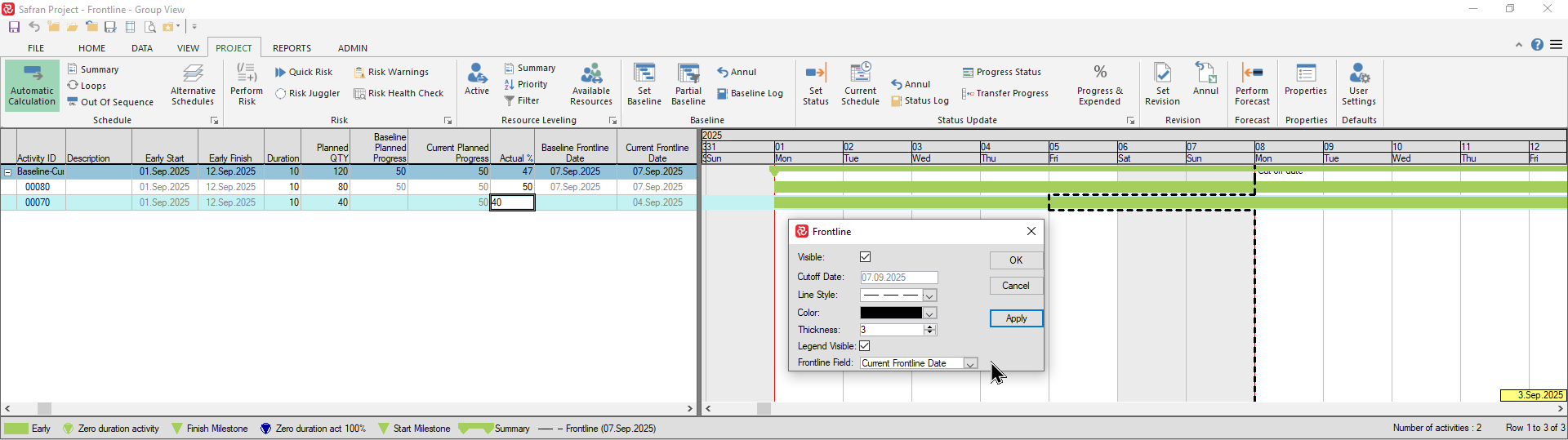
Frontline/Frontline date re-calculation
You'll probably notice that while the Frontline/Frontline date is immediately re-calculated at the activity level when you enter/modify the Actual % field, the same for any group/aggregated level will still remain un-changed.
This is due to the fact that Safran only re-calculates this type of information as a part of the Status Update process.
To ensure consistency at group/aggregated levels please remember to re-run the Status Update process when entering/modifying Actual %.
‘On schedule’ Frontline placement for Non-working/Vacation periods
For activities in progress that are on schedule and that span a non-working or vacation period, the frontline date will be slightly adjusted.
Consider an activity with a 10-day duration following a 5-day workweek calendar (sat/sun off) with an Actual % of 50%.
As per the definition of the frontline, ‘the point in time at which the current progress should have been achieved’, the frontline should be drawn at the end of the first Friday as this is the day the Actual% should have been achieved. However, according to client consensus, the frontline in this case will in fact be drawn adjacent to the Cut-off date.
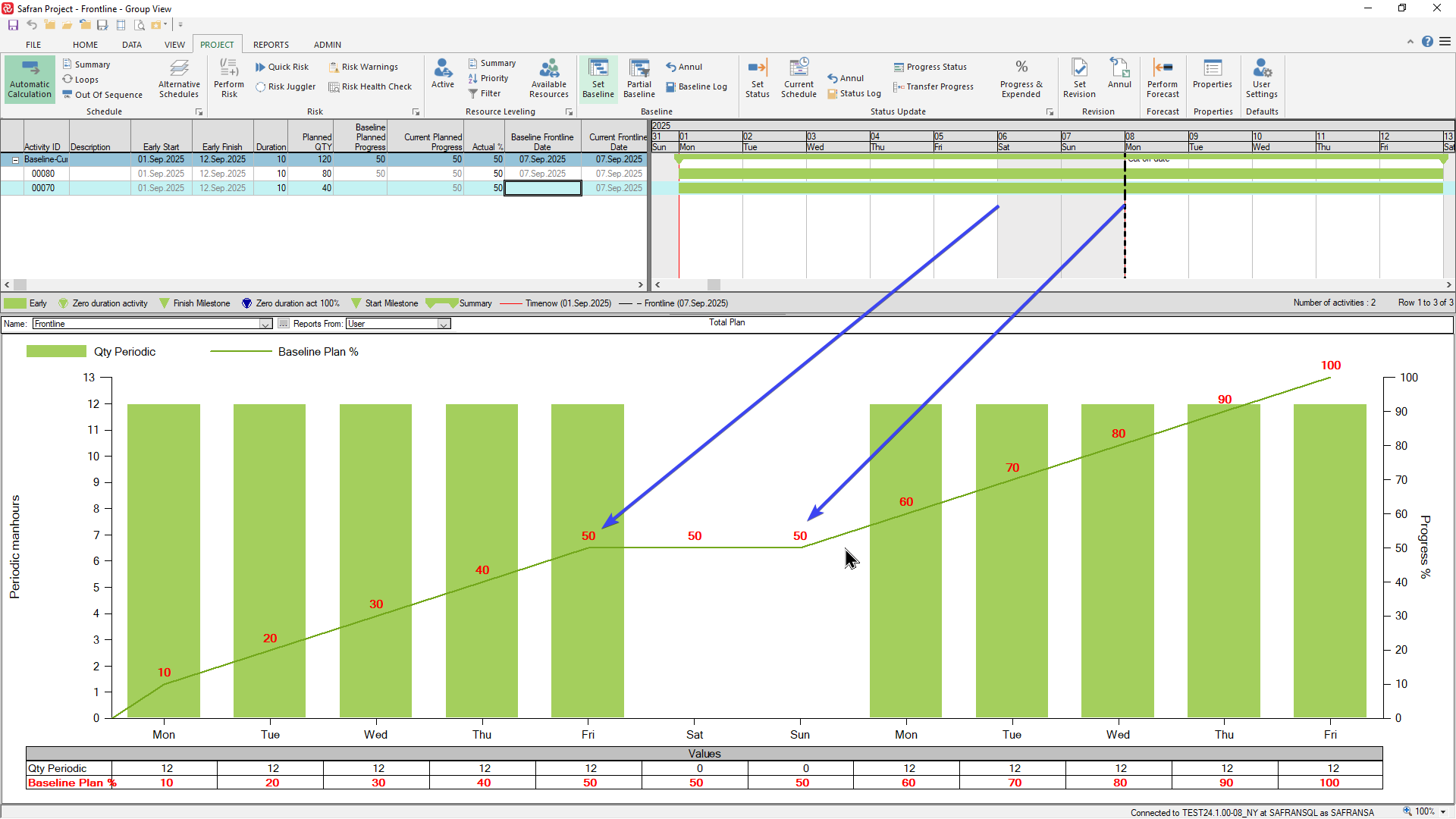
This effect is even more visible when an activity spans a longer non-working period such as Easter holidays or summer vacation.