#Features and Functions: Export data
Version: V26.0 (Beta)
Back To: Index
Export Data
Use this feature to pull specific project risk data out of the system for external reporting or offline review. Below are the main steps in this workflow:
Step 1: Navigate to Export
Click the Export menu on the side navigation panel.
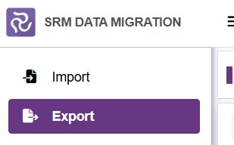
Figure 2.1
Step 2: Select Target Project
Choose your desired project from the project drop-down menu.
Step 3: Understand Risk Categories
Step 3: Understand Risk Categories
Note that the project risk data is separated into 5 distinct categories: Risk Identification, Risk Source, Risk Impact, Risk Actions, and Risk Controls (Figure 2.2).

Figure 2.2
Step 4: Toggle Column Visibility
Observe that all columns are visible by default. To hide or show specific columns, open the respective category drop-down menu and deselect or select the individual column titles. The data grid will instantly refresh to display or hide the columns based on your selection (Figure 2.3).
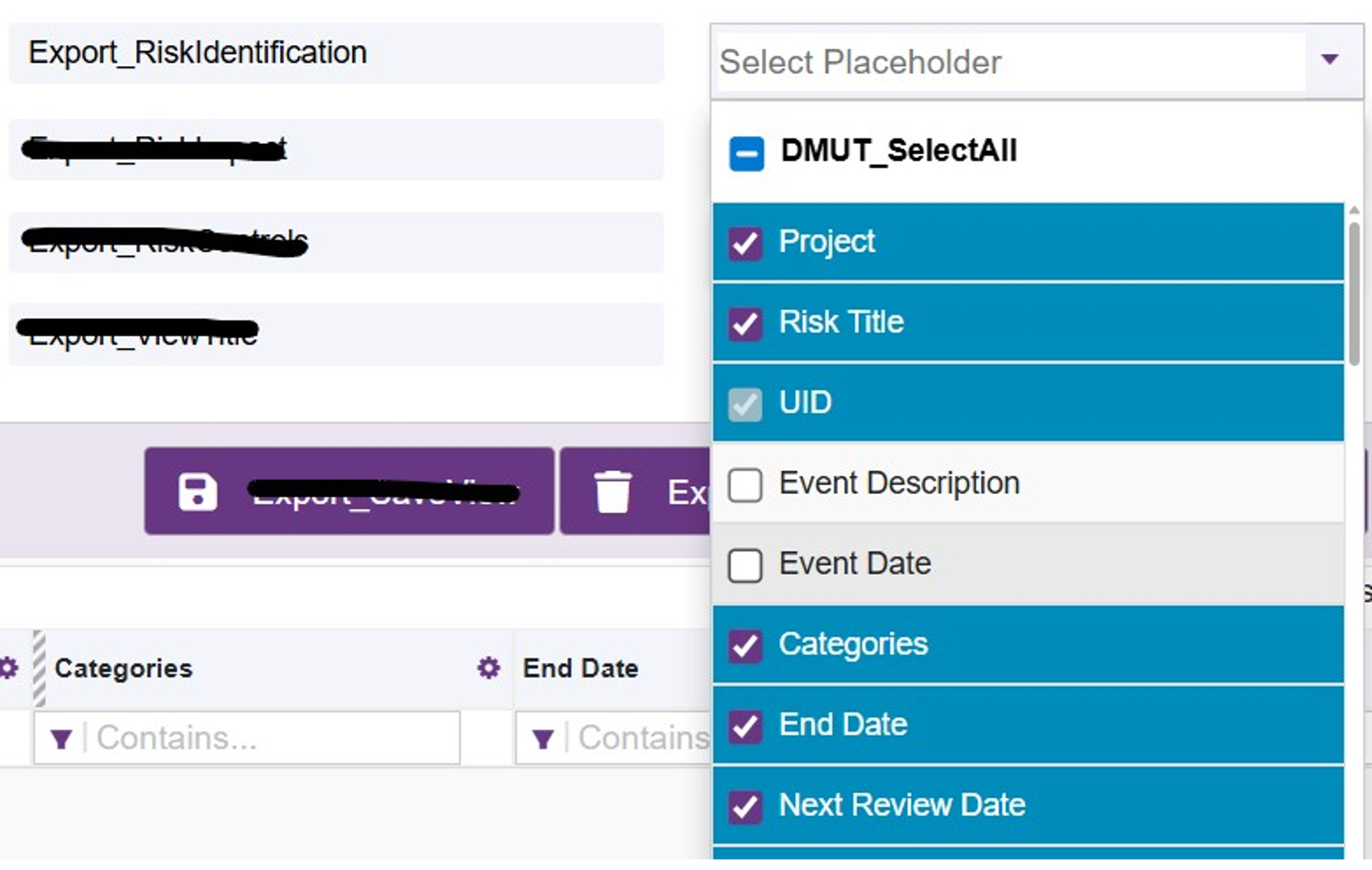
Figure 2.3
Step 5: Rearrange Column Order
Reorder your data columns using one of two methods:
- Drag and drop the column headers directly within the data grid.
- Drag and drop the column titles inside their respective category drop-down menus
Step 6: Save Custom Views
Click the Save View button to lock in your visibility preferences and column order for future use. Provide the name of this view layout in the View Title textbox (Figure 2.4).
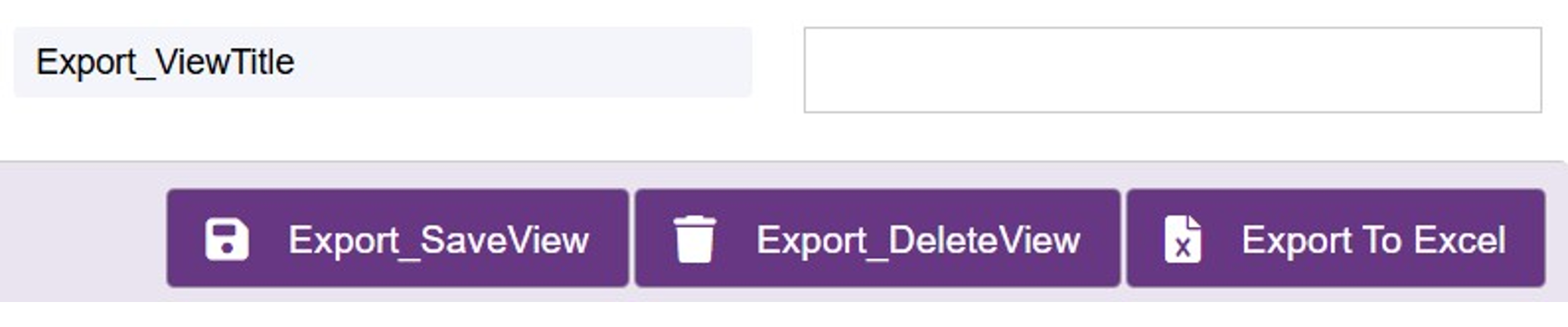
Figure 2.4
Step 7: Load Saved Views
Apply your customized layouts to any project data by selecting your saved view name from the view drop-down menu (Figure 2.5).

Figure 2.5
Step 8: Delete Custom Views
Remove selected layout from your profile at any time by clicking the Delete View button.
Step 9: Execute Tailored Export
Click the Export button to download your data into an .xlsx file. The exported spreadsheet will perfectly preserve your customized column order, including only the visible columns selected.
Next: Conclusion
Previous: File Import and System Re-Import Workflow
Back to: Index