# Access — Users, Teams & Roles
Version: V26.0 (Beta)
Back to: Index
Overview
The Access section is where all user management takes place. It contains five tabs covering the full spectrum of user access configuration.

Tabs
| Tab | Description |
|---|---|
| User Userlist | View and manage all users in the system |
| User Teams | Create and manage teams of users |
| Access Roles | Define roles and the permissions they carry |
| Access Claims | Manage specific access claims assigned to roles |
| Licence Admin | Allows users with licence management rights to control and validate licences |
User Userlist
The User Userlist provides a complete view of all registered users along with a summary dashboard showing the count of users per role.

At the top of the user list, a row of summary cards shows how many users are assigned to each role.
User List Table
| Column | Description |
|---|---|
| Full Name | The user's full name |
| Email Address | The user's login email address |
| Telephone Number | Optional contact number |
| Function | The business function assigned to the user |
| Is Active? | Whether the user account is currently active |
| Is Locked? | Whether the user account has been locked |
Action icons per row:
- ✏️ Edit — modify user details
- 🗑️ Delete — remove the user
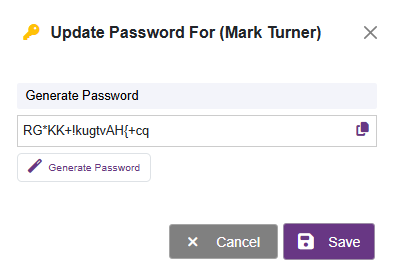
- 🔑 Key — manage the user's password
To manage a password, either add a user created password, or use the generate random password option to create a password which is compliant with the password requirements.
Adding a New User
- Click Add new (top right).
- Complete the user details form including name, email, function, and role assignment.
- Set the user as Active.
- Set a function (optional)
- Ensure that at least one Role is set (mandatory)
- Click Save.
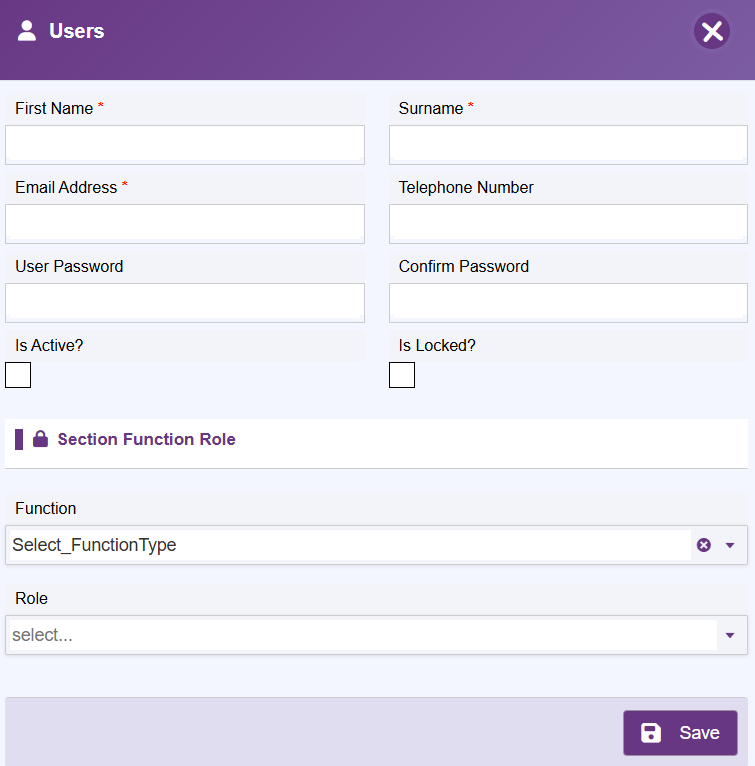
Note: The email address is used as the login credential. Ensure it is correct before saving.
User Teams
Teams allow users to be grouped together for simpler allocation to projects.
- Click the User Teams tab.
- Click Add new to create a team.
- Add a Team Title and a Team Description and press Save
- Once a team has been created, select it to add team member
- Identify the team member to add
- Press the '+' add button to register the choice
- Click Save.
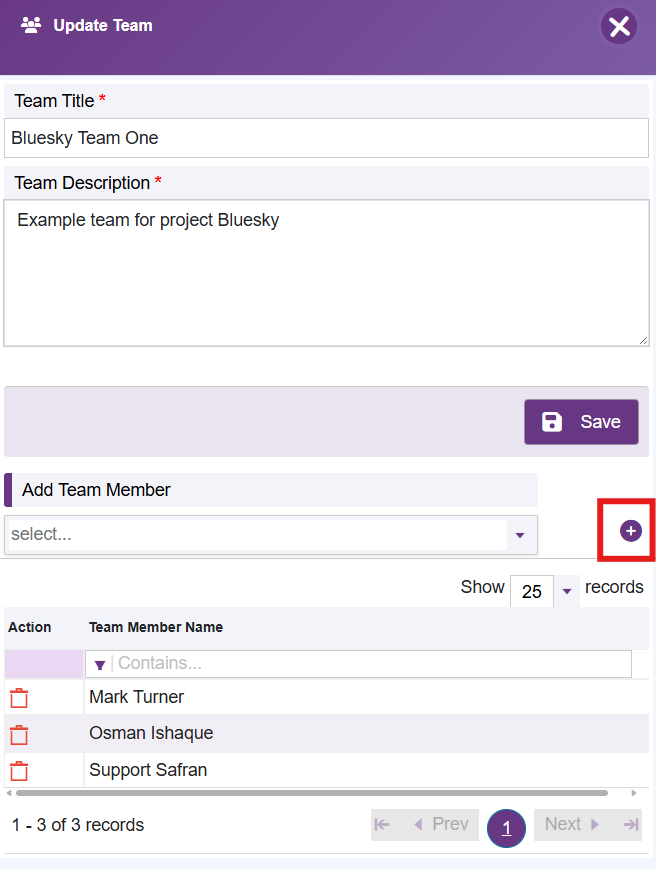
Once a team has been created and team members added, then the team can be selected by a project, rather than having to add names individually.
Access Roles
Access Roles define what actions users with that role can perform within the system.
The following are the preconfigured examples:
| Role | Description |
|---|---|
| Super Project Admin | Full access to all projects |
| Super Administration Admin | Full access to the Administration area, including licences |
| Configuration Admin | Access to configure system settings (not licences) |
| Risk Manager | Can manage assigned projects and approve risks |
| Deputy Risk Manager | Supports the Risk Manager role |
| Normal User | Standard project team member, can manage risks and actions |
| Basic User | Limited view and input access |
| Read Only | Can view but not edit any data |
| Portfolio Viewer | Read-only access across portfolio-level reporting |
| Company Manager | Management-level overview access |
New Custom Roles
Pressing the Add New will enable Admin to add new custom roles with bespoke capabilities.
First, create the name and description of the new role and press Save.
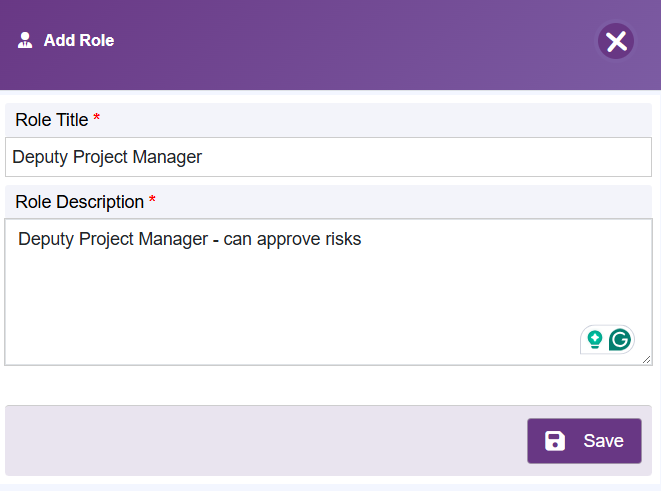
Once created, select the new role from the list using the Edit icon.
Choose the claims that the new role is able to access.
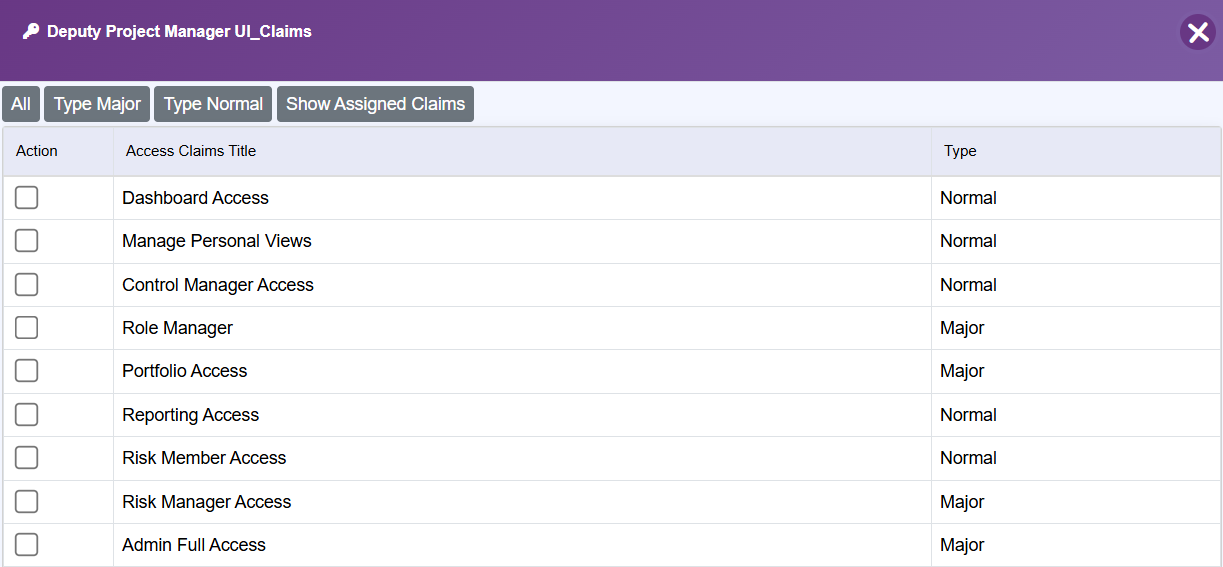
Remember that the 'Type' indicates the licence type required for the claim. It is necessary to ensure that the organisation has purchased the correct number of licences for the role before the role is allocated to a person. Exceeding the allocated number of licences will result in users not being able to use the product.
Access Claims
Access claims is for information only. It indicates the type of licence defined by Safran for each of the access setting types. This can only be changed by Safran.
Manage Licence
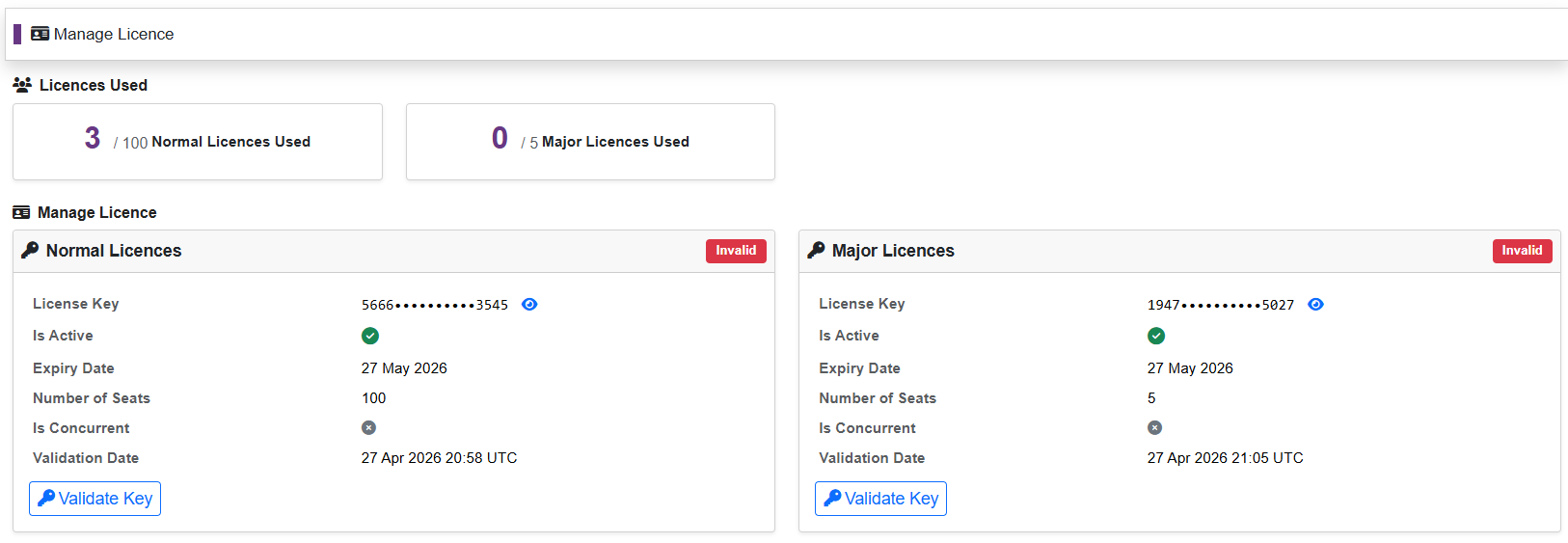
This section is only accessible by users with the Super Admin. It enables the management of the licence keys, and provides information about the purchased and deployed licences.
Any overuse of licences will be indicated here.
Next: 09-settings
Previous: 07-risk-score
Back to: 00-Index