# Settings
Version: V26.0 (Beta)
Back to: Index
Overview
The Settings section contains system-wide configuration options that control the look, feel, and behaviour of Safran Risk Manager across the entire organisation. It is organised into seven tabs.

Tabs
| Tab | Description |
|---|---|
| Company | Help contact details, cultural settings, and password configuration |
| Company Branding | Enables logo, images and colour branding to be applied |
| Email Templates | Configure automated email notifications |
| Custom Fields | Define additional data fields for risk records |
| Localisation | Translate and customise labels throughout the application |
| FAQ | Manage frequently asked questions shown to users |
| Auth Settings | Authentication and SSO configuration |
Company Tab
The Company tab is the default view and contains three sub-sections.
Help Contact Details
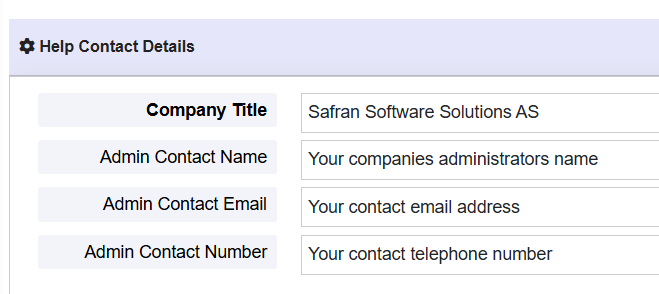
These fields define the contact information shown to users when they need help (the '?' icon displayed from the main menu).
| Field | Description |
|---|---|
| Company Title | The name of your organisation (e.g. Safran Software Solutions AS) |
| Admin Contact Name | The name of the system administrator |
| Admin Contact Email | The administrator's email address |
| Admin Contact Number | The administrator's telephone number |
Cultural Settings
These settings control language and formatting behaviour throughout the application.
| Field | Description |
|---|---|
| Company Language | The default language for the application (e.g. English) |
| Date Format System | The date display format (e.g. dd/MM/yyyy) |
| Decimal ID | The decimal separator character (e.g. . (dot) or , (comma)) |
Note: The decimal ID is for values less than 1. e.g. 0.5.
The digit group separator (thousands separator) is determined by the language format. e.g. for English = 10,000 and for Italy = 10.000
Password Configuration
Defines the password policy applied to all user accounts.
This includes the minimum password length, whether to use special characters (&*%) and whether to use alphanumerics (numbers and letters).
Time Out and Page Settings
Set the amount of time of inactivity before the system logs the user out. Time is set in minutes.
Where multiple pages are to be loaded, such as the risk register or the my risk list, the default number of records per page can be set here.
Link to Previous URL
This section allows for a hyperlink to be created to take users to a previous version of the tool.
Company Branding
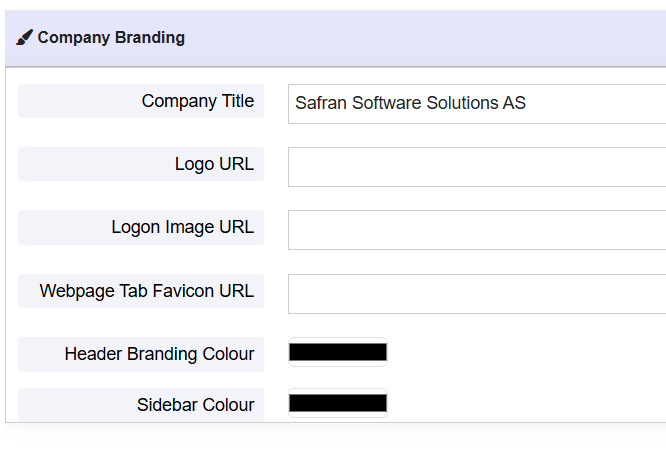
The Company Branding page enables the Admin to configure certain elements of the tool to reflect the branding of the users company, including their logo, the logon page, the browser tab favicon and branding colours.
Use of locally saved universally accessible images are required.
Email Templates Tab
Email Templates allow administrators to configure the content for automated email notifications (e.g. risk review reminders, action due date alerts).
The query driving these emails is currently fixed. The following emails are available to configure:
| Email Name | Email Description |
|---|---|
| Action Completion Overdue | The action completion date has been exceeded |
| Action Not Started On Time | The action start date has been exceeded |
| Action Summary | A summary of the owners actions |
| Risk Completion Exceeded | The date assigned for risk end date has been exeeded |
| Risk Review Overdue | The next risk review date has been exceeded |
| Risk Summary | A summary of the owners risks |
| Risk Date Exceeded | The date assigned for the risk to start (trigger date) has been exceeded |
Each template includes:
- Subject line
- Body text (supports placeholders for dynamic content such as user name, project name, risk title)
- Is Active Check this to display the email option to the user.
Custom Fields Tab
Custom Fields allow organisations to extend the standard risk record with additional data fields tailored to their specific reporting or governance needs.
Custom field types may include:
| Type | Description |
|---|---|
| Checkbox | Enables a true / False chaeck box |
| Date | A standard single day date via a calendar selector |
| Integer | A whole number numerical value |
| Option Set | Radio buttons, where only one can be selected |
| Text Area | A multi-line text area which can be expanded |
| Text Box | A single-line text area of fixed height |
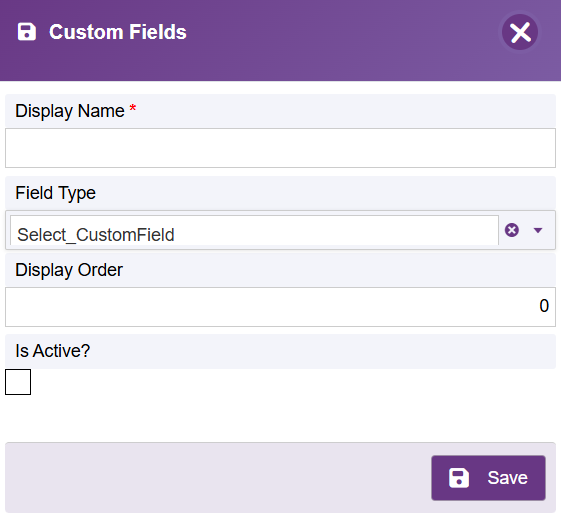
Each custom field definition includes:
- Field name / label
- Field type
- Whether it is mandatory
- Which record type it applies to (e.g. Risk, Action)
- IsActive? If selected (true) then it is visible to users
Localisation Tab
The Localisation tab allows administrators to override the default label text used throughout the application. This is useful for organisations that use different terminology (e.g. calling "risks" something else, or translating into another language).
Each entry shows:
- The default label used by the system
- An override value field to replace it with your preferred terminology
- Code is used to uniquely identify the localisation field.
If a field within the tool looks like a code, such as "UI_EMAIL_TRIGGER_TITLE" then this indicates the localisation has not been set. Copy the code into the code field and provide the required labels to populate it.
FAQ Tab
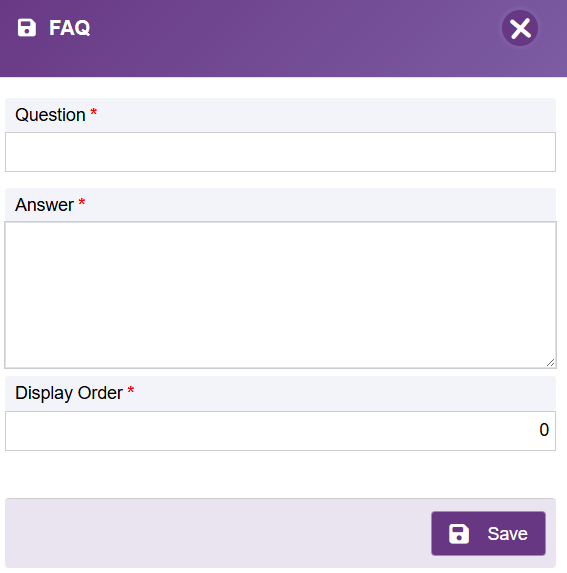
The FAQ section allows administrators to create a set of frequently asked questions and answers that are displayed within the application to help users. This can reduce support burden by providing in-app guidance.
Populate the Question and Answer, along with the order of appearance.
Authorisation Settings Tab
The Authorisation Settings tab contains two sections:
- Configuration for log in authentication methods
- Settings for local email configuration
Note: Changes to authentication settings should only be made by a qualified system administrator familiar with the organisation's identity management infrastructure.
Authorisation Settings
The default method is set to "Forms" which uses the account holder's username and password. Unchecking the User name and password will remove this option from the login page, but it must be replaced with an alternative single sign-on method.
Select the desired single sign-on method used by your organisation.
Methods which can be used include:
- Microsoft Entra
- SAML
- ADB2C
Once the SSO has been selected, the appropriate setting box will be presented. Complete all of the fields.
Only qualified Admins should make changes to Authorisation Settings as errors in this setting could potentially lock all users out of the system. It is recommended that the user name and password method is retained until after the SSO has been configured and fully tested
SMTP Settings###
The SMTP settings enable the Administrator to configure how SRM interacts with the organisation's email system.
The default email is linked to Safran servers.
If the user wishes to have emails originate from their own servers, then complete all of the fields in the SMTP settings section.
Next: 10-manage-cache
Previous: 08-access
Back to:00-Index